Use Lookalike Audiences to expand your reach to more people that share characteristics with audiences you’ve already built.
Note: Lookalike Audiences do not work well with very specific audiences and a small total addressable market (TAM).
In this article, we cover:
- Alternatives to Lookalike Audiences
- How to approach Lookalike Audiences
- Create Lookalike Audiences
- Add Lookalike Audiences to Metadata
Alternatives to Lookalike Audiences
While Lookalike Audiences work great for B2C targeting, they are much less effective when doing B2B targeting.
Before adding Lookalike Audiences, consider duplicating your MetaMatch audience and using more broad criteria instead. For example, instead of exact job titles (e.g., Director of IT) use a keyword approach (e.g., IT).
By taking this approach, you are using MetaMatch to work around the fact that Facebook is not a B2B platform and their Lookalike Audiences are less effective at finding individuals based on similar business characteristics.
This approach should help expand your reach while reducing the negative impact to lead quality.
How to approach Lookalike Audiences
Tip: Stick to a similarity percentage of 1-3% for B2B targeting. Increasing the similarity percentage beyond that can waste spend and generate poor quality leads by showing ads to individuals that are far from being your target audience.
Expect to be more successful on LinkedIn than Facebook because LinkedIn is a B2B platform with the capability to find individuals with similar business characteristics.
Below, find good examples of audiences to use for your Lookalike Audiences:
- Existing customers
- Leads that converted into open opportunities
- Leads that converted on your demo landing page
- Contacts associated with closed/won opportunities
- Contacts associated with closed/won opportunities (use as an exclusion)
- Any audience that is performing well
Upon launching your campaign, the offer you use with your Lookalike Audience should match the offer used with the original audience (e.g., Content, Free Trial, Demo).
Create Lookalike Audiences
Lookalike Audiences must be created on the native ad channels.
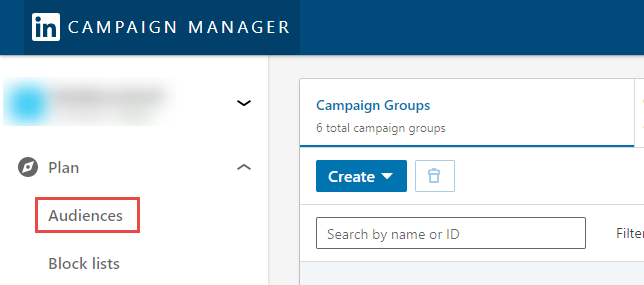
Go to the Campaign Manager.
Click Plan > Audiences on the left navigation.
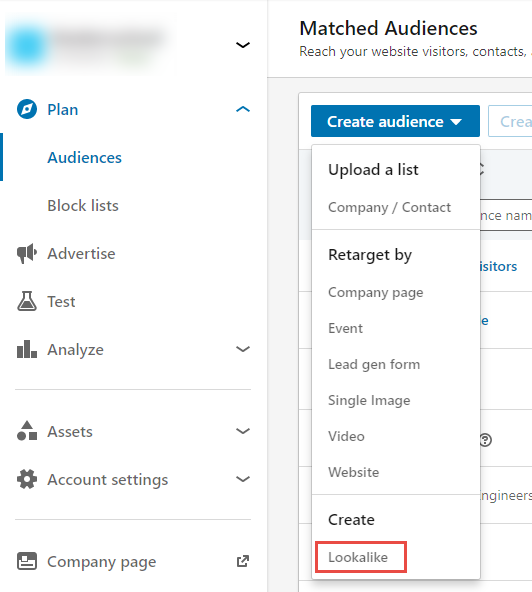
Click Create audience > Lookalike.
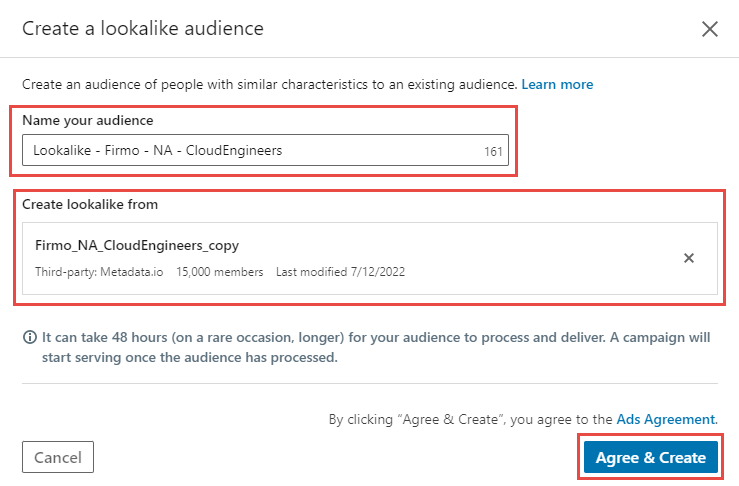
Enter your audience name.
Select your base audience.
Click Agree & Create.
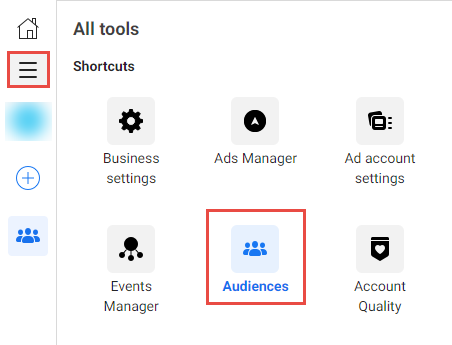
Go to the Ads Manager.
Click the menu icon on the left navigation.
Click Audiences.
Click Create Audience > Lookalike Audience.
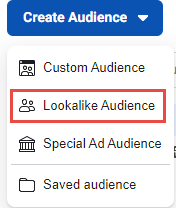
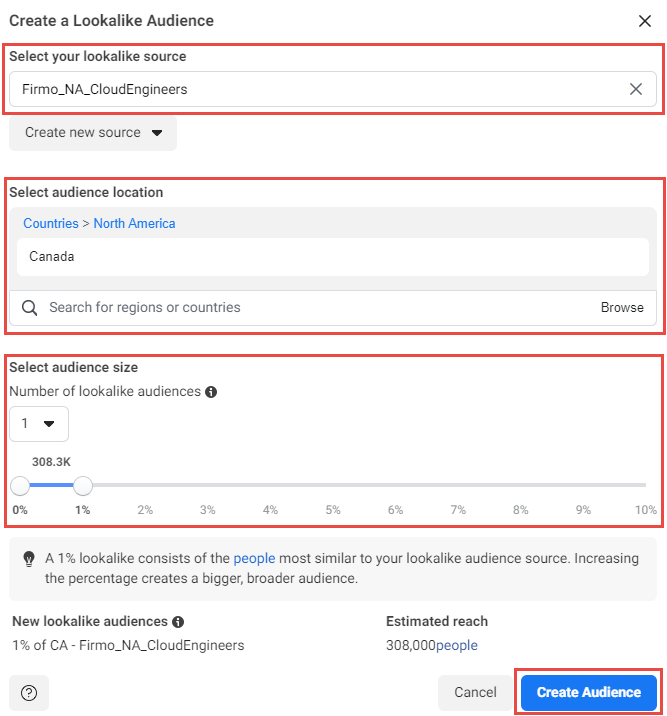
Choose your lookalike source.
Tip: Create Lookalike Audiences using your best-performing audiences.
Specify the target geos.
Choose an audience size.
Tip: Stick to a similarity percentage of 1-3% for B2B targeting. Increasing the similarity percentage beyond that can waste spend and generate poor quality leads by showing ads to individuals that are far from being your target audience.
Click Create Audience.
Add Lookalike Audiences to Metadata
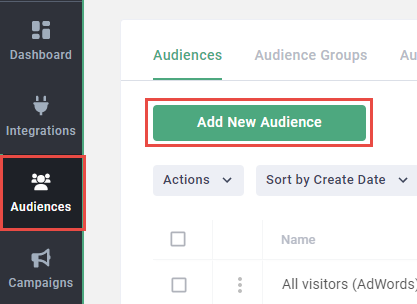
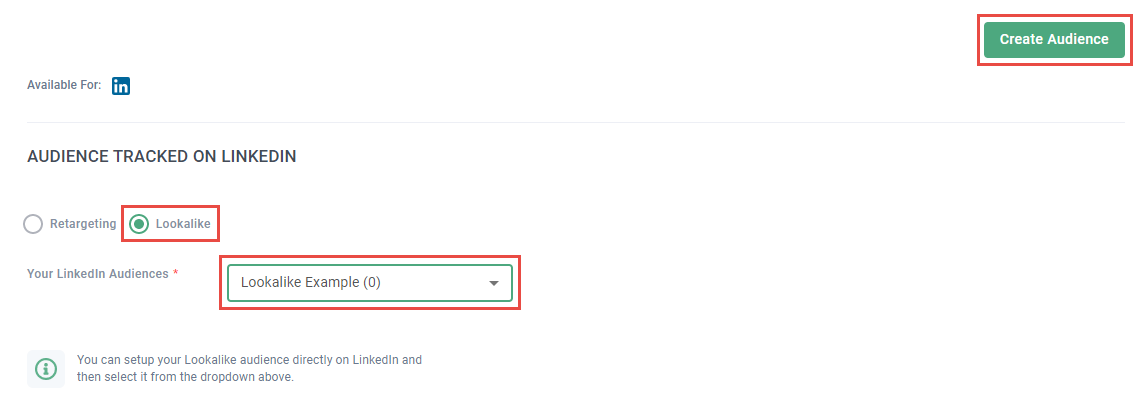
Go to the Audiences page.
Click Add New Audience.
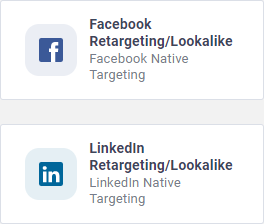
Click Facebook Retargeting/Lookalike or LinkedIn Retargeting/Lookalike.
Select Lookalike.
Choose a Lookalike Audience using the dropdown.
Click Create Audience.
Conclusion
Your Lookalike Audiences are ready! Add them to your next campaigns and optimize based on your KPIs.
If you have any questions, issues or feedback, please get in touch with our support team using support@metadata.io