On May 15th, 2024, we will introduce a newly designed Campaign Table and the New Ad Table in Metadata. This guide will walk you through the updates and offer helpful tips for navigating the new UI.
Table of Contents
Campaign Table
We've enhanced our platform's UI to boost consistency across all components and improve user functionality. While the core features remain intact, these enhancements make the user experience more intuitive and user-friendly.
Switching to Classic View
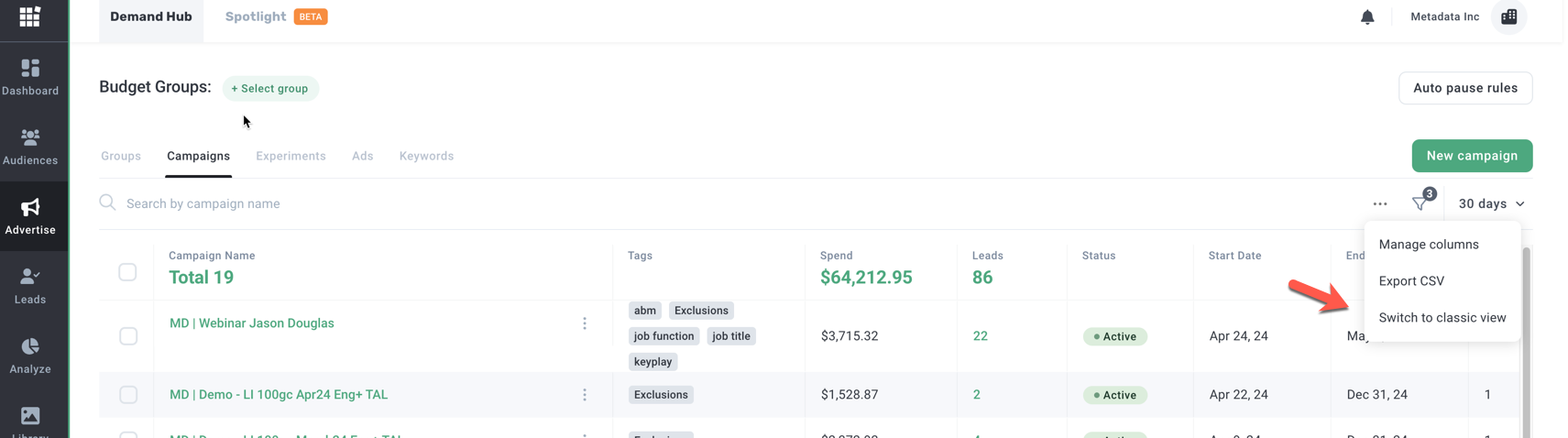
You can switch back to the classic view at any time by following these steps:
- Select the three dots to the right of the menu.
- Choose 'Switch back to classic.'
Core Functionalities
Filtering
To open the filter box and apply desired filters:
- Press F on your keyboard.
- Adjust the filters as needed. Filters will remain set as per your adjustments.
Campaign Actions Menu
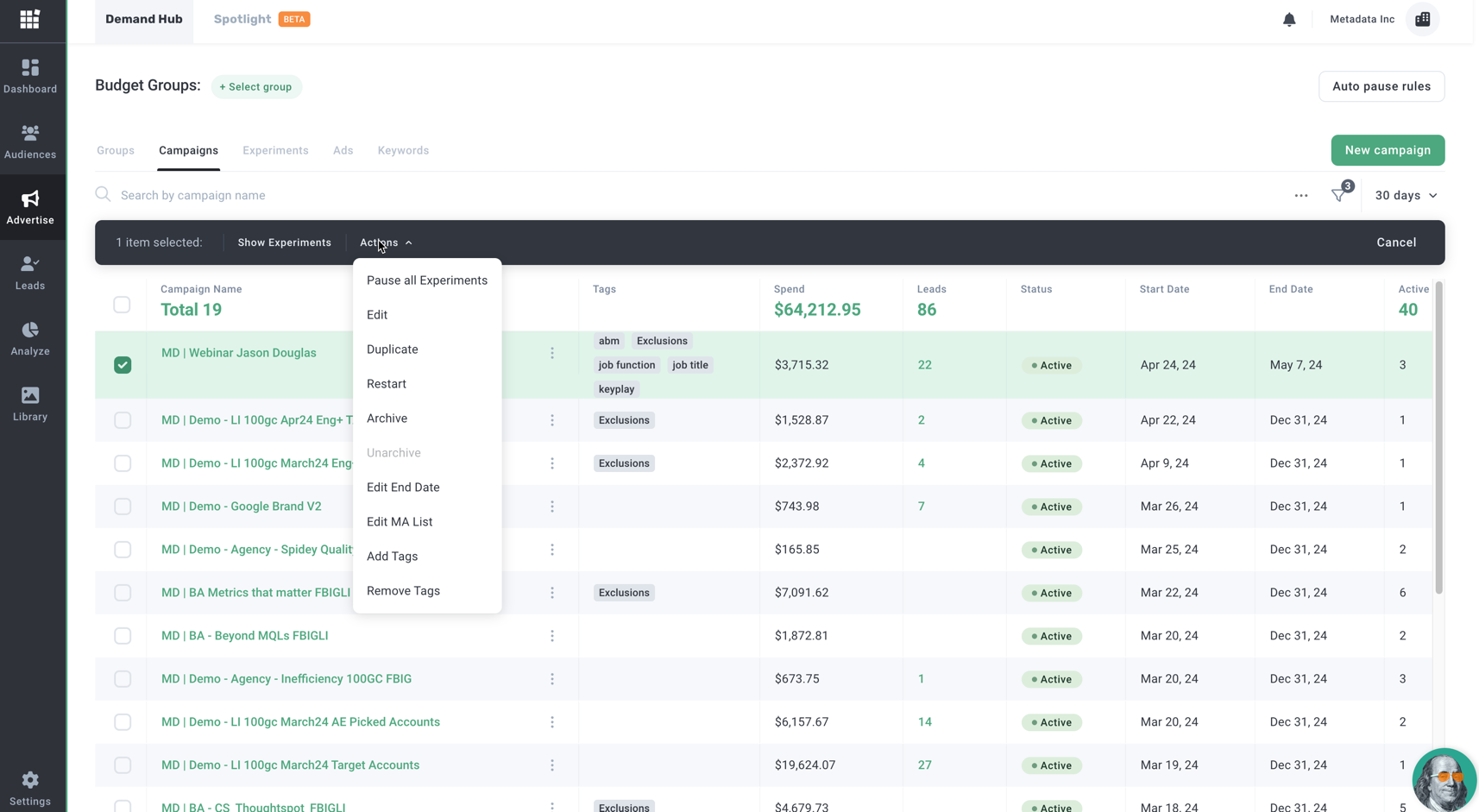
When you select campaigns, a new menu will appear, allowing you to display related Experiments and access the Actions menu.
Click image to enlarge
Adjusting Columns and Performance Time Frame
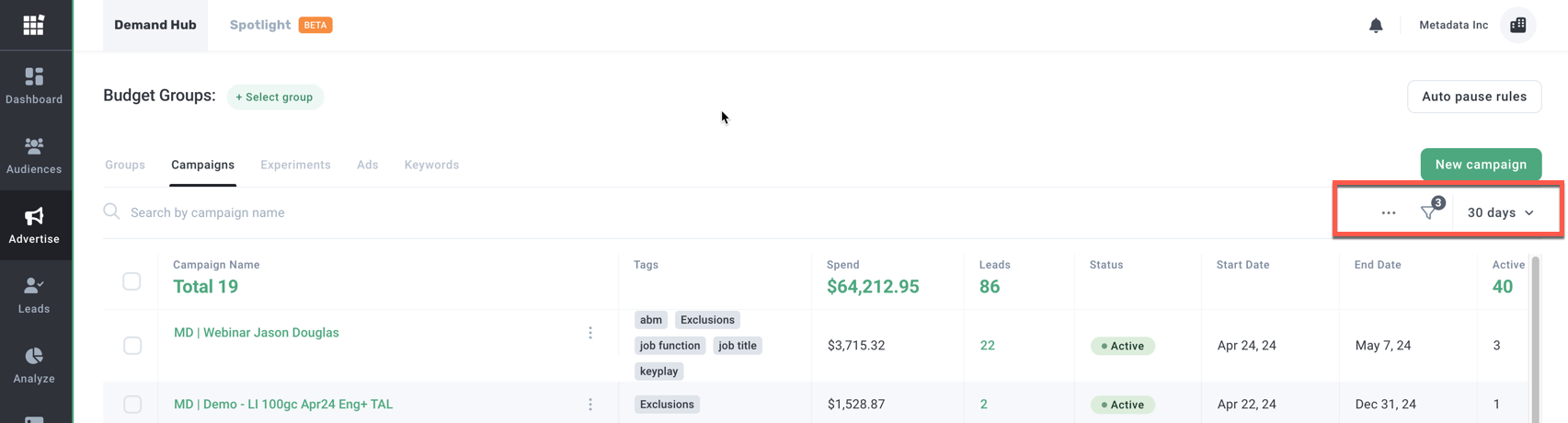
On the right side, you'll find shortcuts for:
- Adjusting columns
- Filtering
- Setting the performance time frame
Click image to enlarge
The three dots menu also includes shortcuts to:
- Manage columns
- Export selected data from the grid
- Switch back to the classic view
Click image to enlarge
Budget Group Performance
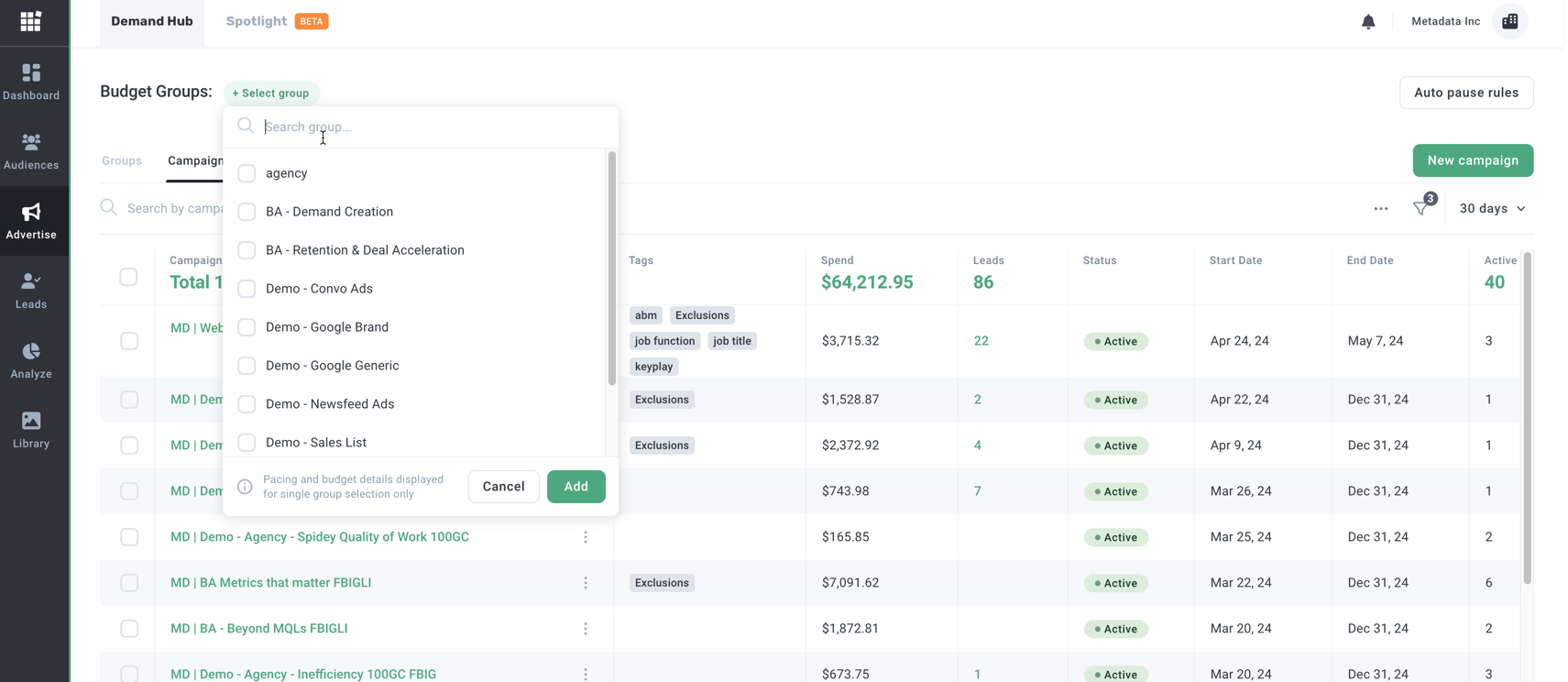
Select any related Budget groups to see at a glance how each group is performing:
Click image to enlarge
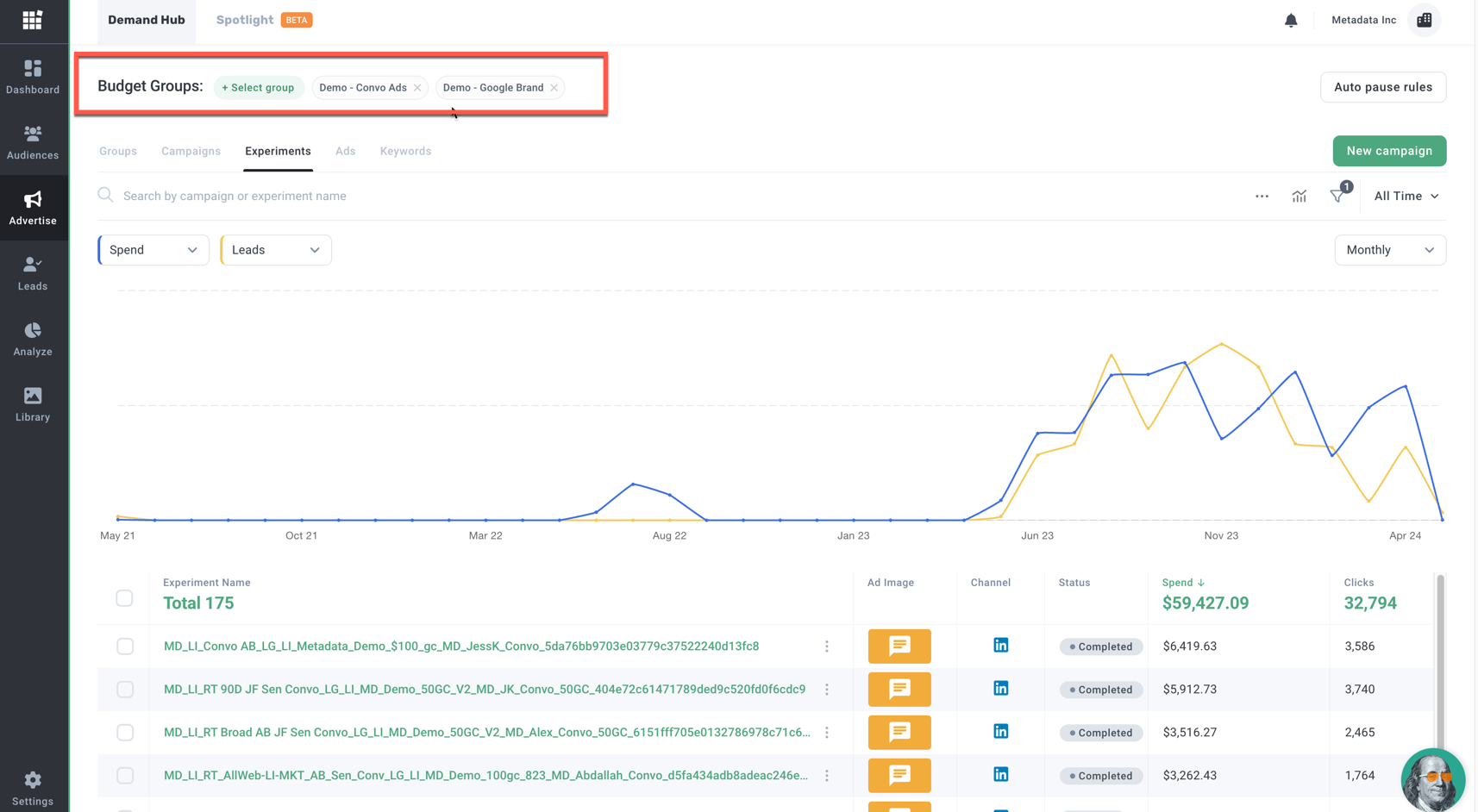
You can also choose multiple Budget Groups to view their collective performance under the Experiments table:
Click image to enlarge
Ad Table
With this release, we will also be introducing the Ad Table where you can at a glance see how Ads are performing, pause/enable Ads, filter based on status, and other related criteria.
Viewing Ad Performance
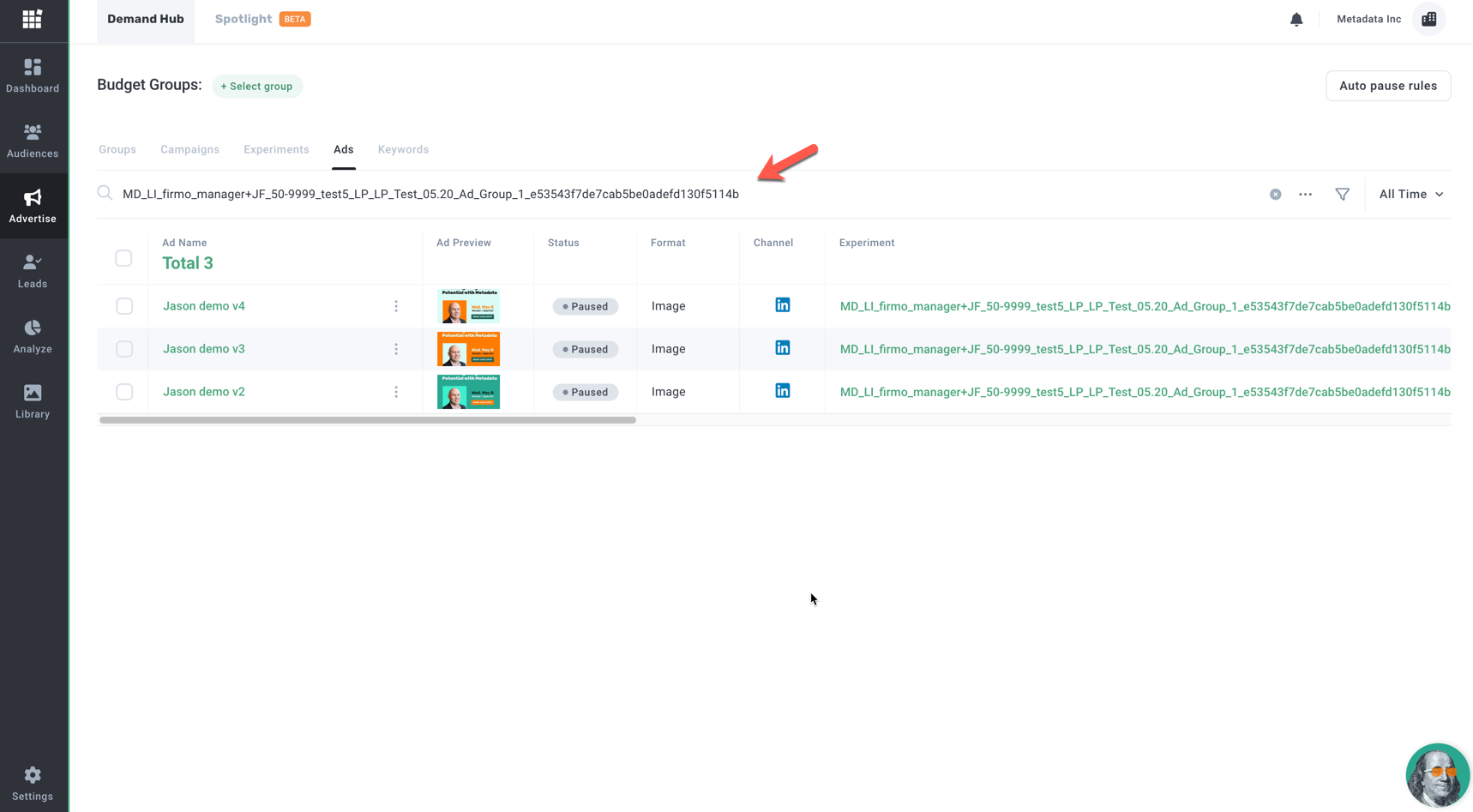
To check how an Ad Group is performing:
- Search by the experiment name to see each of the Ads part of the group.
Click image to enlarge
Enabling/Pausing Ads
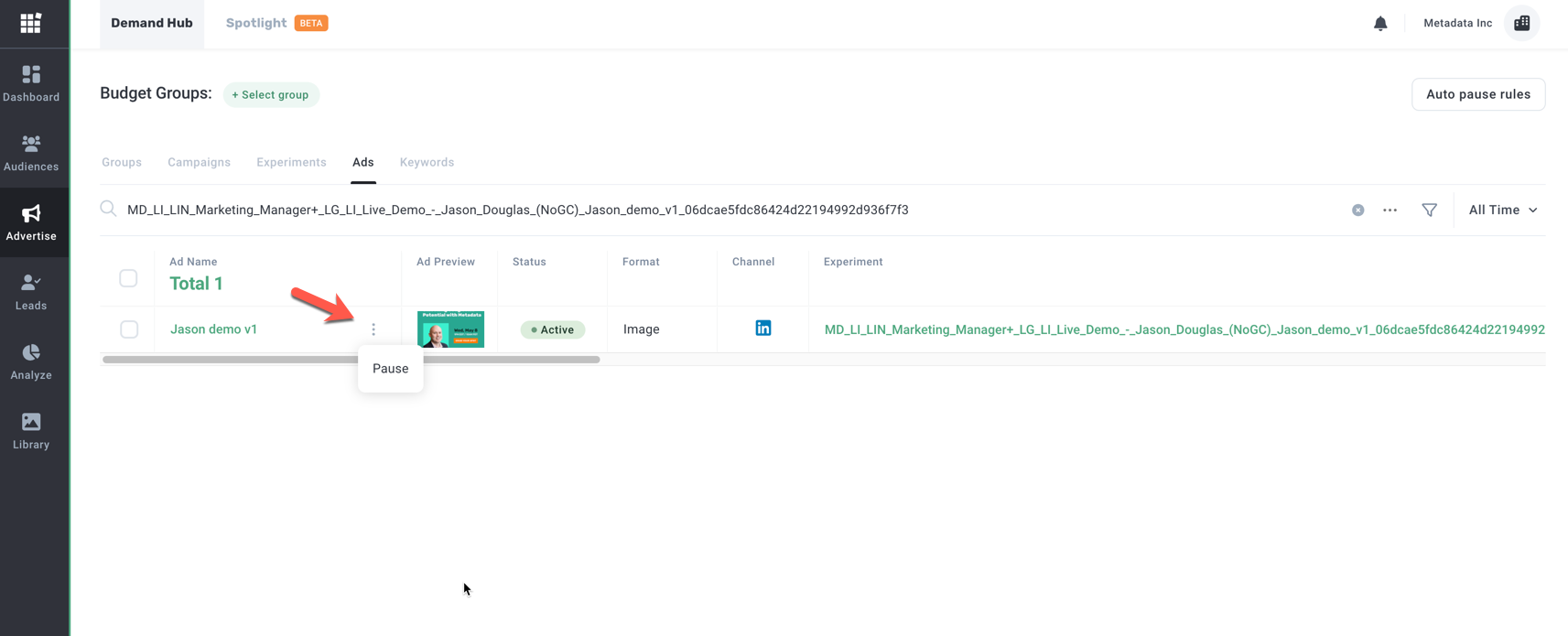
To enable or pause an Ad:
- Click the three dots next to the Ad.
- Select the appropriate action.
Click image to enlarge
Filtering by Ad Status
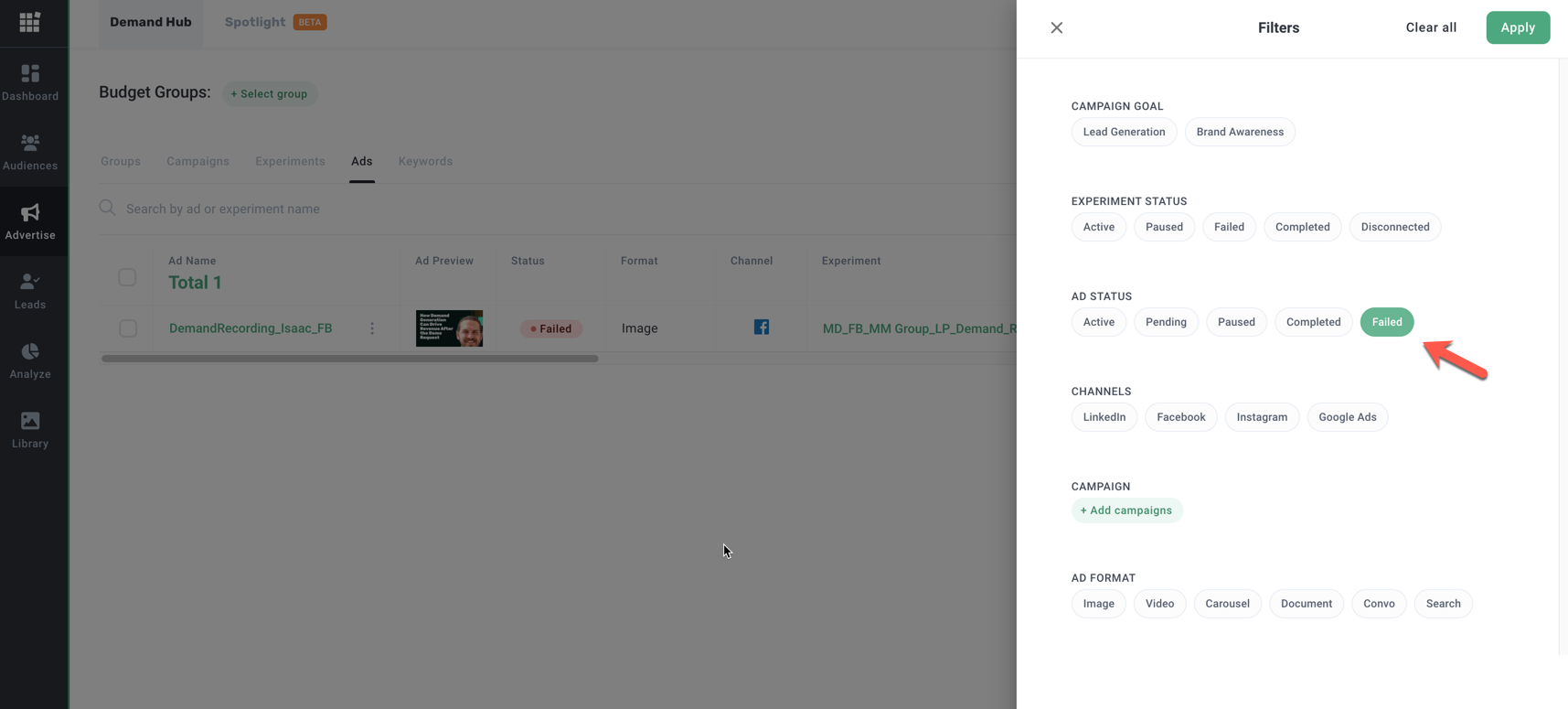
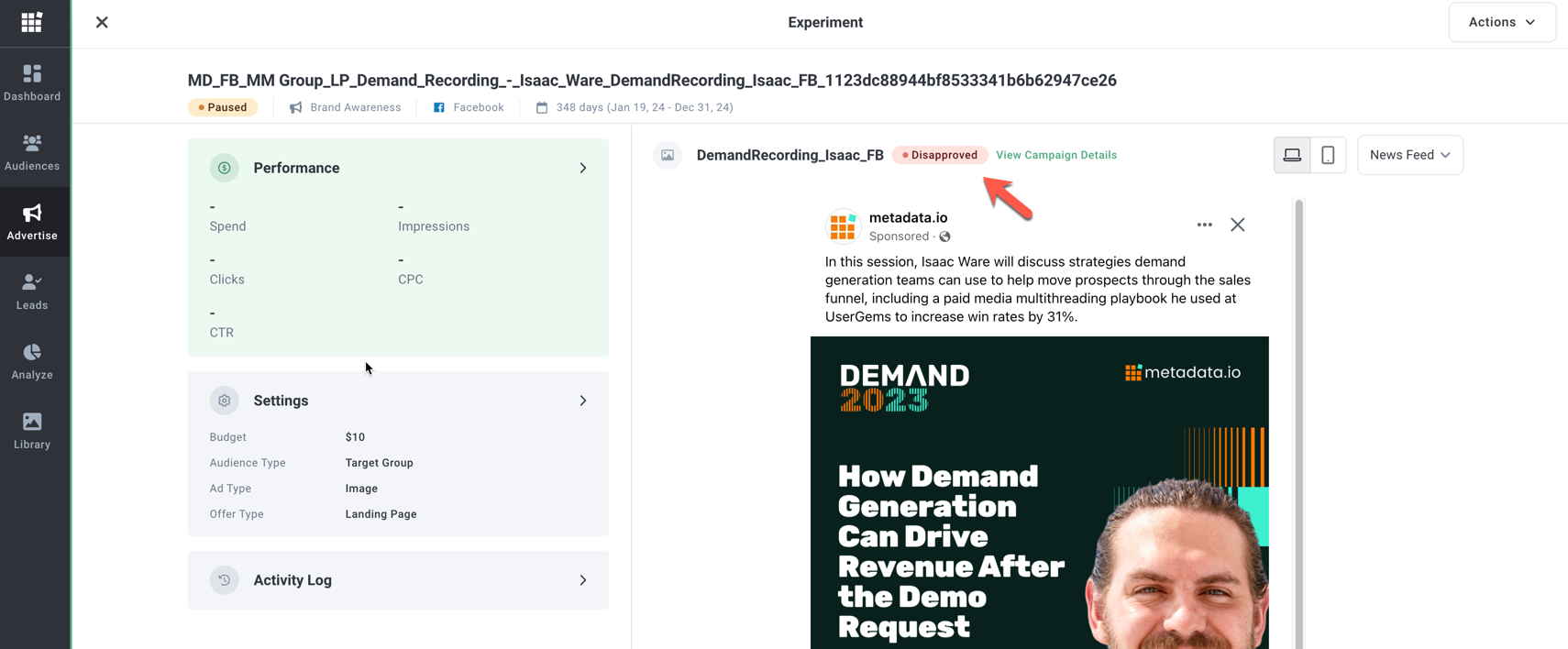
If a recent Ad was launched and failed due to being disapproved natively in the channel, you can now filter by any Ads that have failed:
- Press F and filter by Failed.
- Open the related Experiment to see the status.
Click image to enlarge
Click image to enlarge
Ad Status Definitions
- Active: The Ad is currently running.
- Pending: The Ad is in review by the channel.
- Paused: The Ad has been paused.
- Completed: The experiment where the Ad was running has ended.
- Failed: Something is wrong with the Ad, and it may be disapproved natively in the channel.
Note: The Ads table is only available in the newly designed UI, so there will be no option to switch back to the classic view from there.