Customize budget group views using recommended settings to create a dashboard that will help quickly identify issues related to campaign performance (eg, pacing, high CPL etc).
Customize budget group view
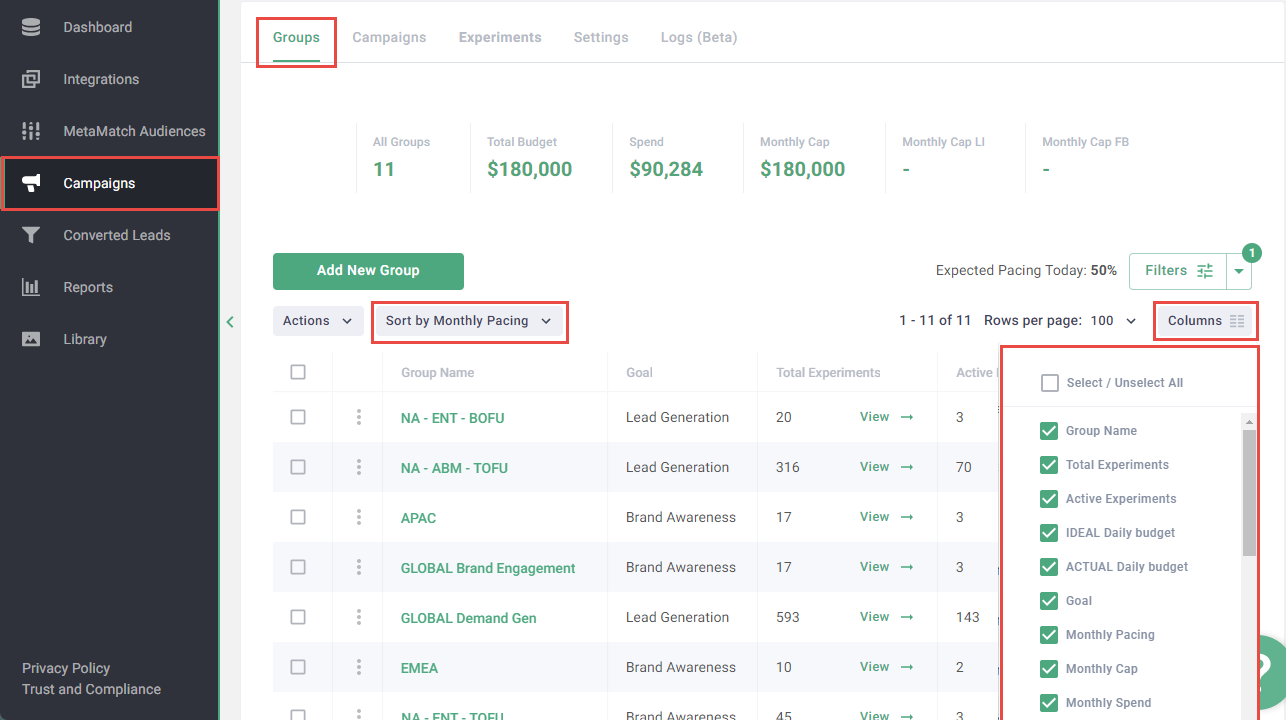
- Log in to the metadata platform
- Click Campaigns on the left navigation
- Click Groups in the upper navigation
- Click Columns in the upper right hand side of the budget group table
- Click and drag columns to order from most important to least important
-
Toggle the checkbox to show / hide the field
Note: Column settings are automatically saved to a cookie on your browser and persists if you leave the page and revisit it later. The column settings you set are unique to your browser and cannot be carried over to other browsers / devices.
-
Click the Sort by button in the upper left hand side of the budget group table to select the column to use for sorting
Tip: Alternatively, click on the column name in the budget group table to sort the budget groups. Also, clicking the same column name multiple times will switch the order between ascending and descending.
Note: Sort by settings are automatically saved like the column settings.
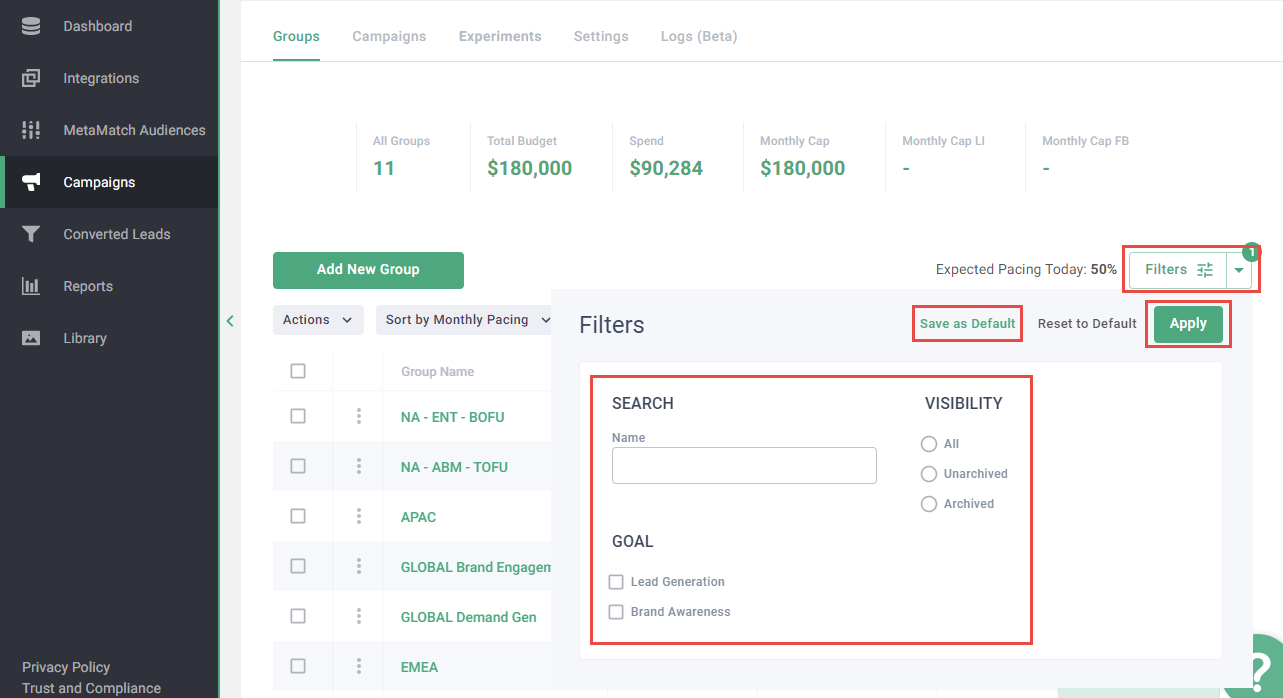
- Click Filters in the upper right hand side of the budget group table
- Update the Name, Goal and Visibility fields to match your preferences
-
Click Apply or Save as Default to save your changes
Note: Similar to how column settings are saved, Save as Default will save the filter settings to your browser and will persist if you leave the page and revisit it later.
Default setting recommendation
Column order:
- Group Name
- Total Experiments
- Active Exp.
- IDEAL Daily budget
- ACTUAL Daily budget
- Goal
- Monthly Pacing
- Monthly Cap
- Monthly Spend
- Monthly Remaining
- Monthly MQL
- Monthly CPL
- Total MQL
- Monthly Leads
- [Rest of fields in any order]
Sort by Monthly Pacing (descending).
Filter settings should be left blank (no fields selected).