Customize the Cohort Analysis View to quickly identify issues related to campaign performance.
Get started on the Reports page.
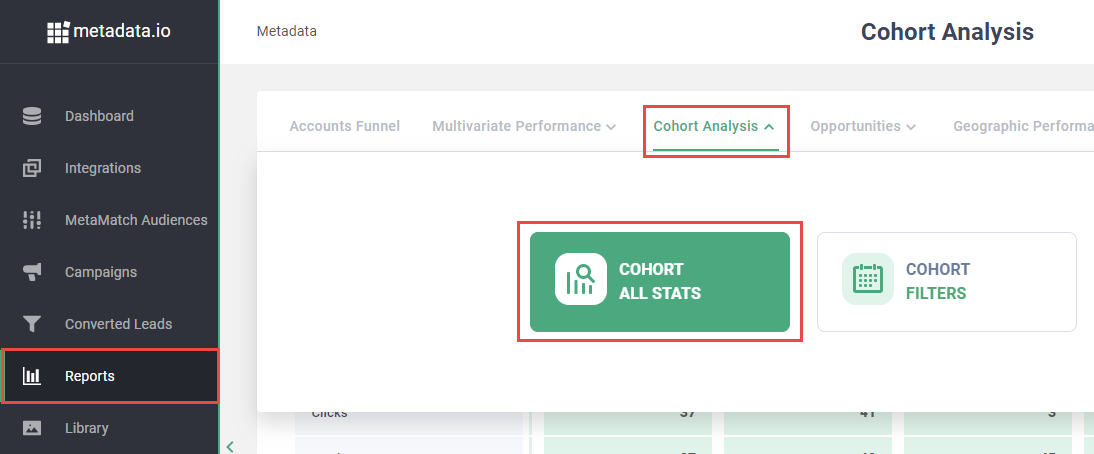
Click Cohort Analysis, and click Cohort All Stats.
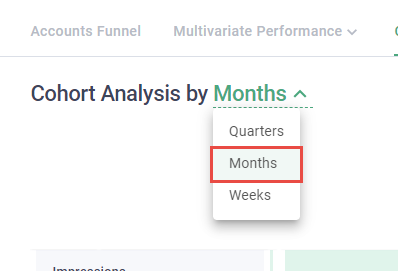
Update Cohort Analysis by to Months.
Note: Month-over-month reporting is based on data that has accumulated for the completed days in the current month compared to the same days in the previous month. For example, if the current date is April 28 then, the month-over-month comparison would compare March 1 - 28 and April 1 - 28.
Tip: Using Weeks is not recommended as the timeframe is too small to produce enough data to make meaningful decisions about your campaigns.
Click Parameters in the upper right hand side.

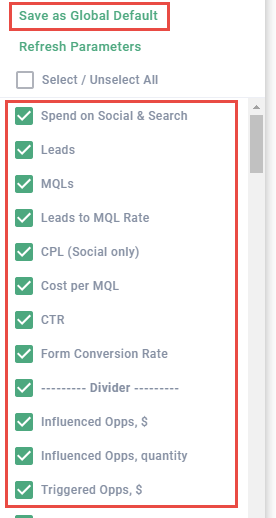
Enable and drag-and-drop Parameters in this order:
- Spend on Social & Search
- Leads
- MQLs
- Leads to MQL Rate
- CPL (Social only)
- Cost per MQL
- CTR
- Form Conversion Rate
- --Divider--
- Influenced Opps, $
- Influenced Opps, quantity
- Triggered Opps, $
- Triggers Opps, quantity
- Influenced Opps Won, $
- Influenced Opps Won, quantity
- Triggered Opps Won, $
- Triggers Opps Won, quantity
Disable the rest of the fields.
Click Save as Global Default.
Way to go! Your customized Cohort Analysis View should help you quickly identify issues related to campaign performance.