
How to: Configure UTM parameters
On this page
Configure UTMs to align with your UTM naming convention and push UTM data to your marketing automation tool.
Configure UTMs
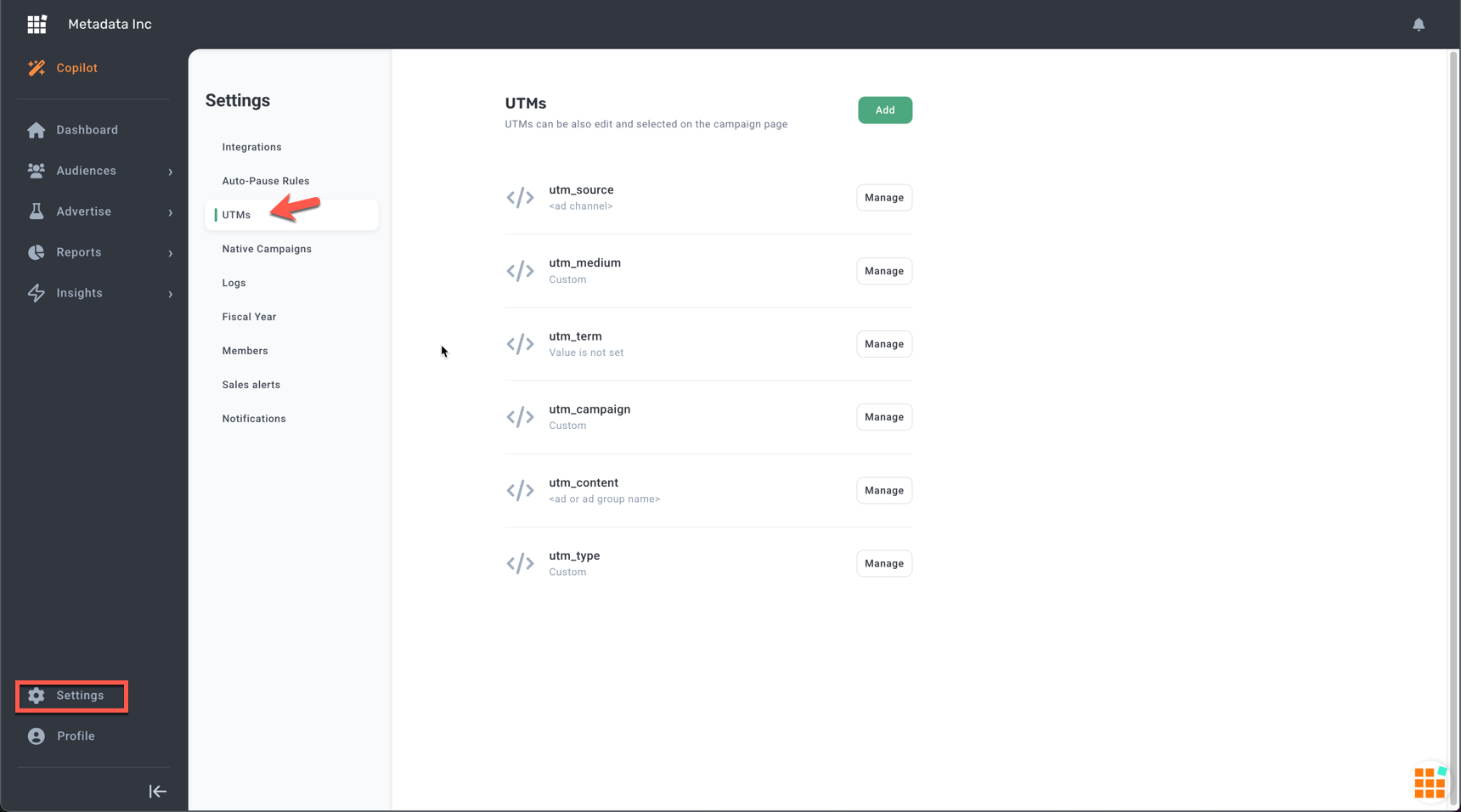
Get started on the Settings > UTM Parameters page.
Click Manage in the upper right hand side to edit your UTMs:
- utm_source
- utm_medium
- utm_term
- utm_campaign
- utm_content
Enable or disable UTMs
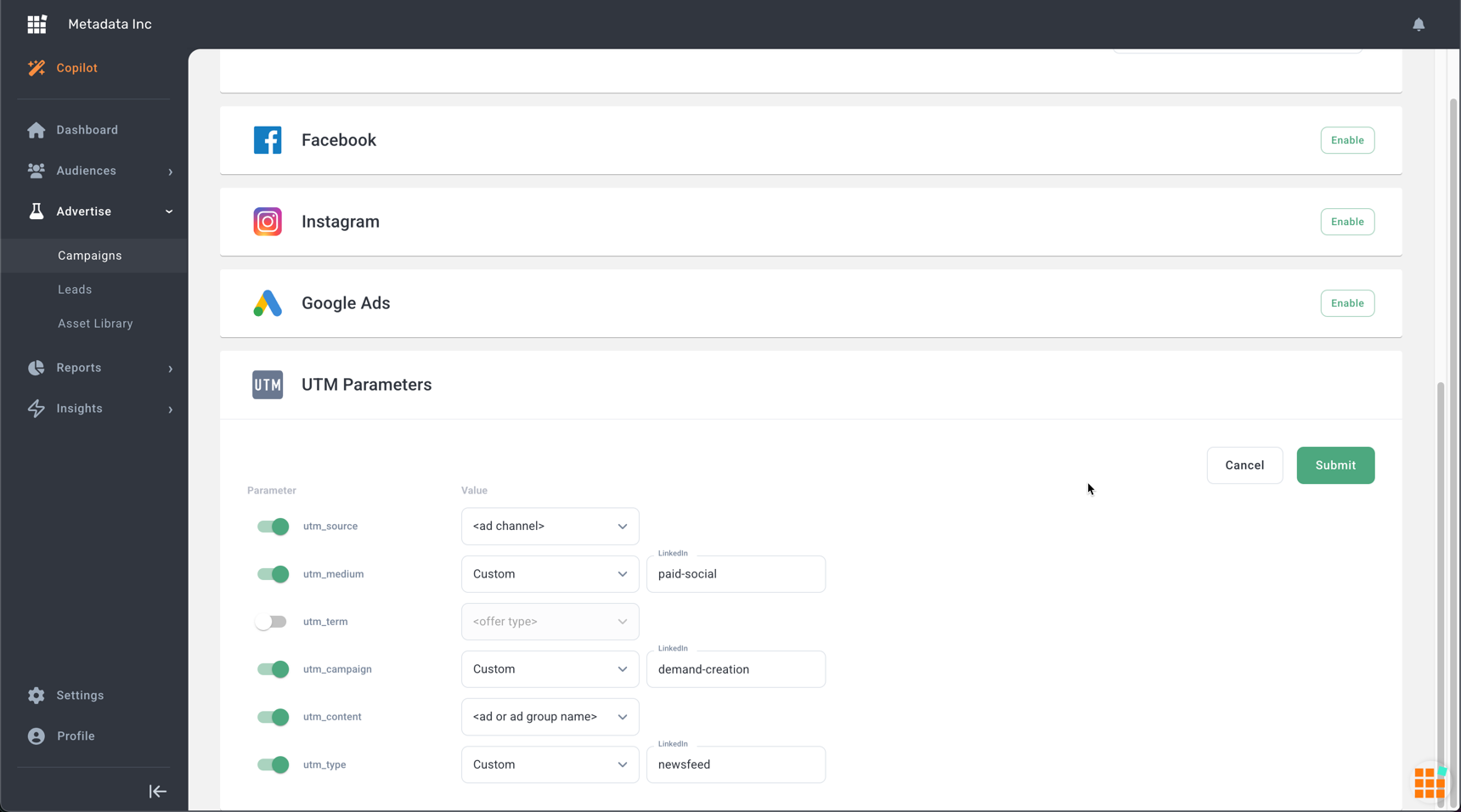
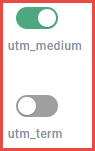
Toggle each field to enable or disable the UTM parameter.
Tip: Enable all UTM parameters to track and push all conversion data to your marketing automation tool. Use conversion data on your marketing automation tool to report on performance across multiple marketing channels.
Configure UTM values
Use the Value dropdown to set the default value for each UTM parameter.
|
Option |
Values |
| <ad channel> |
Dynamically populates with the channel name: LinkedIn, Facebook, Google Ads or Display. |
| <ad name> |
Dynamically populates with the name of the ad.
|
| <campaign name> |
Dynamically populates with the name of the campaign.
|
| <audience name or keyword> |
Dynamically populates with audience name for social and display campaigns, and keyword/keyword group for Google Ads campaigns.
|
| <experiment name> |
Dynamically populates with the name of the experiment. Read Understanding Metadata Campaign naming conventions for more details. |
| <experiment id> |
Dynamically populates with the unique id on the tail-end of the experiment name and used for the purpose of out-of-platform reporting (e.g., Tableau). Read Understanding Metadata Campaign naming conventions for more details. |
| <offer form name> |
Dynamically populates with the offer name.
|
| <offer type> |
Dynamically populates with the offer type: Leadgenform or Landingpage. |
| <native channel campaign id> |
Dynamically populates with the native channel campaign ID |
| <native channel ad id> |
Dynamically populates with the native channel ad ID |
| Custom |
Manually enter static values that do not change often (eg, channel name with specific letter casing).
|
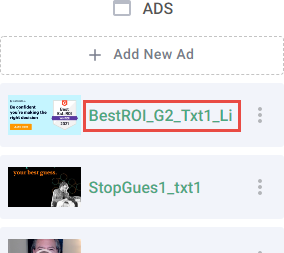


Add custom UTMs
Click + Add Custom UTM to add custom UTM parameters.
Note: Custom UTMs are unnecessary in most environments. Most commonly, custom UTMs are used to link Metadata campaigns with unique campaign identifiers from other systems (eg, salesforce_campaign_ID) for reporting purposes.

Save UTMs
Click Save in the upper right side to save your changes.
Map UTMs
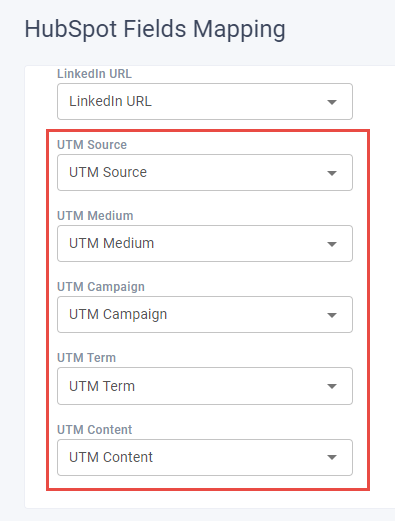
Read Marketing Automation Field Mappings to ensure the UTMs are correctly mapped with your marketing automation tool.
Suggested UTM parameter configuration
Align UTMs with your UTM naming convention.
If you do not have a UTM naming convention, consider the following:
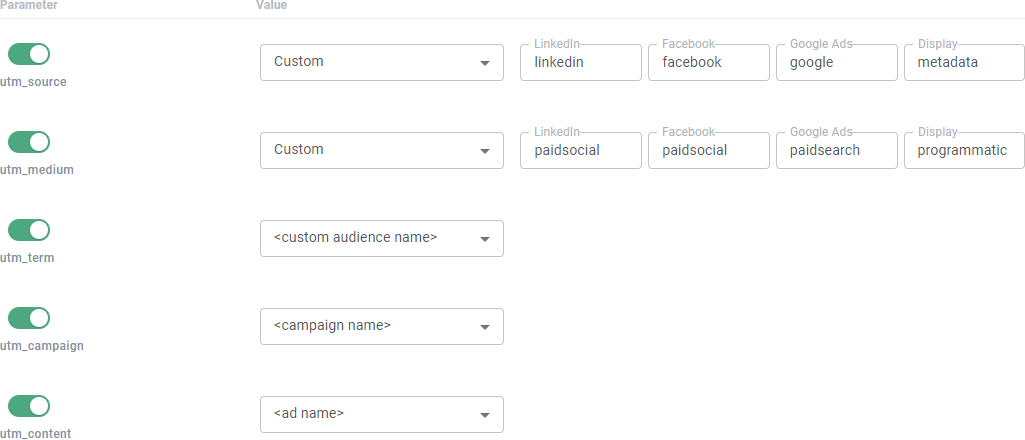
- utm_source = Custom
- LinkedIn = linkedin
- Facebook = facebook
- Google = google
- Display = metadata
- utm_medium = Custom
- LinkedIn = paidsocial
- Facebook = paidsocial
- Google = paidsearch
- Display = programmatic
- utm_term = <custom audience name>
- utm_campaign = <campaign name>
- utm_content = <ad name>