Lead gen forms significantly improve conversion rate when compared to landing page offer types.
Tip: Use lead gen forms over landing pages where possible. In some cases, you may be limited to using landing pages. For example, if you're driving sign-ups then you may be forced to link a landing page instead.
Create Lead Gen Form
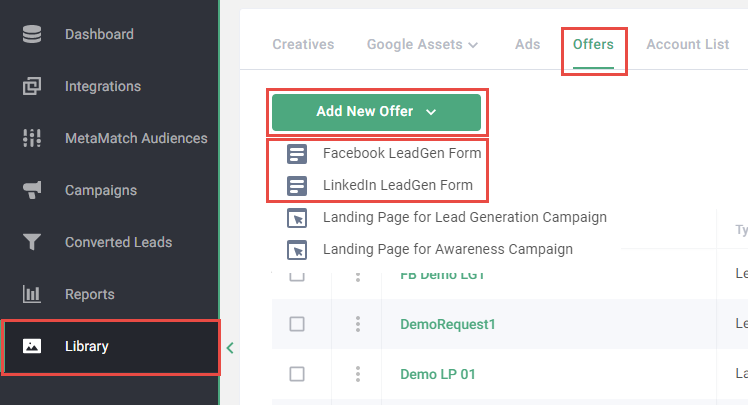
- Log in to the Metadata platform
- Click Library on the left navigation
- Click Offers in the top navigation
- Click Add New Offer
- Select Facebook LeadGen Form or LinkedIn LeadGen Form
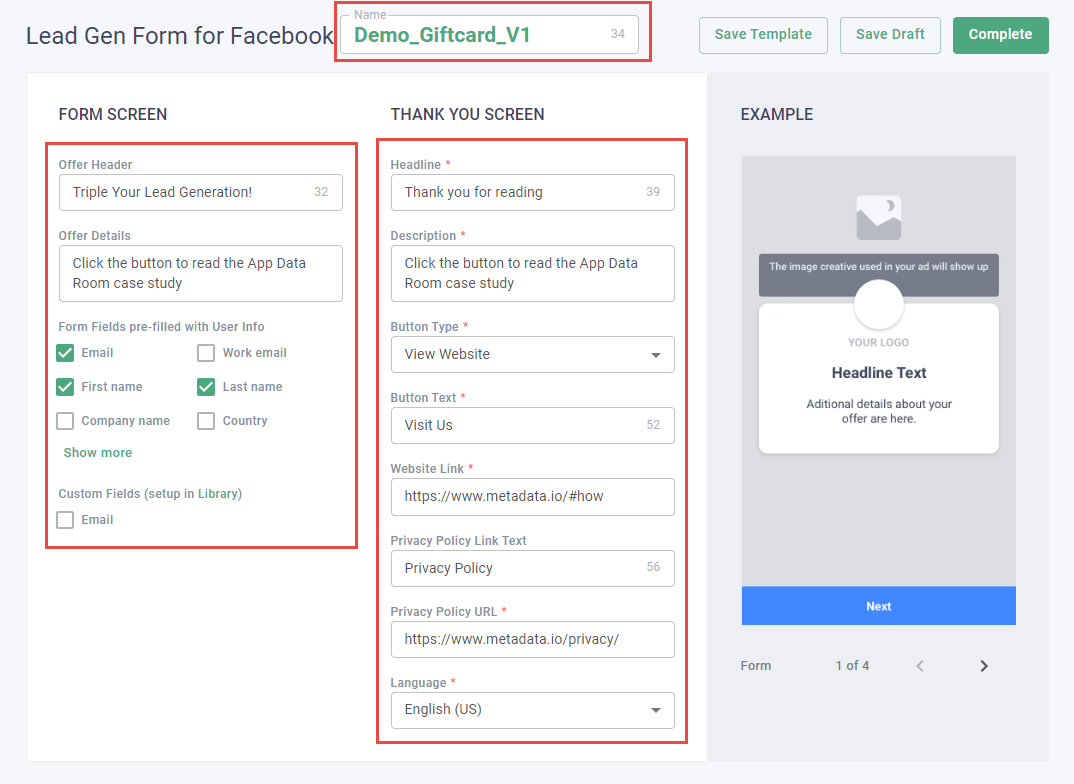
- Enter a name
Tip: Be clear in how you name offers. Consider the following template: Objective_Message_Variation. For example: Demo_Giftcard_V1.
-
Enter your content for the Form Screen and Thank You Screen
Tip: Use the example on the right hand column as a reference for where each field value will appear on the lead gen form. Click through the arrows in the bottom right hand side of the example to view the different lead gen screens.
- Select Form Fields pre-filled with User Info
Note: You must select a minimum of one email field. eg, Email, Work email or Email (under Custom Fields).
- Select custom fields
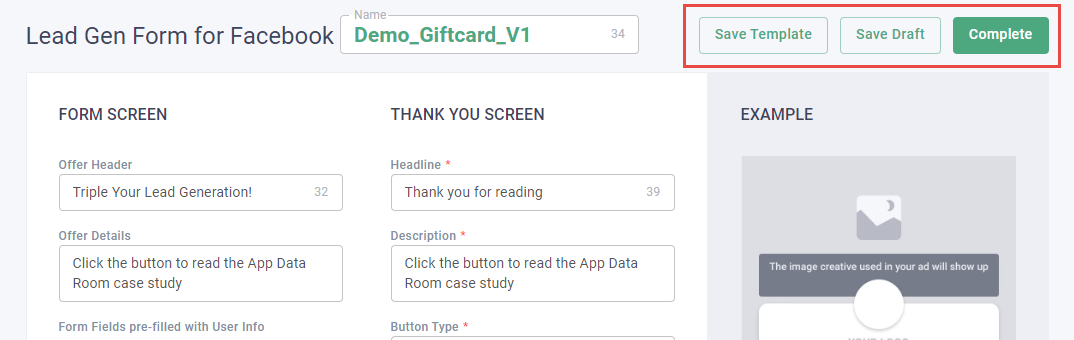
- (Optional) Click Save Template to save the current settings as the default settings
Note: Settings saved to your template will carry over to future lead gen forms.
- Click Save Draft or Complete
Note: Save Draft allows you to make edits to your lead gen form later. Complete finalizes your offer and doesn't allow future edits.