How to: Create landing page offers
On this page
Create landing page offers for brand awareness and lead generation campaigns to link ads to specific pages.
Create landing page offers for brand awareness
Note: Landing page for awareness does not support tracking form submissions as converted leads. Use landing page offers for lead generation to track form submissions as converted leads.
Prerequisites:
- Required for Facebook: Verify domain and configure lead event
- Log in to the Metadata platform
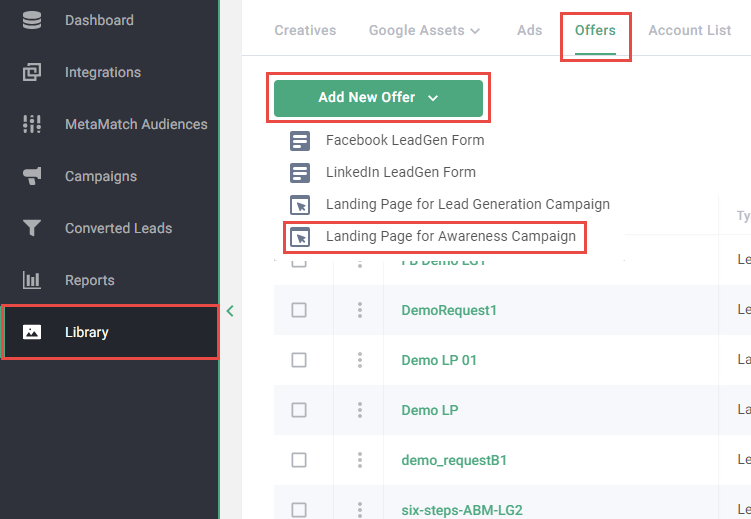
- Click Library on the left navigation
- Click Offers in the upper navigation
- Click Add New Offer
-
Click Landing Page for Awareness Campaign
-
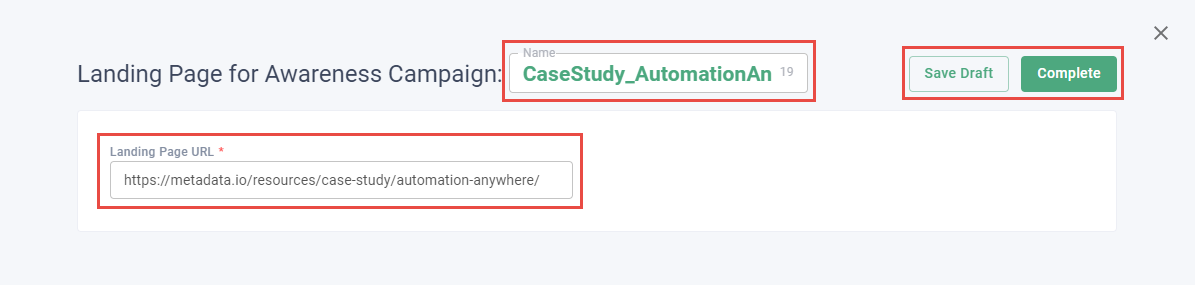
Enter a unique name
Tip: Be clear in how you name offers. Consider the following template: Objective_Message_Variation. Example of this template in practice: CaseStudy_AutomationAnywhere_V1.
- Enter Landing Page URL
-
(Optional) Click Save Draft
Note: Save as a draft to make edits later. Completed landing page offers cannot be edited.
-
Click Complete
Create landing page offers for lead generation
Prerequisites:
- Implement the landing page site script
- Ensure the form is on the landing page (forms in iFrames are not supported)
- Required for Facebook: Verify domain and configure lead event
- Log in to the Metadata platform
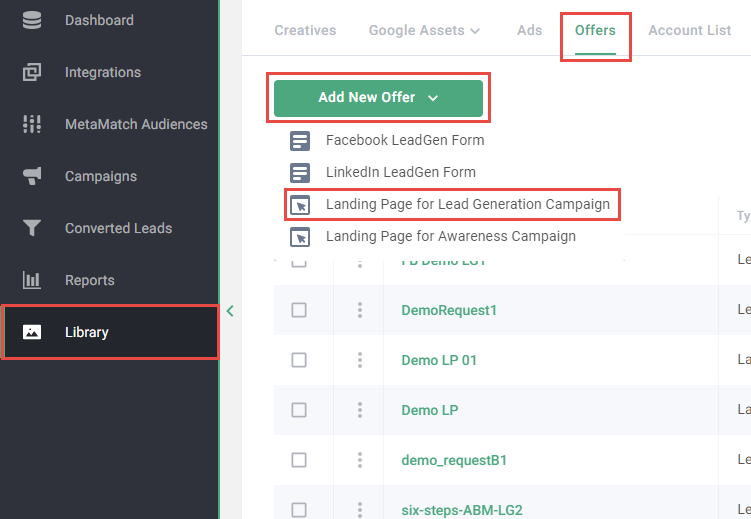
- Click Library on the left navigation
- Click Offers in the upper navigation
- Click Add New Offer
-
Click Landing Page for Lead Generation Campaign
-
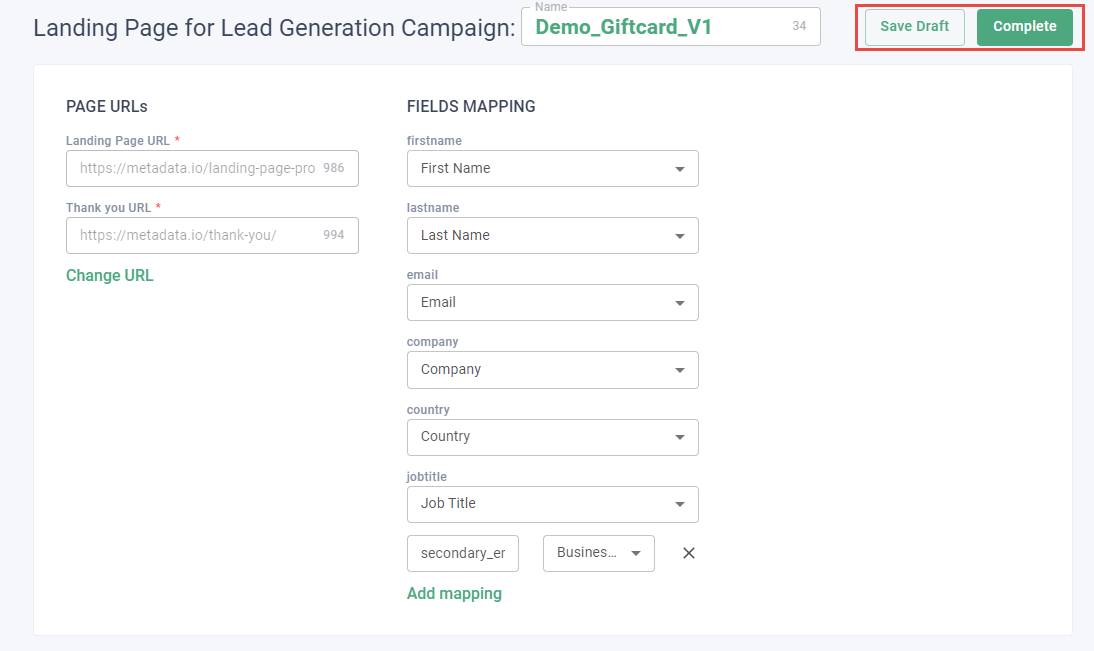
Enter a unique name
Tip: Be clear in how you name offers. Consider the following template: Objective_Message_Variation. Example of this template in practice: Demo_Giftcard_V1.
- Enter Landing Page URL
-
Enter Thank you URL
Note: Thank you URL is specific to LinkedIn and creates a conversion event for users that visit the thank you page URL. Conversion events can be used to create retargeting audiences. Use the landing page URL as the thank you URL if you don’t use thank you pages. Find more information about LinkedIn conversion events on Conversion Events and Thank you page Pixel.
-
Click Retrieve Form fields
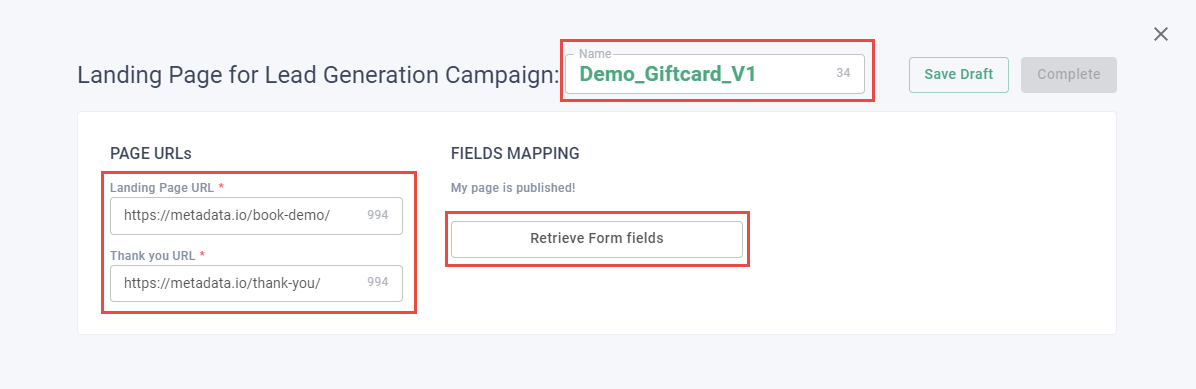
-
Use the dropdowns to map the landing page fields to the Metadata fields
Note: Email is a required field mapping; the other field mappings are optional. The landing page fields you map may overwrite the fields on your marketing automation platform depending on how you've configured your marketing automation field mappings.
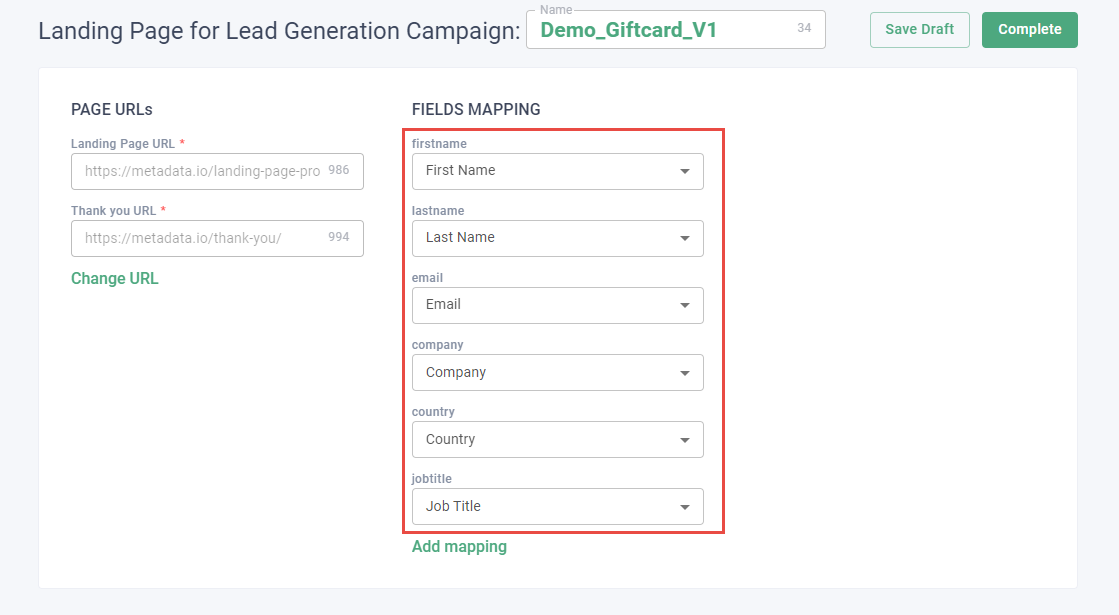
-
Click Add mapping to add additional fields
Note: Enter the value of the name attribute for the form field as it appears in the HTML. Use the browser inspect feature to find the value of the name attribute.
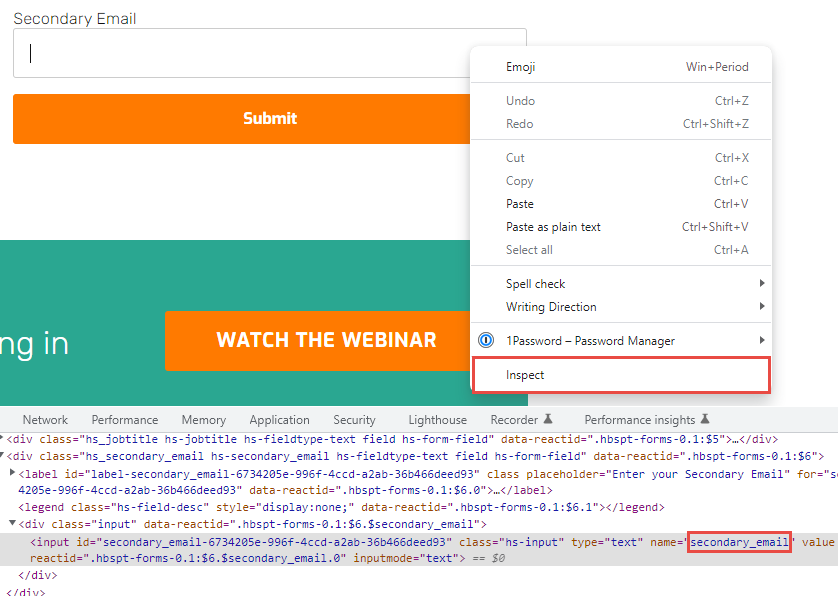
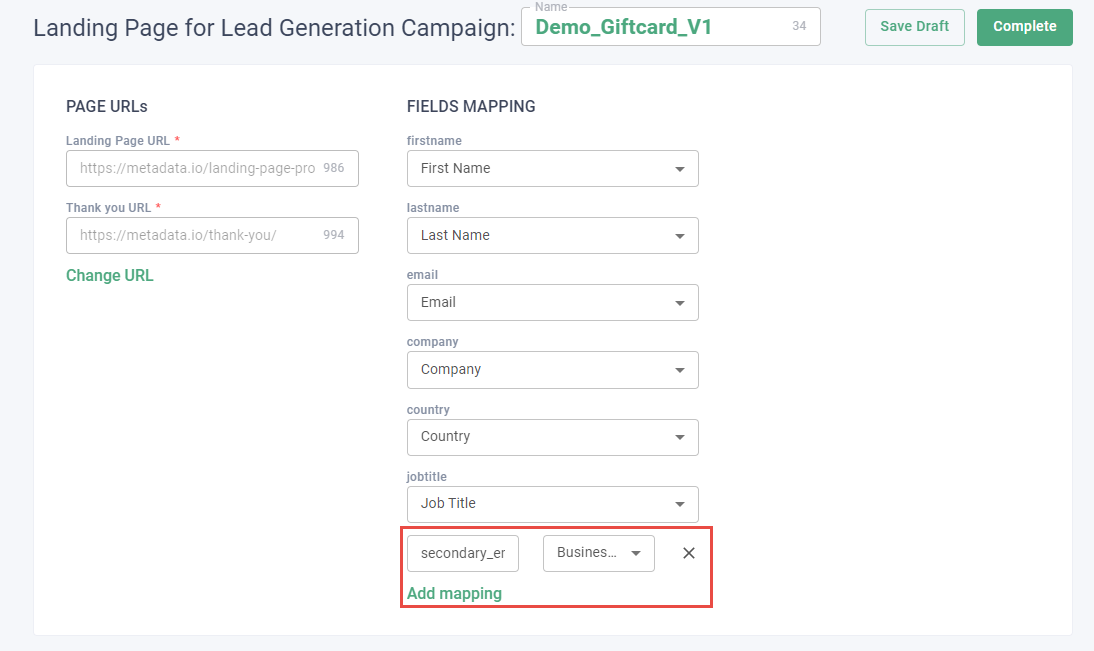
-
(Optional) Click Save Draft
Note: Save as a draft to make edits later. Completed landing page offers cannot be edited.
-
Click Complete