This guide will walk you through connecting the Metadata MCP server to Claude, allowing you to access your Metadata account directly through Claude's AI assistant.
Table of Contents
- Prerequisites
- Step 1: Generate Your Access Token
- Step 2: Add the Custom Connector in Claude
- Step 3: Authenticate and Connect
- Step 4: Verify Your Connection
- Troubleshooting
- Next Steps
Prerequisites
Before you begin, make sure you have:
- Claude Pro subscription - The free version of Claude does not support custom connectors
- Active Metadata account - You'll need your login credentials
Step 1: Generate Your Access Token
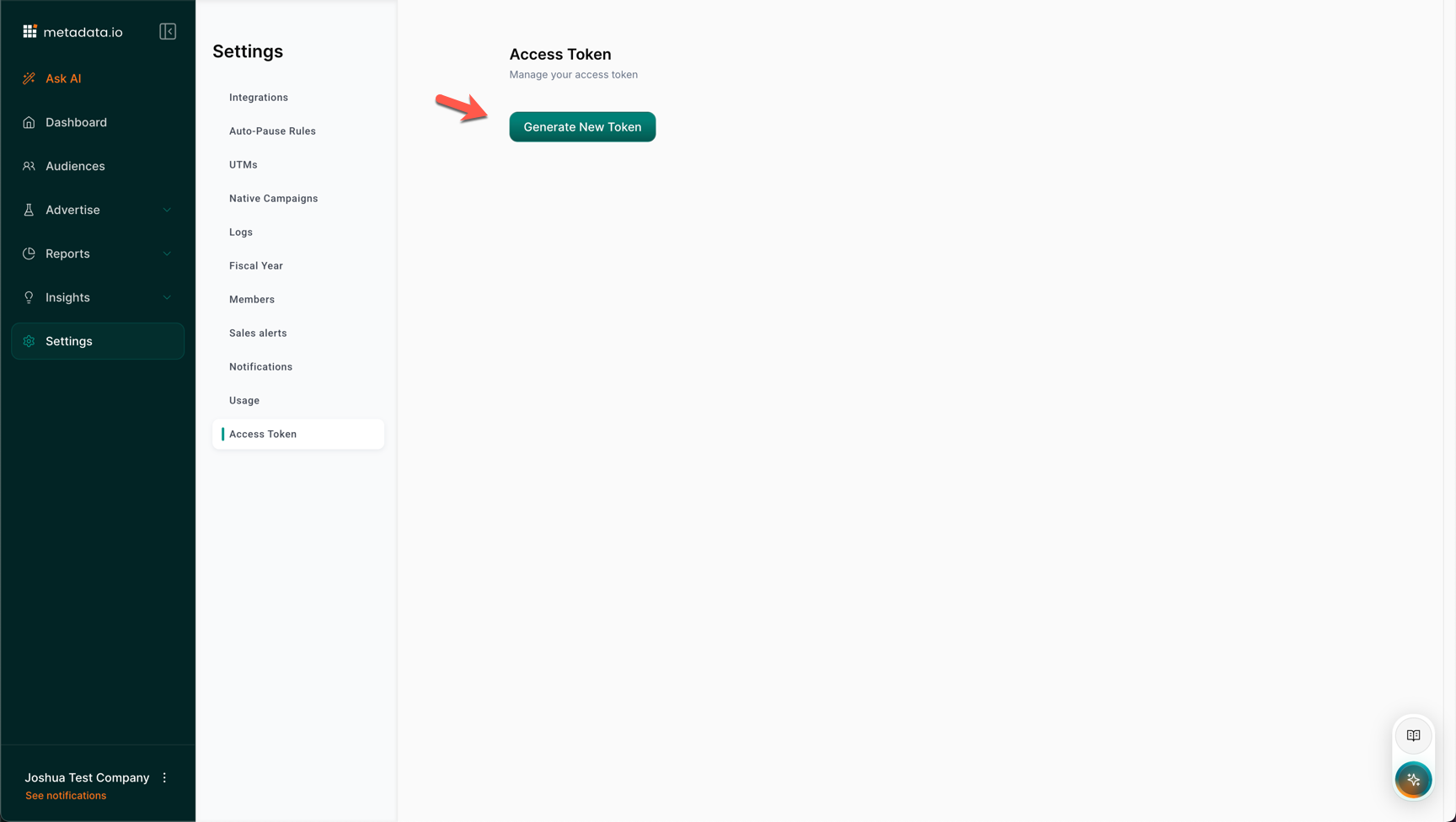
- Log into your Metadata account
- Navigate to Settings
- Click on Access Token
- Click the button to Generate Access Token for MCP Server
- Accept the security warning
- Click Copy to copy your access token
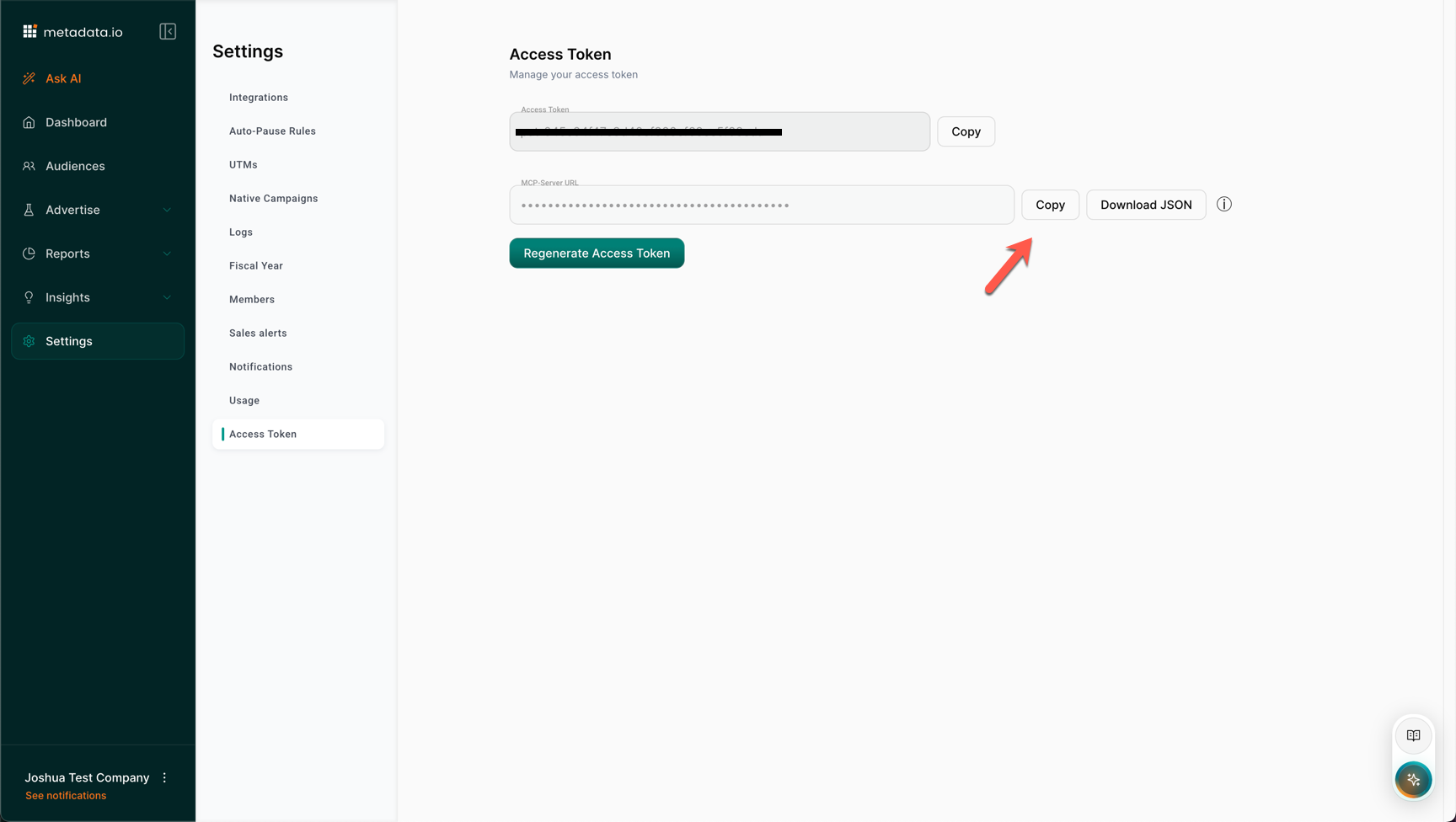
Important: You'll also need the MCP server URL, which is:
https://mcp-server.metadata.io/mcp
Step 2: Add the Custom Connector in Claude
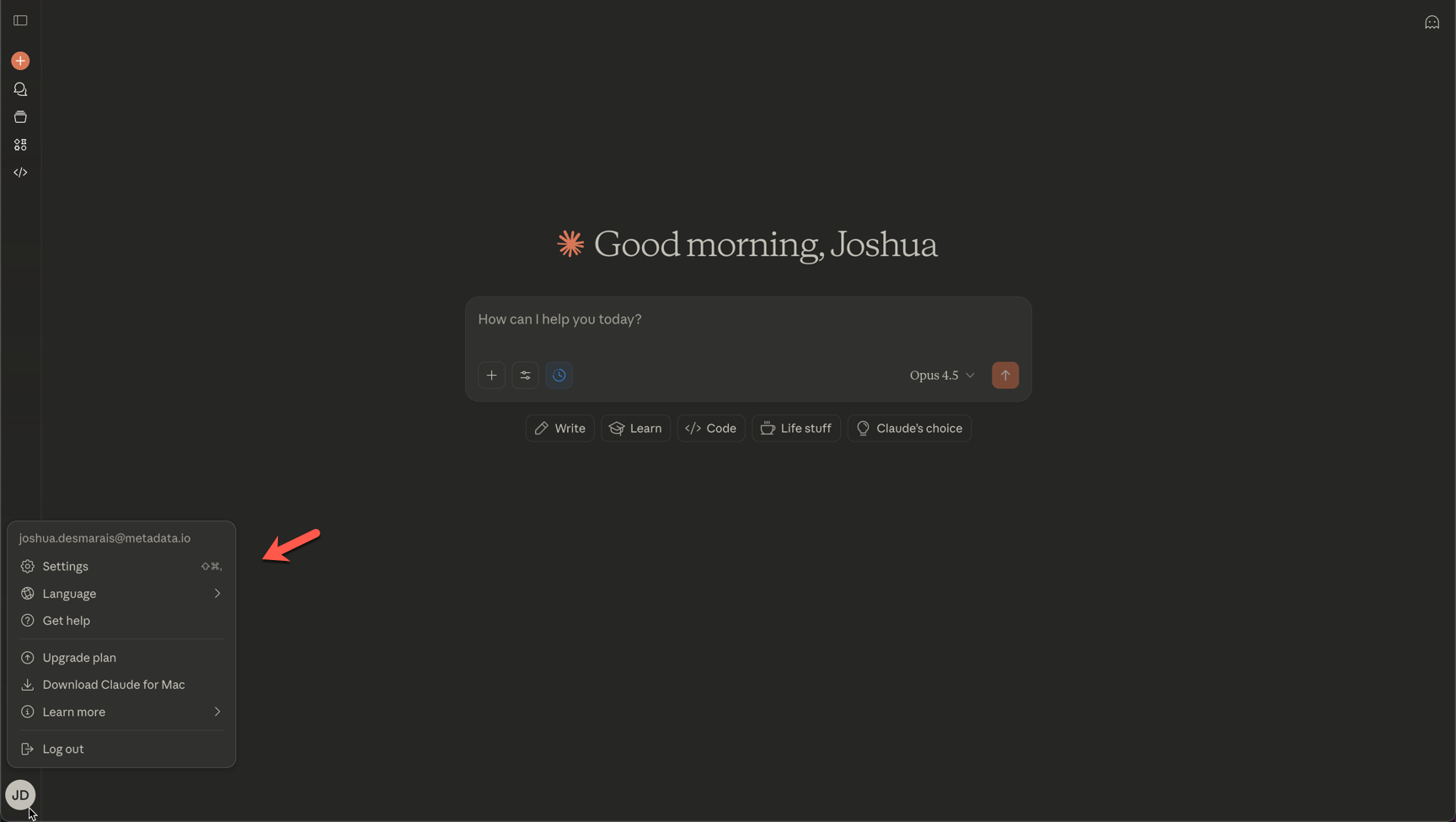
- Open Claude in your browser. Note: You may also use Claude desktop.
- Click on Settings (under profile bottom left)
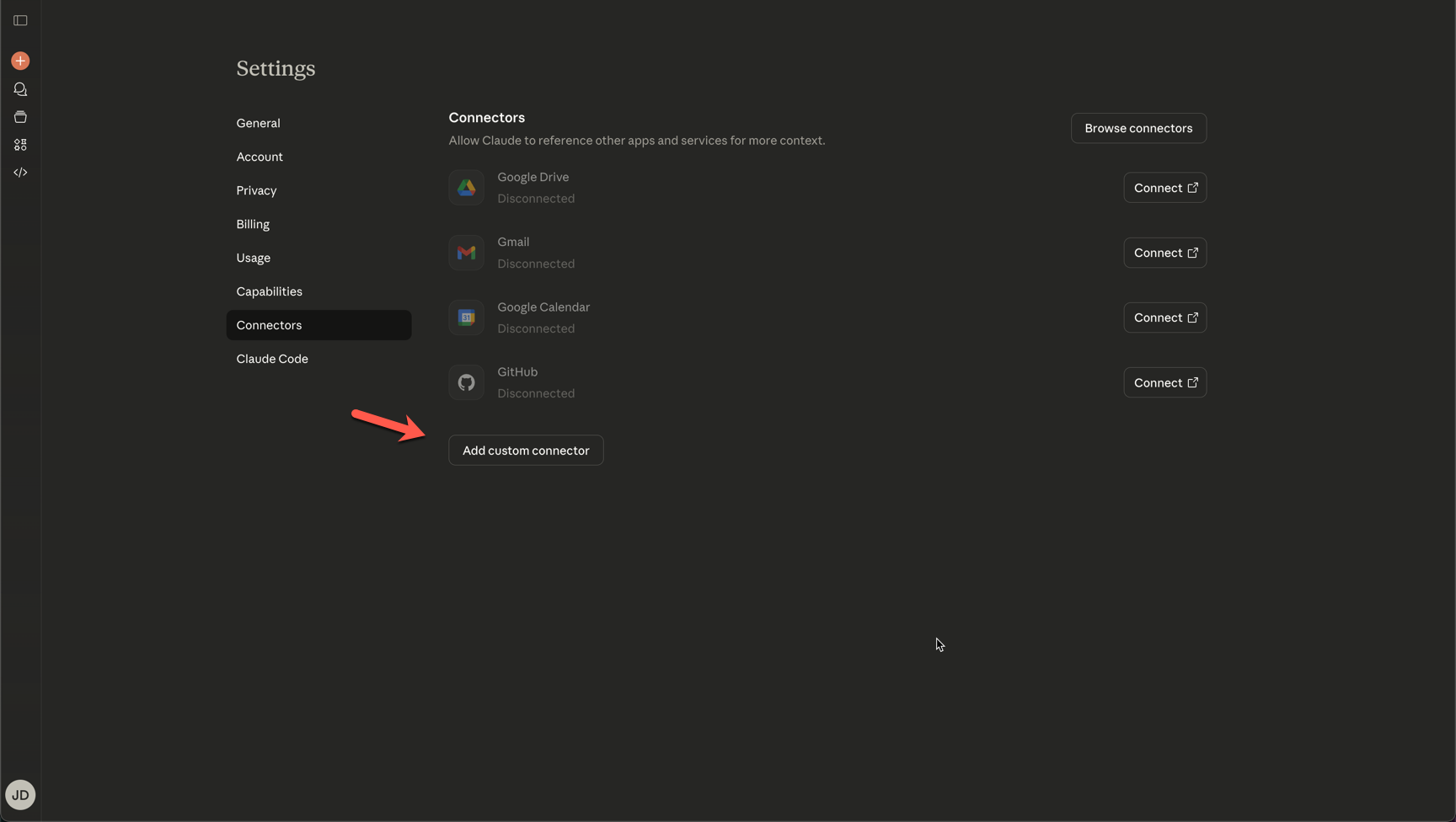
- Select Connectors from the menu
- Click Add Custom Connector
- Enter a name for the connector (e.g., "Metadata MCP")
- Paste the MCP server URL:
https://mcp-server.metadata.io/mcp - Click Add
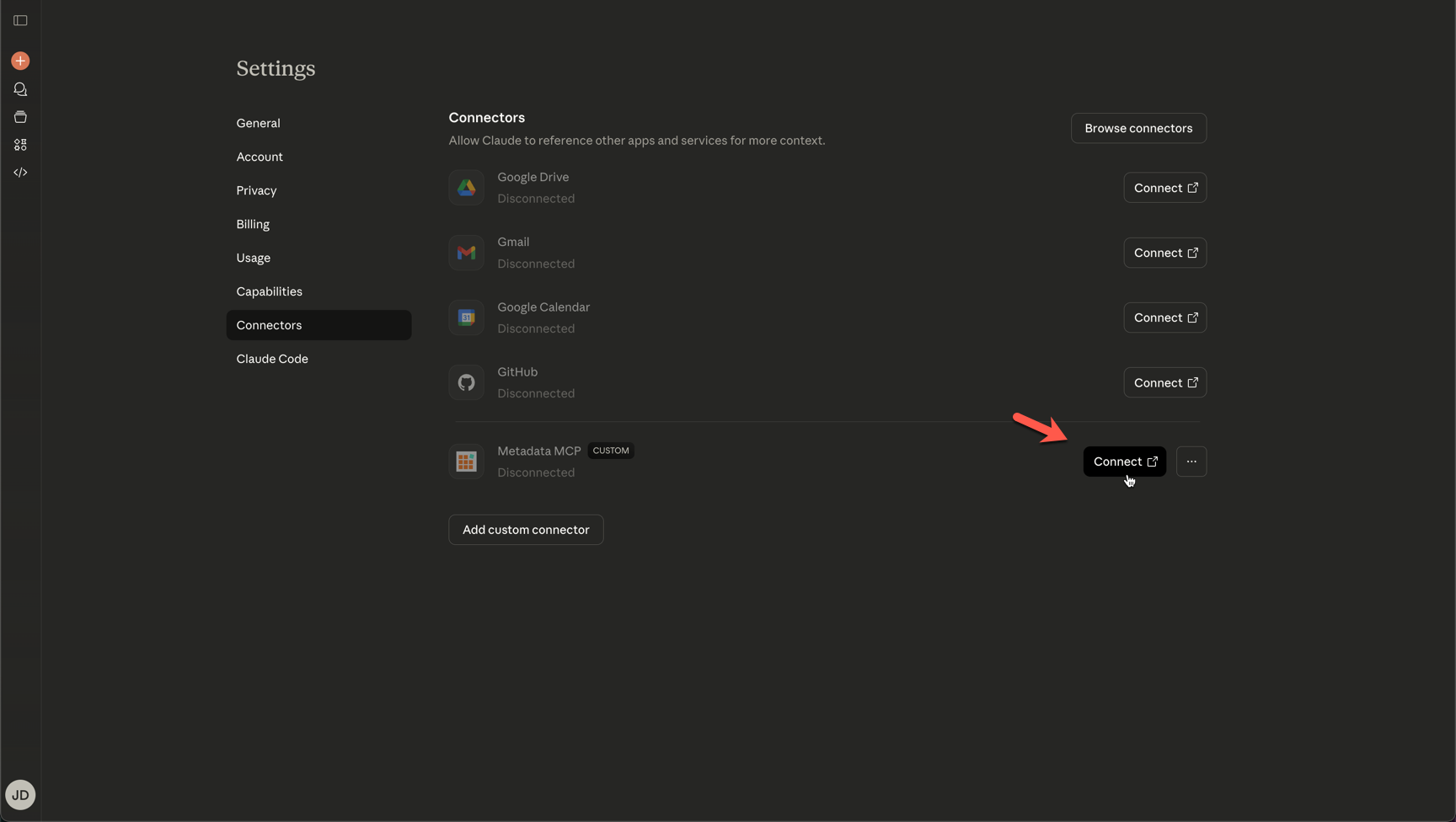
Step 3: Authenticate and Connect
- After adding the connector, click Connect
- You'll be redirected to the Metadata platform login page
- Enter your Metadata username and password
- Click Continue
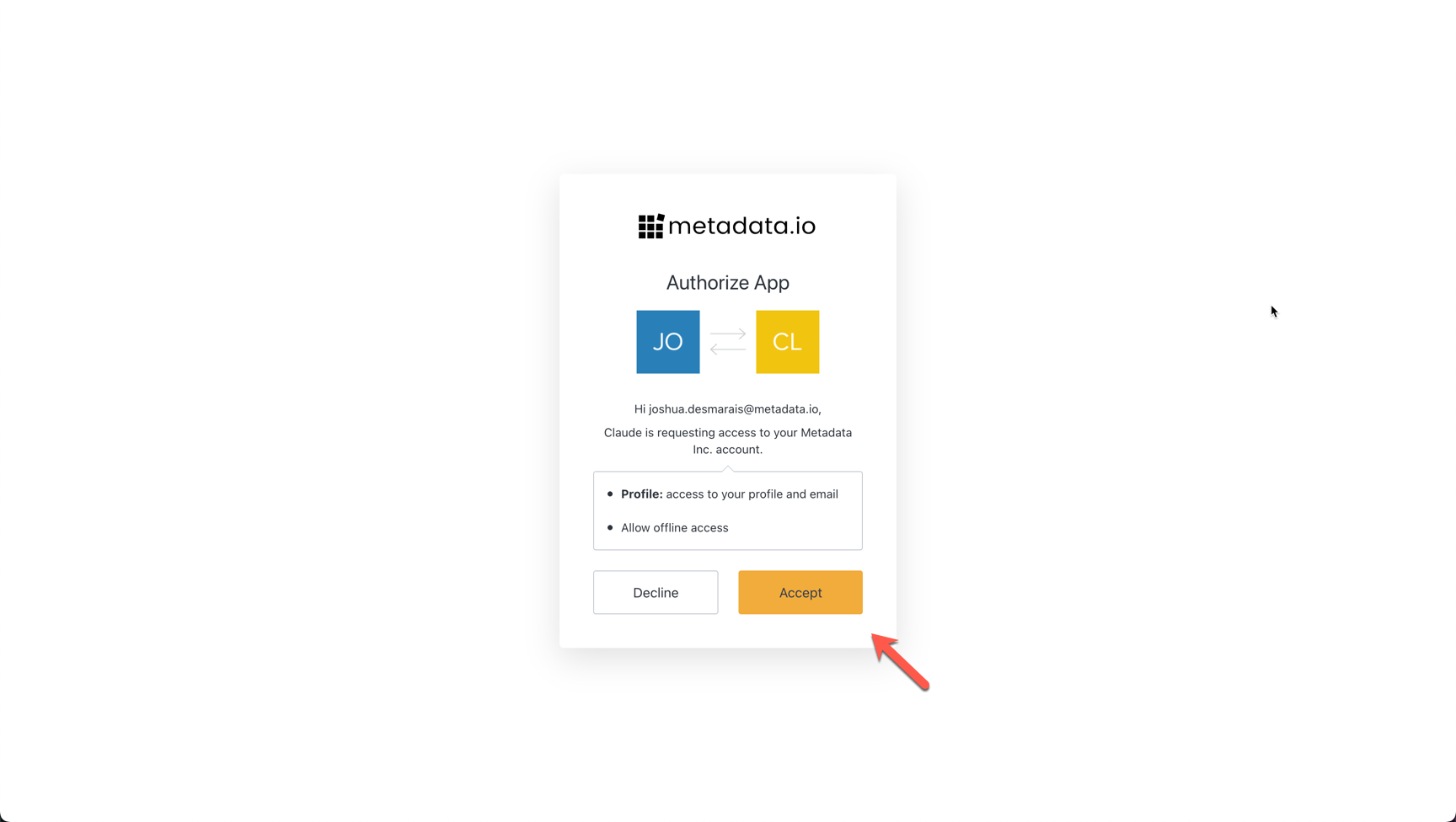
- You'll see a prompt to Authorize the app
- Click Accept to authorize the connection between Metadata and Claude
- Click Open when prompted to return to Claude
- You should see a confirmation in the top-right corner that the MCP server has connected
Step 4: Verify Your Connection
- Open a new chat in Claude
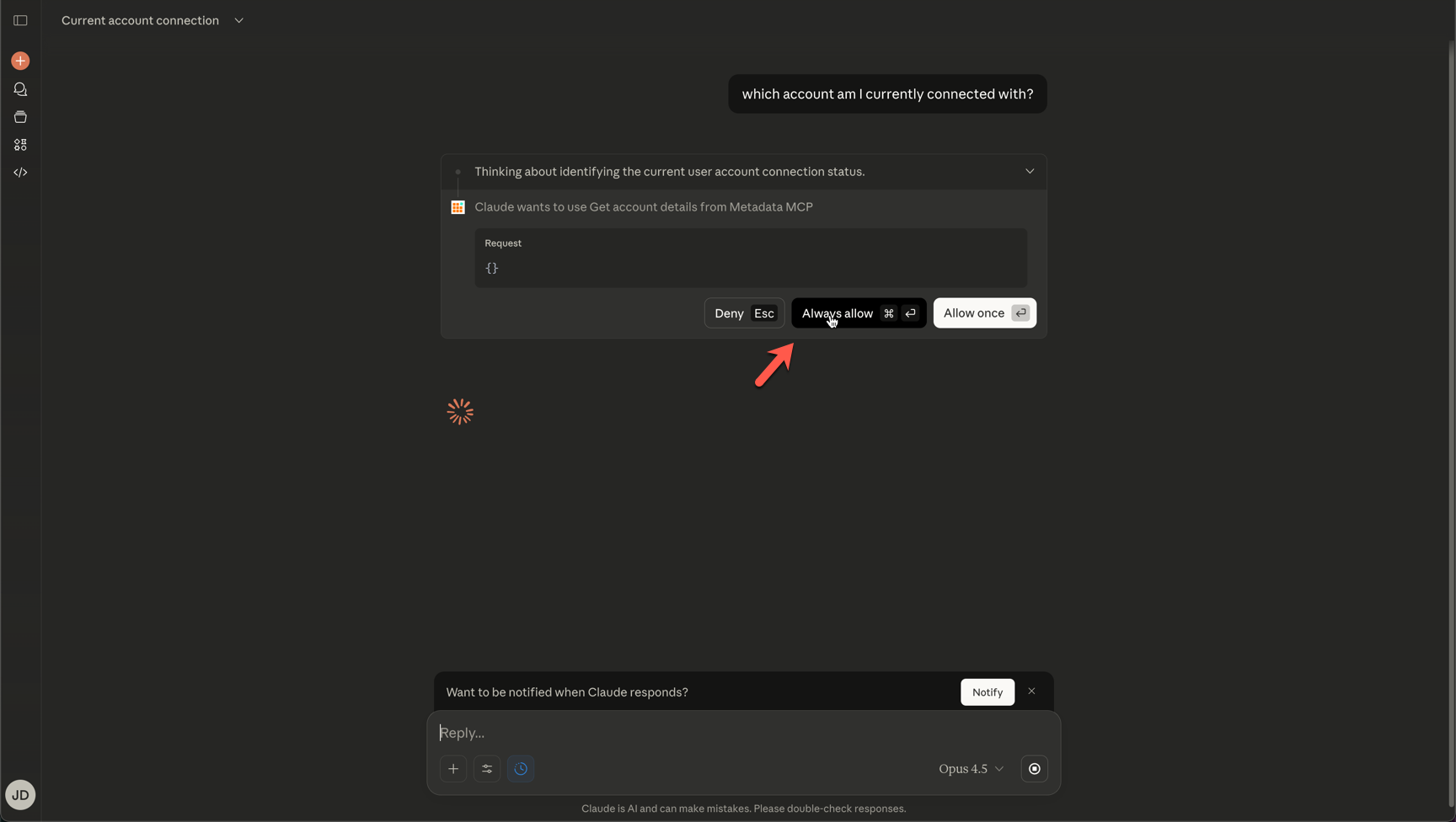
- Ask: "Which account am I currently connected with?"
- When prompted, select Always Allow to give Claude permission to use the MCP server
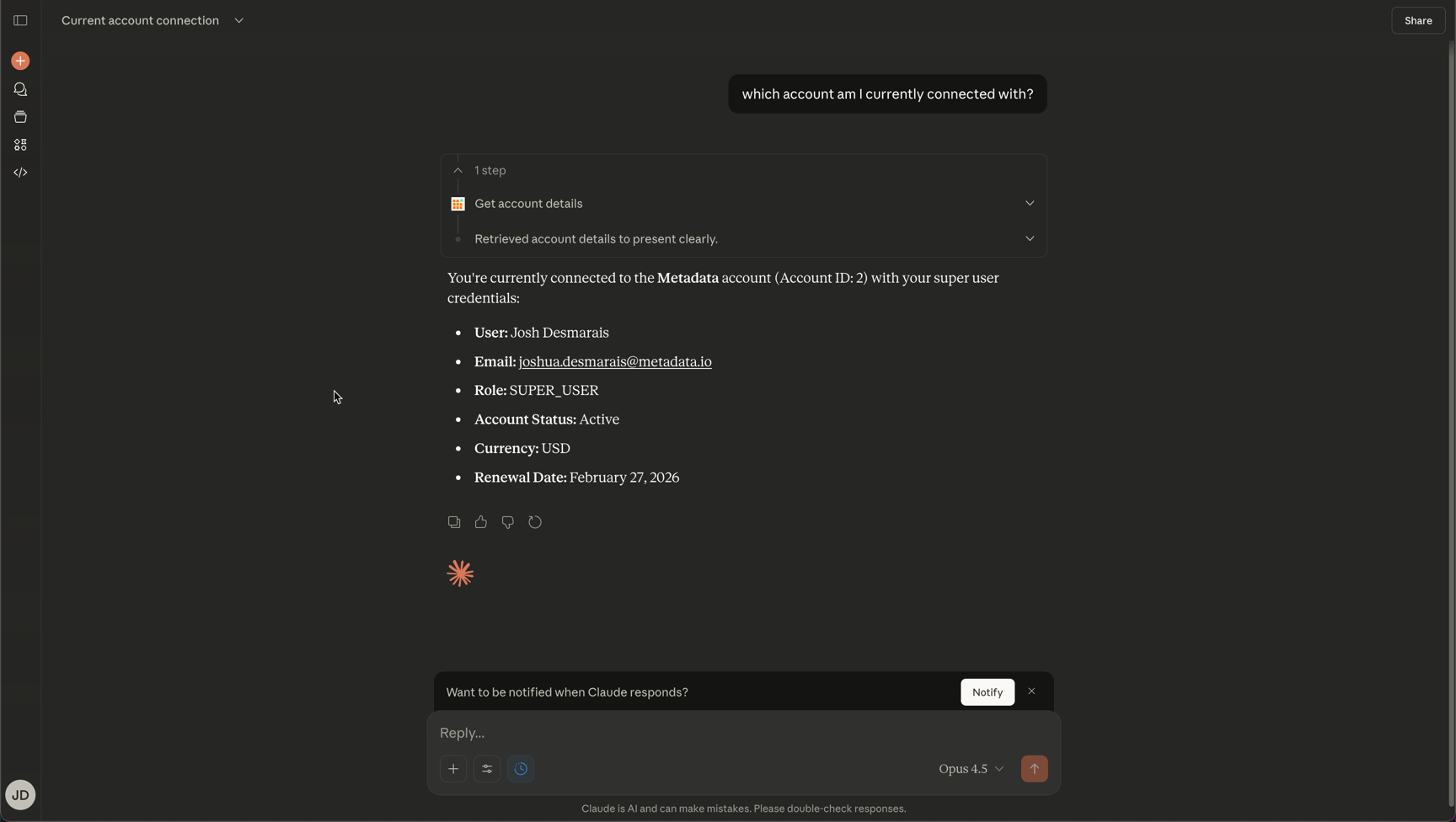
- Claude will retrieve your account details and display:
- Your connected account name
- Your user information
- Your account ID
Success! You're now connected and ready to use the Metadata MCP server with Claude.
Troubleshooting
If you're unable to connect, the issue may be related to:
- Browser cache or cookies
- Authentication issues with your Metadata account
- Permissions settings
If you continue to experience connection issues, please contact support@metadata.io for assistance.
Next Steps
Now that you're connected, you can explore what's possible with the MCP server. Try asking Claude:
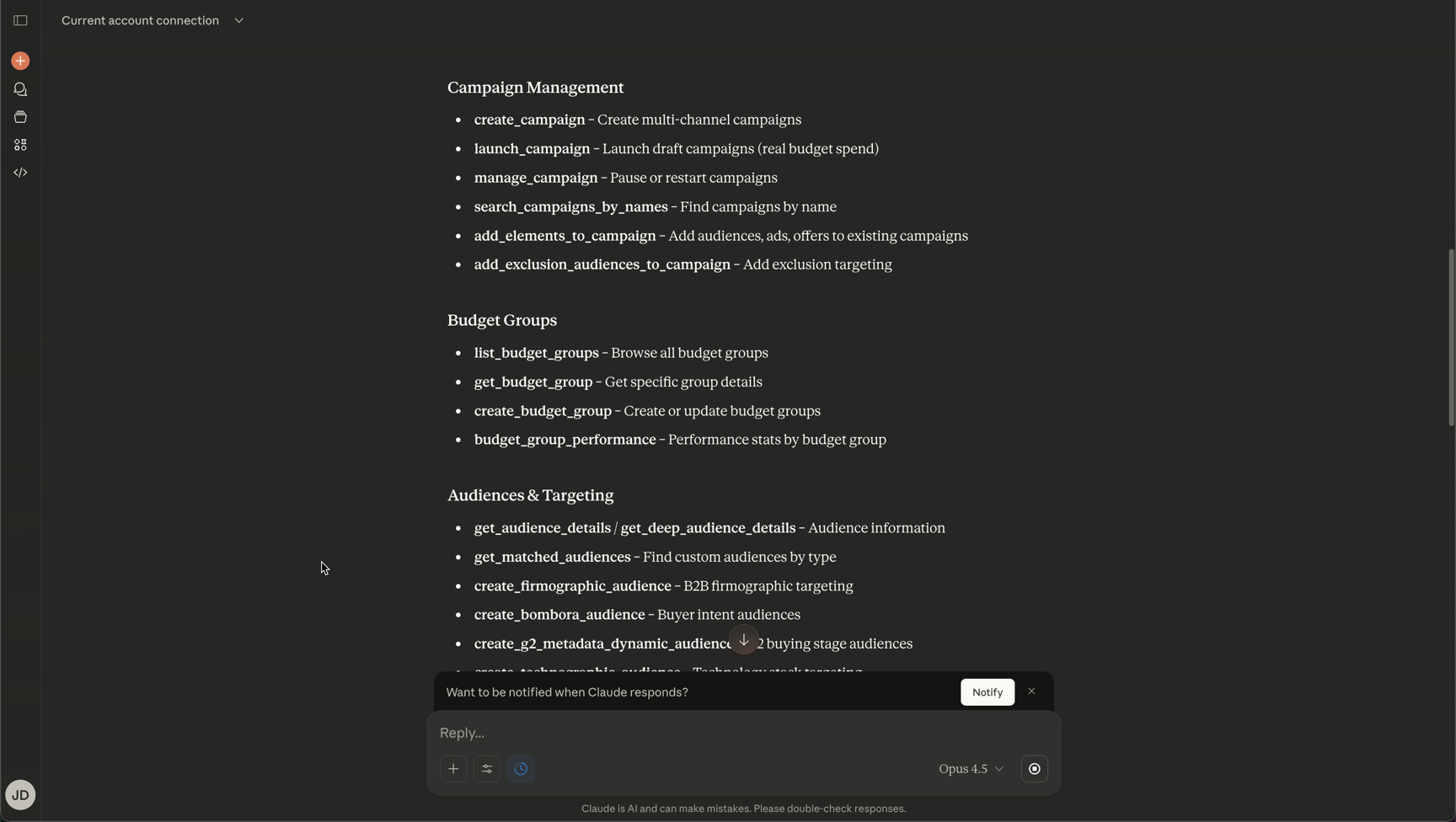
- "Which tools do I have available?"
- "What are some questions I can ask?"
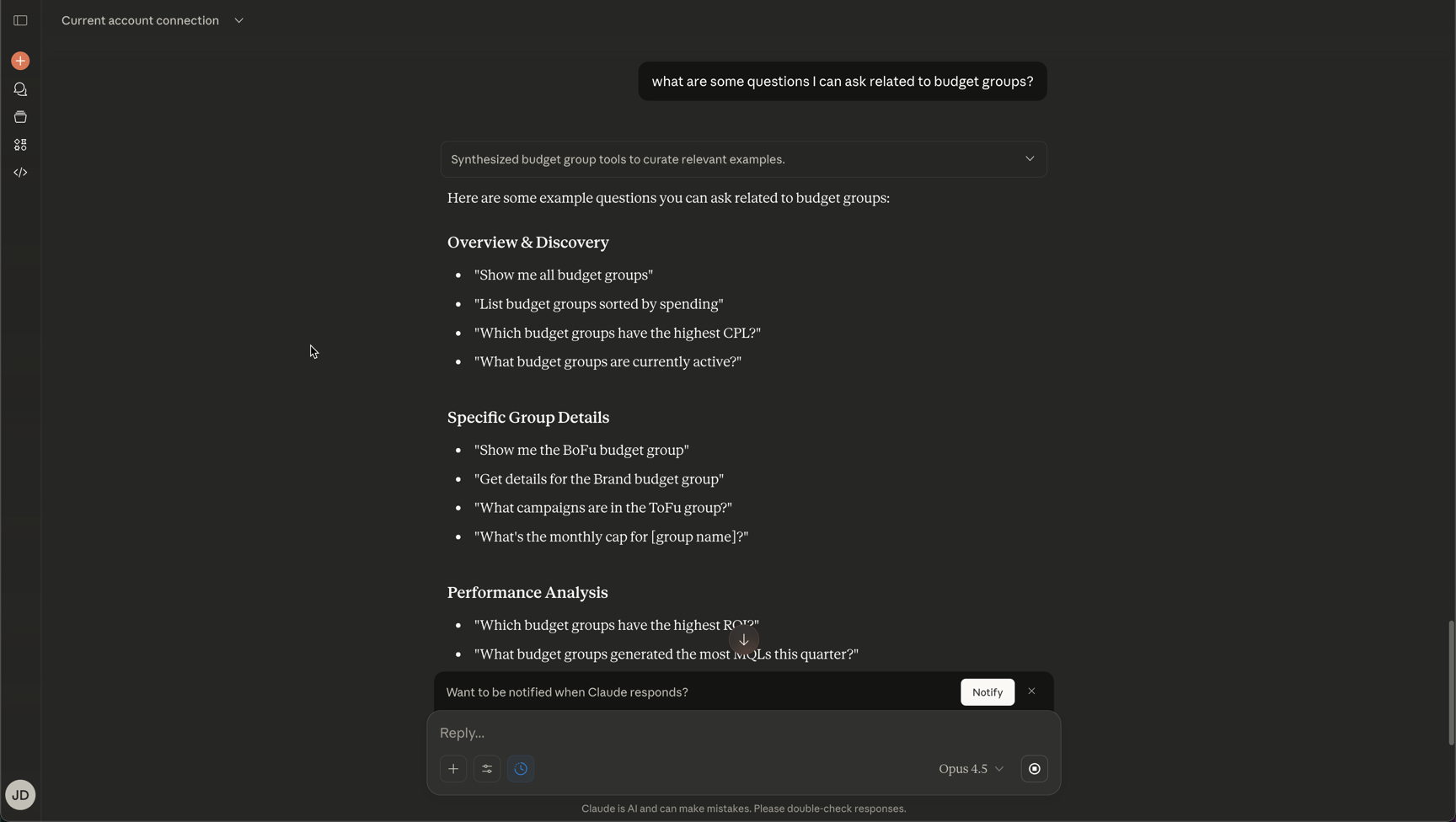
Claude will provide you with a list of available tools and example questions you can use to interact with your Metadata account.