
Metadata MCP - How to Connect
On this page
This guide will walk you through connecting the Metadata MCP server to Claude, allowing you to access your Metadata account directly through Claude's AI assistant.
Table of Contents
- Prerequisites
- Step 1: Generate Your Access Token
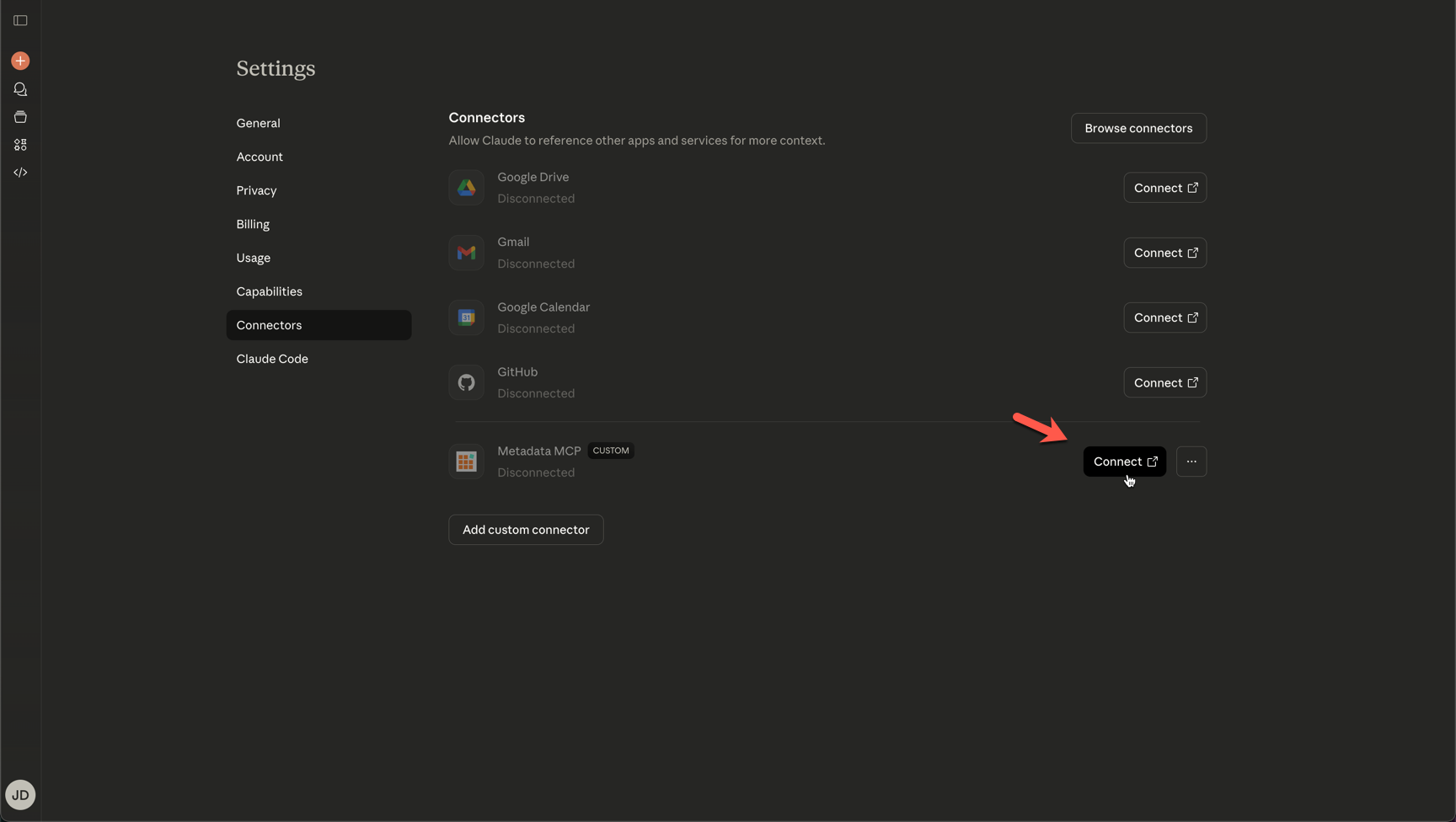
- Step 2: Add the Custom Connector in Claude
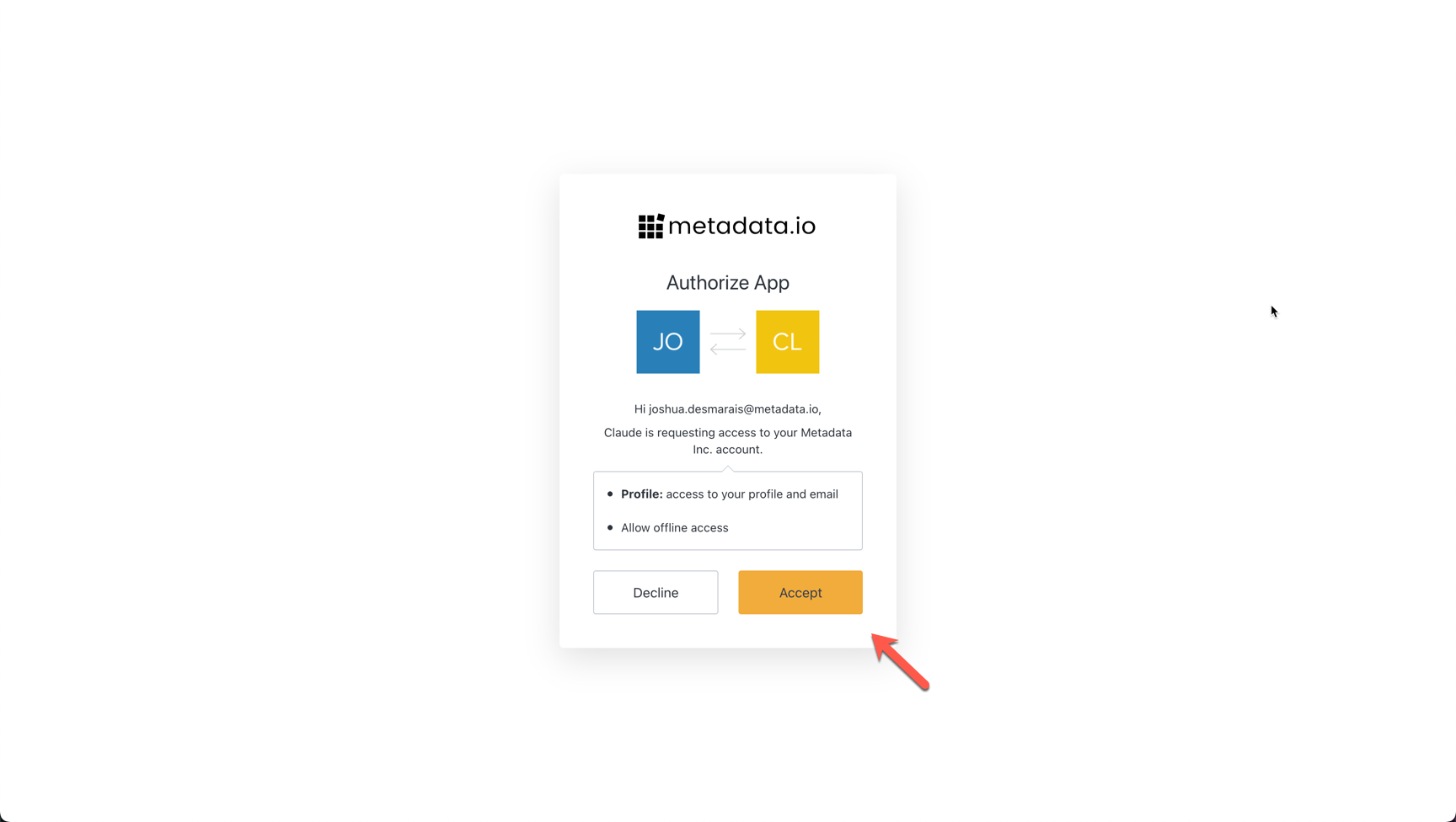
- Step 3: Authenticate and Connect
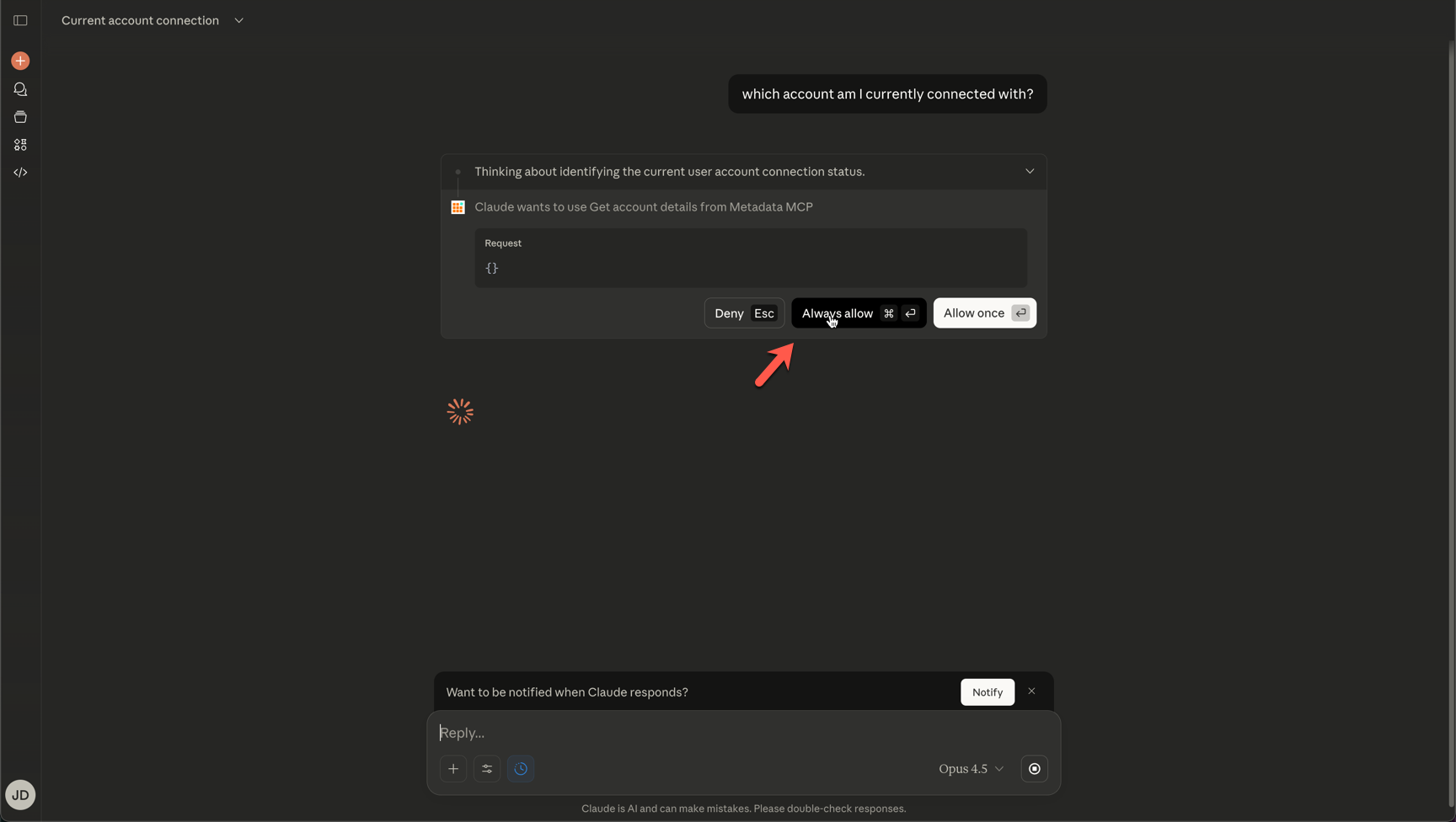
- Step 4: Verify Your Connection
- Troubleshooting
- Next Steps
Prerequisites
Before you begin, make sure you have:
- Claude Pro subscription - The free version of Claude does not support custom connectors
- Active Metadata account - You'll need your login credentials
Step 1: Generate Your Access Token
- Log into your Metadata account
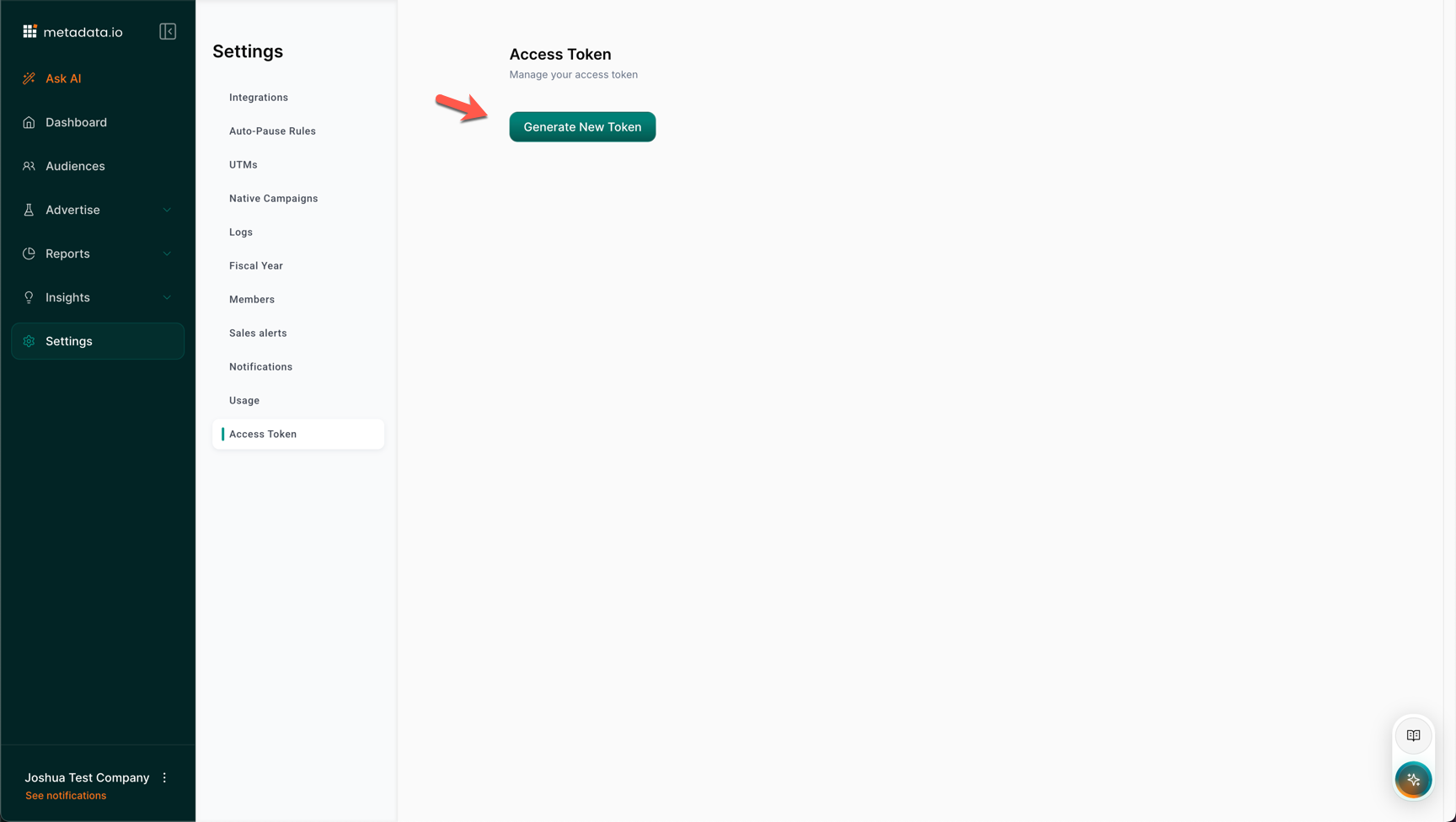
- Navigate to Settings
- Click on Access Token
- Click the button to Generate Access Token for MCP Server
- Accept the security warning
- Click Copy to copy your access token
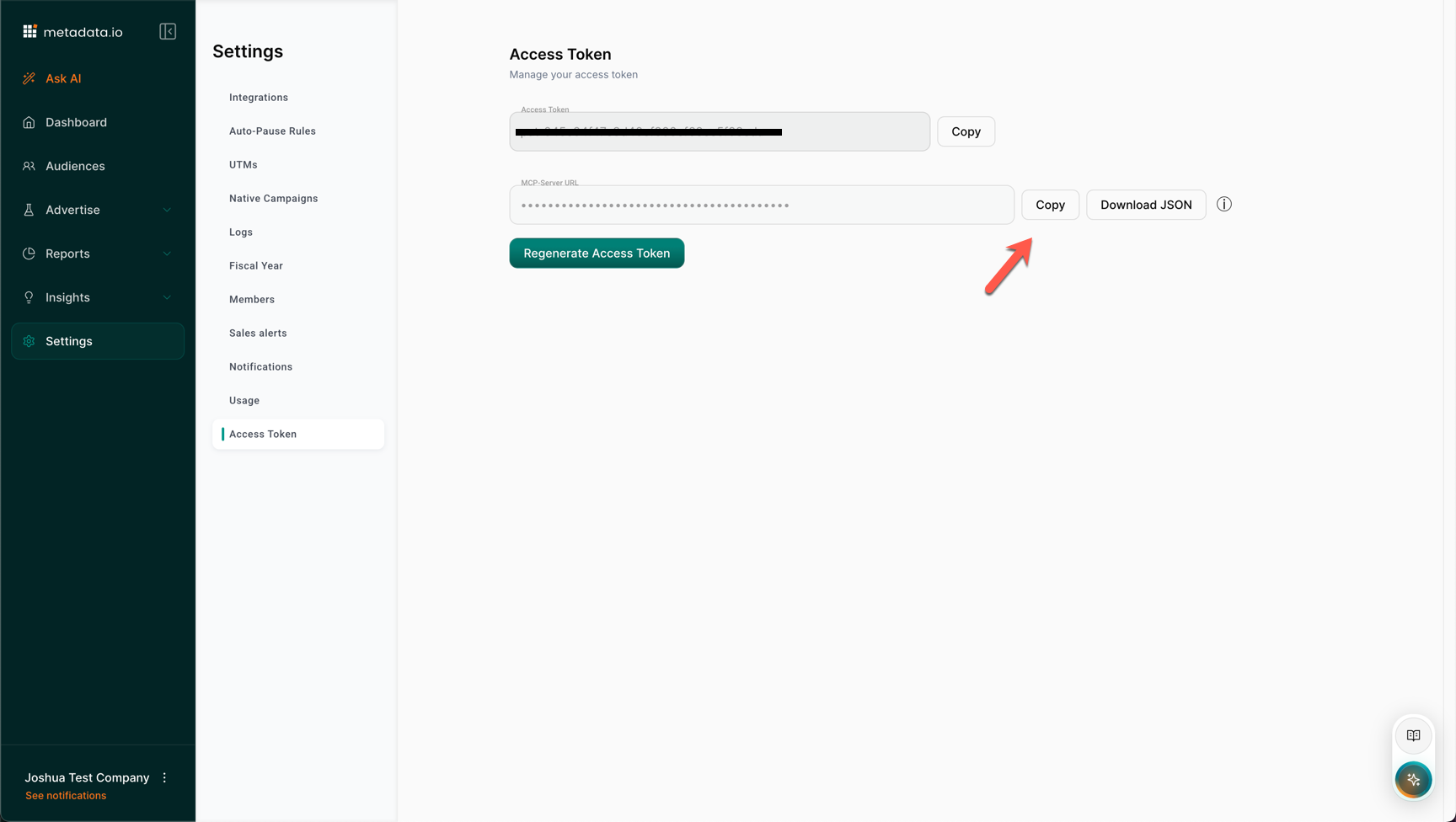
Important: You'll also need the MCP server URL, which is:
https://mcp-server.metadata.io/mcp
Step 2: Add the Custom Connector in Claude
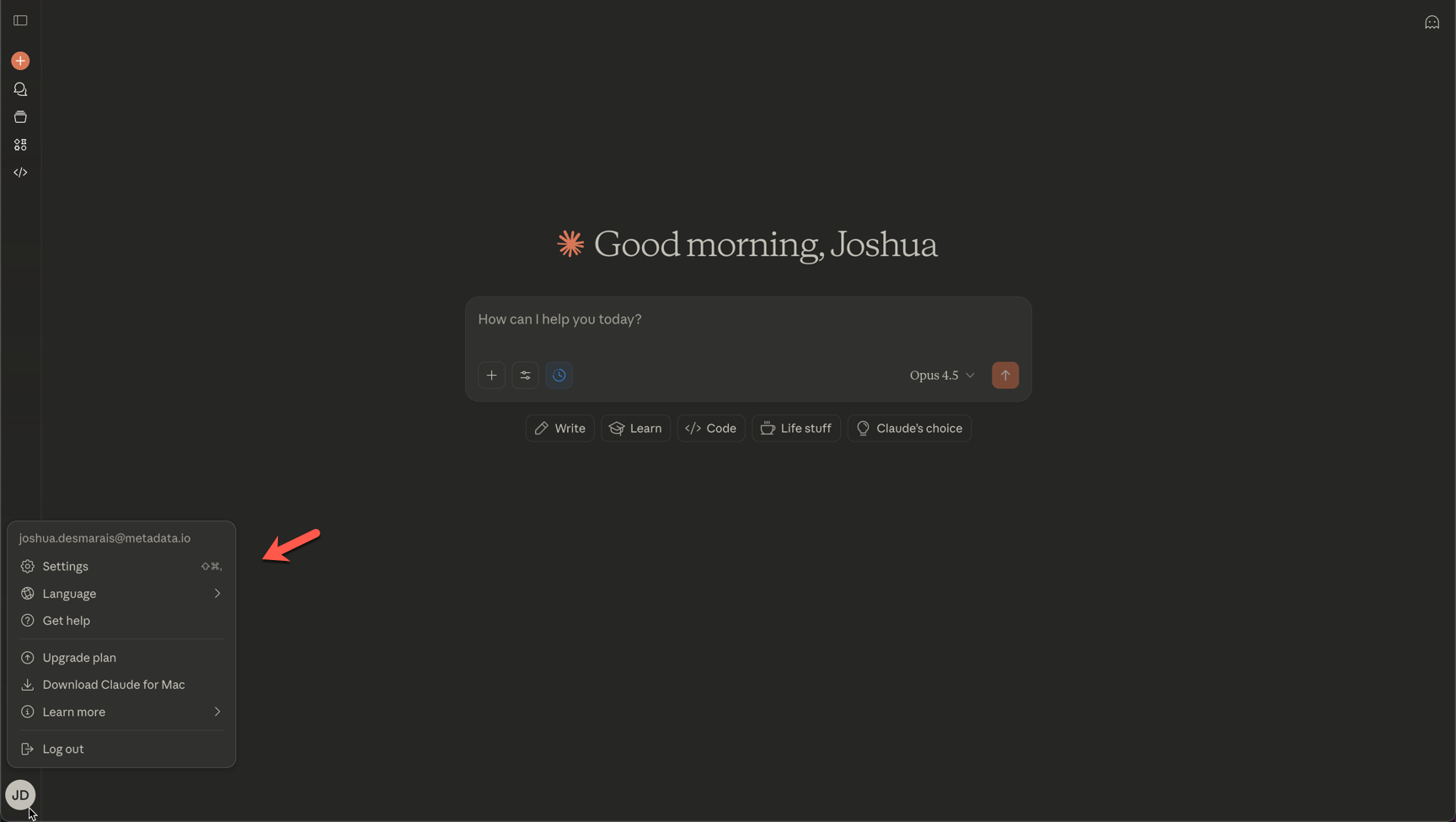
- Open Claude in your browser. Note: You may also use Claude desktop.
- Click on Settings (under profile bottom left)
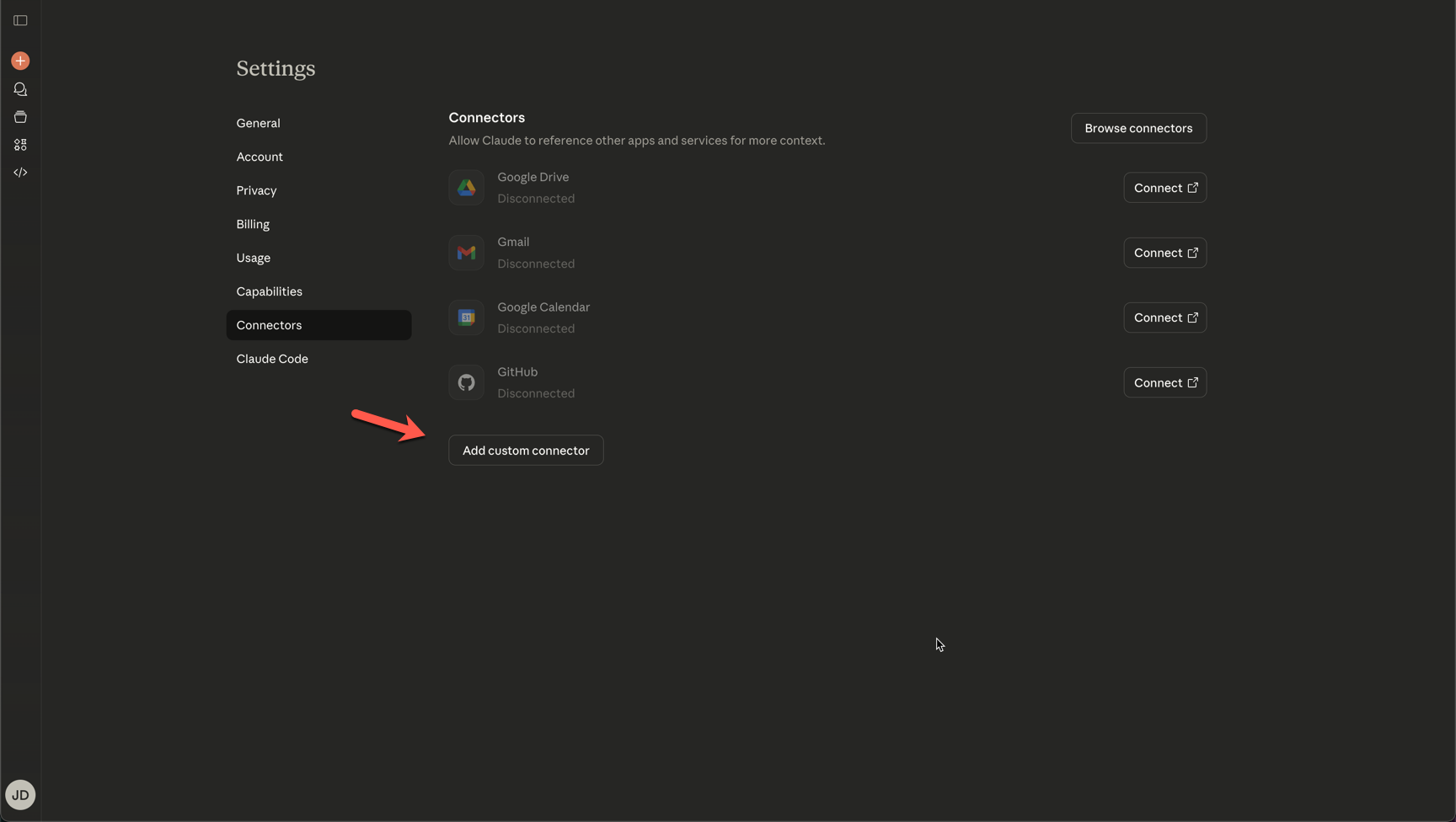
- Select Connectors from the menu
- Click Add Custom Connector
- Enter a name for the connector (e.g., "Metadata MCP")
- Paste the MCP server URL:
https://mcp-server.metadata.io/mcp - Click Add
Step 3: Authenticate and Connect
- After adding the connector, click Connect
- You'll be redirected to the Metadata platform login page
- Enter your Metadata username and password
- Click Continue
- You'll see a prompt to Authorize the app
- Click Accept to authorize the connection between Metadata and Claude
- Click Open when prompted to return to Claude
- You should see a confirmation in the top-right corner that the MCP server has connected
Step 4: Verify Your Connection
- Open a new chat in Claude
- Ask: "Which account am I currently connected with?"
- When prompted, select Always Allow to give Claude permission to use the MCP server
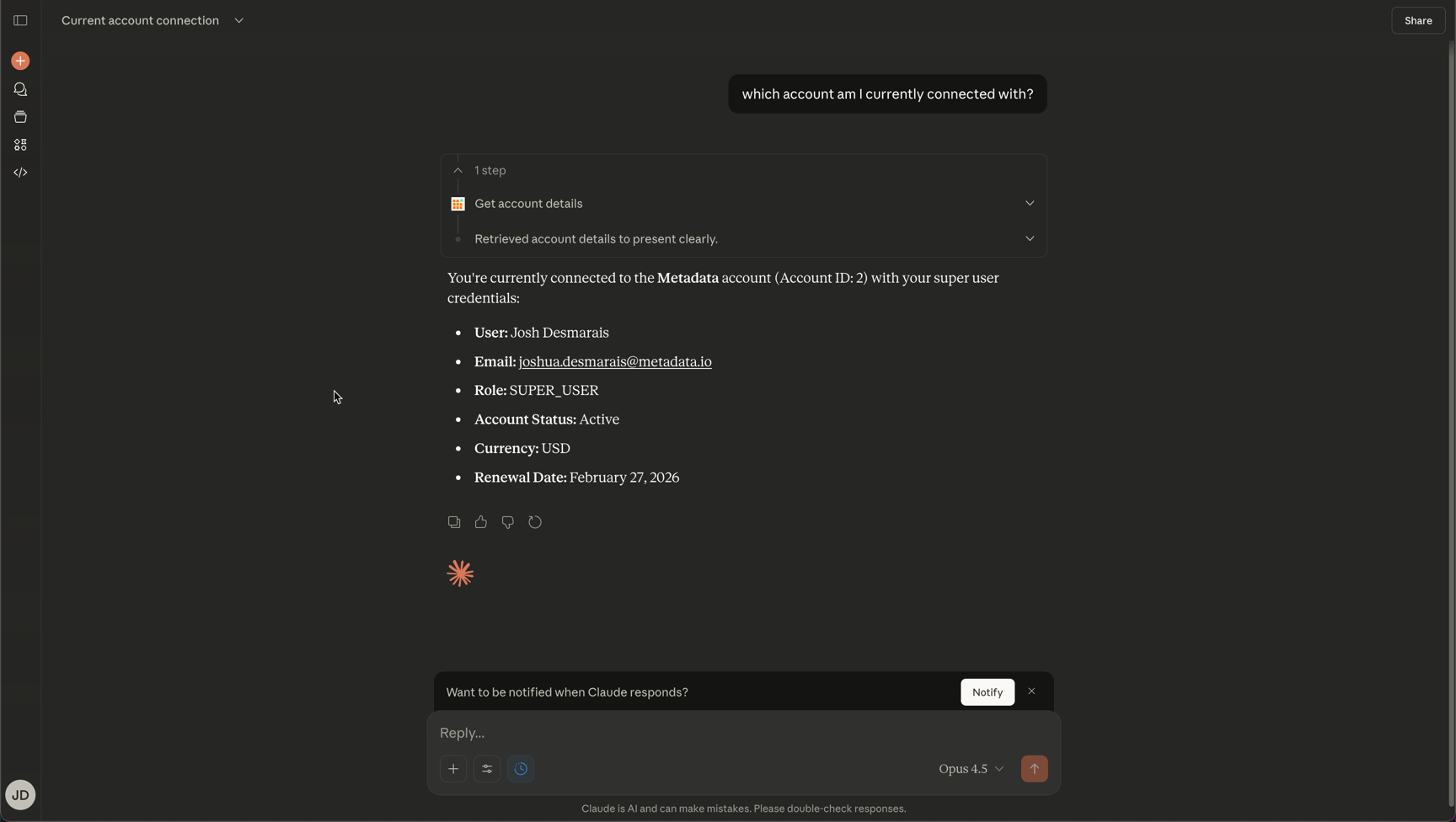
- Claude will retrieve your account details and display:
- Your connected account name
- Your user information
- Your account ID
Success! You're now connected and ready to use the Metadata MCP server with Claude.
Troubleshooting
If you're unable to connect, the issue may be related to:
- Browser cache or cookies
- Authentication issues with your Metadata account
- Permissions settings
If you continue to experience connection issues, please contact support@metadata.io for assistance.
Next Steps
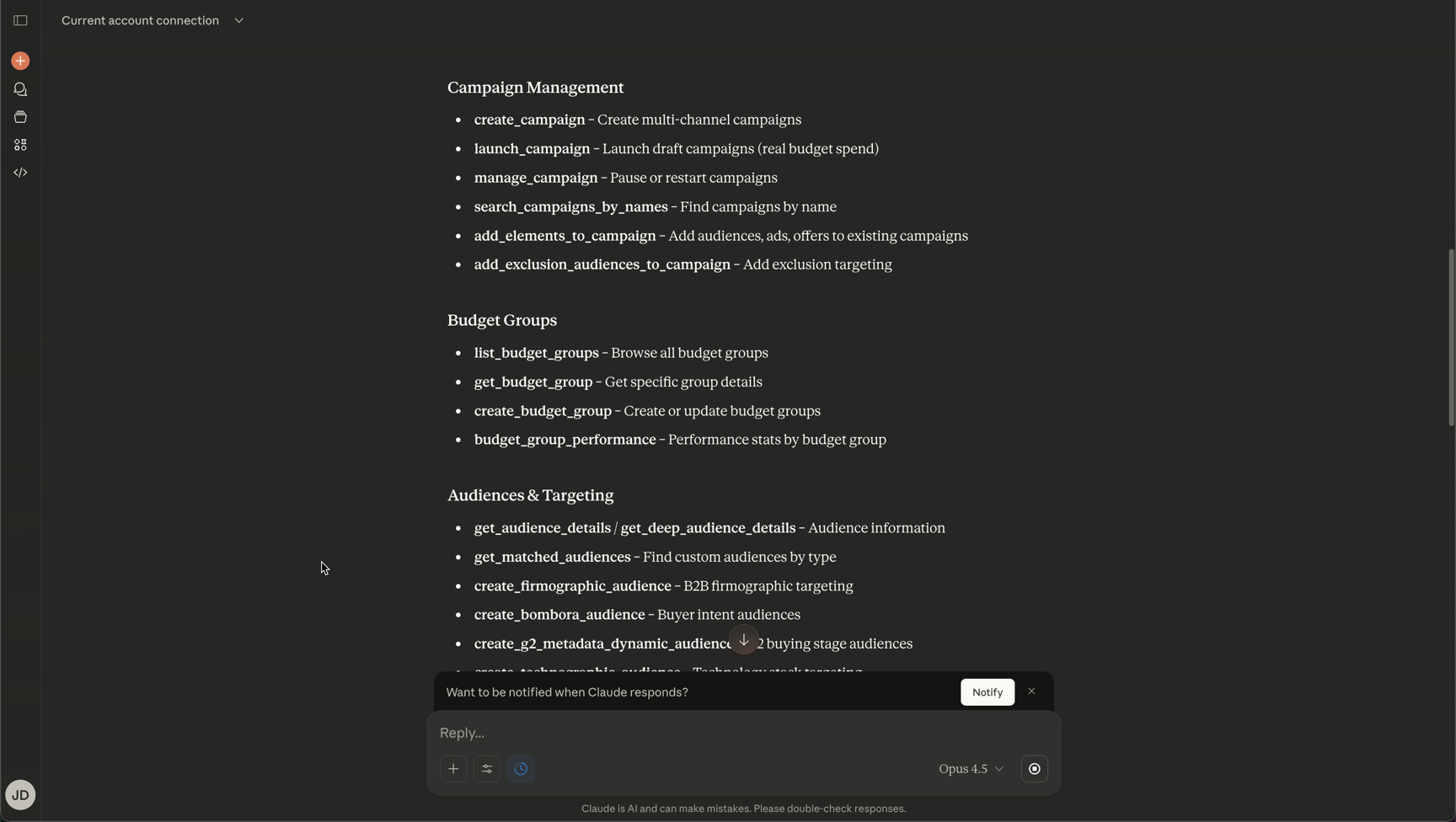
Now that you're connected, you can explore what's possible with the MCP server. Try asking Claude:
- "Which tools do I have available?"
- "What are some questions I can ask?"
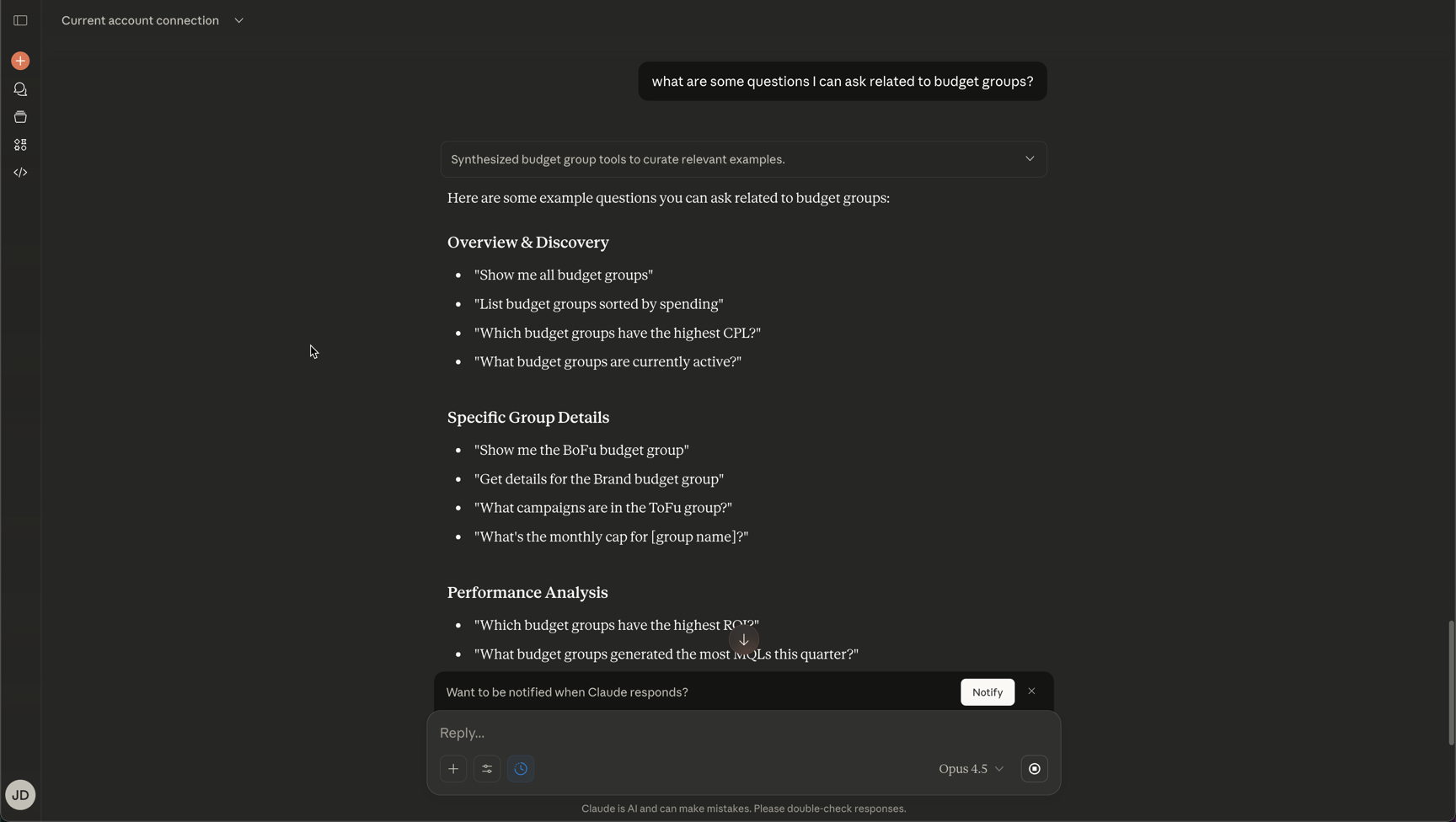
Claude will provide you with a list of available tools and example questions you can use to interact with your Metadata account.