Overview
Pardot forms added to landing pages by default don't always work with the Metadata Lead Capture script, depending on how the forms have been configured.
Because Pardot forms are typically embedded in a cross-origin iframe, the Metadata script cannot directly detect form submissions. This guide provides two methods to resolve this, starting with the recommended approach.
Option 1 — Create a Form Handler (Recommended)
This is the recommended approach. Instead of using a Pardot iframe, you create a Form Handler in Pardot and embed a standard HTML form directly on your landing page. Because the form lives on the same page (not inside an iframe), the Metadata Lead Capture script can detect submissions automatically — no callback event or allowOrigin configuration needed.
1. Create a Form Handler in Pardot
- Navigate to Marketing > Forms > Form Handlers
- Click + Add Form Handler
2. Configure the basic settings
- Name your form handler
- Select a folder
- Choose a completion action (redirect URL, display thank you message, etc.)
- Configure success/error locations
3. Map Form Fields
In the "Form Field Mappings" section, add each field your HTML form will contain. For each field, specify:
- External field name — must exactly match the
nameattribute in your HTML form - Pardot field — the Pardot field to map to
- Required — whether the field is required
4. Get the Endpoint URL
After saving, you'll receive a unique endpoint URL for your form handler.
5. Create Your HTML Form
Add a standard HTML form to your landing page that posts to the Form Handler endpoint:
<form action="YOUR_FORM_HANDLER_URL" method="post">
  <label for="email">Email</label>
  <input type="email" name="email" id="email" required>

  <label for="firstName">First Name</label>
  <input type="text" name="firstName" id="firstName">

  <label for="lastName">Last Name</label>
  <input type="text" name="lastName" id="lastName">

  <input type="submit" value="Submit">
</form>
That's it — the Metadata Lead Capture script will automatically detect and track submissions from this form.
Option 2 — Adding a Callback Event (Iframe Method)
Use this method if you need to keep the Pardot form embedded as an iframe. It requires two steps: adding a callback script in Pardot, and configuring allowOrigin in the Metadata script. Both steps are required — if either is missing, lead capture will silently fail.
1 : Add the Callback Script in Pardot
In the Pardot form builder, go to the Completion Actions tab and add the following script to the Thank You Content section:
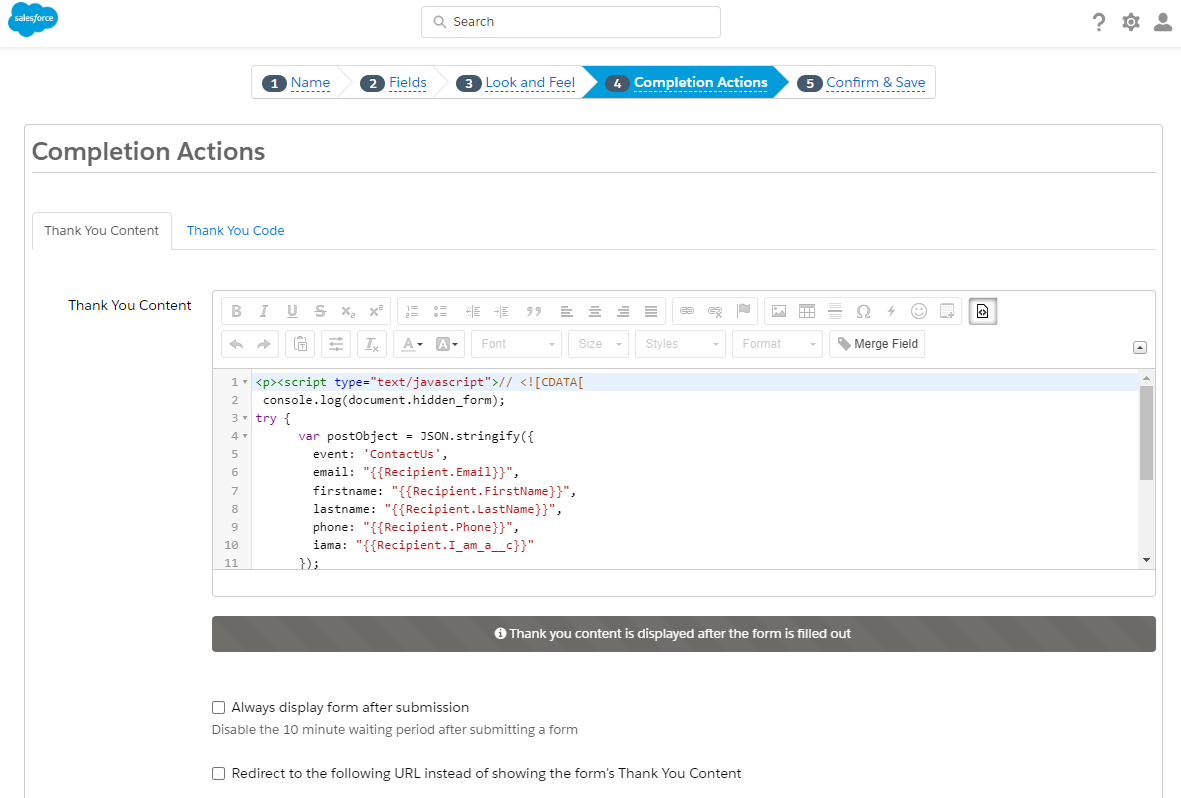
Add this script:
<script type="text/javascript">
try {
  var postObject = JSON.stringify({
    event: 'ContactUsCallback',
    email: '%%email%%',
    firstname: '%%first_name%%',
    lastname: '%%last_name%%'
  });
  parent.postMessage(postObject, '*');
} catch(e) {
  window.console && window.console.log(e);
}
</script>
This script fires after the form is submitted and sends the lead data to the parent page via postMessage.
Important: Make sure the "Redirect to the following URL" checkbox is unchecked in the Completion Actions. If a redirect is enabled, the Thank You Content script will never execute and the callback will not fire.
2 : Configure allowOrigin in the Metadata Script
The Metadata Lead Capture script has the event listener built in, but it only accepts messages from origins listed in the allowOrigin configuration. You must add your Pardot domain to the init call.
Find the Metadata script initialization on your landing page and add the allowOrigin parameter:
Metadata.siteScript.init({
  accountId: 1234,
  allowOrigin: ["https://go.metadata.io"]
});
Replace https://go.metadata.io with your Pardot tracker domain — this is the origin of the iframe. It is typically a CNAME you have configured in Pardot, such as https://go.yourcompany.com or https://pages.yourcompany.com.
How to find your Pardot iframe origin
- Open your landing page in a browser
- Right-click the form area and select Inspect to open Developer Tools
- Find the
<iframe>element containing the Pardot form - Look at the
srcattribute — the origin is the protocol + domain portion
(e.g., if the src ishttps://go.metadata.io/l/551262/2026-01-07/abc123, the origin ishttps://go.metadata.io)
Without allowOrigin, the Metadata script will silently ignore the postMessage from the Pardot iframe. There will be no error messages — lead capture will simply not work.
Troubleshooting
If you have set up the callback event (Option 2) but leads are still not being captured, check the following:
| Issue | How to Check | Fix |
|---|---|---|
allowOrigin not configured |
Open the browser console and check your Metadata.siteScript.init() call for the allowOrigin parameter. |
Add your Pardot domain to the allowOrigin array in the init call. |
Wrong origin in allowOrigin |
Inspect the iframe's src and compare the origin to what is in your allowOrigin. |
The origin must match exactly, including https://. Example: https://go.metadata.io |
| Pardot redirect enabled | In the Pardot form builder, check Completion Actions for "Redirect to the following URL". | Uncheck the redirect. When enabled, the Thank You Content script never executes. |
| Metadata script not loaded | Open the browser console and type window.Metadata. If it returns undefined, the script is not on the page. |
Verify the Lead Capture script tag is present. If loaded via GTM, ensure it is not blocked by cookie consent. |
Still not working?
Contact support@metadata.io with:
- The URL of your landing page
- Your Pardot tracker domain (the iframe origin)
- A screenshot of your
Metadata.siteScript.init()configuration