Customize the Converted Leads View to quick highlight issues related to lead quality.
Get started on the Converted Leads page.
Click Columns in the upper right hand side.
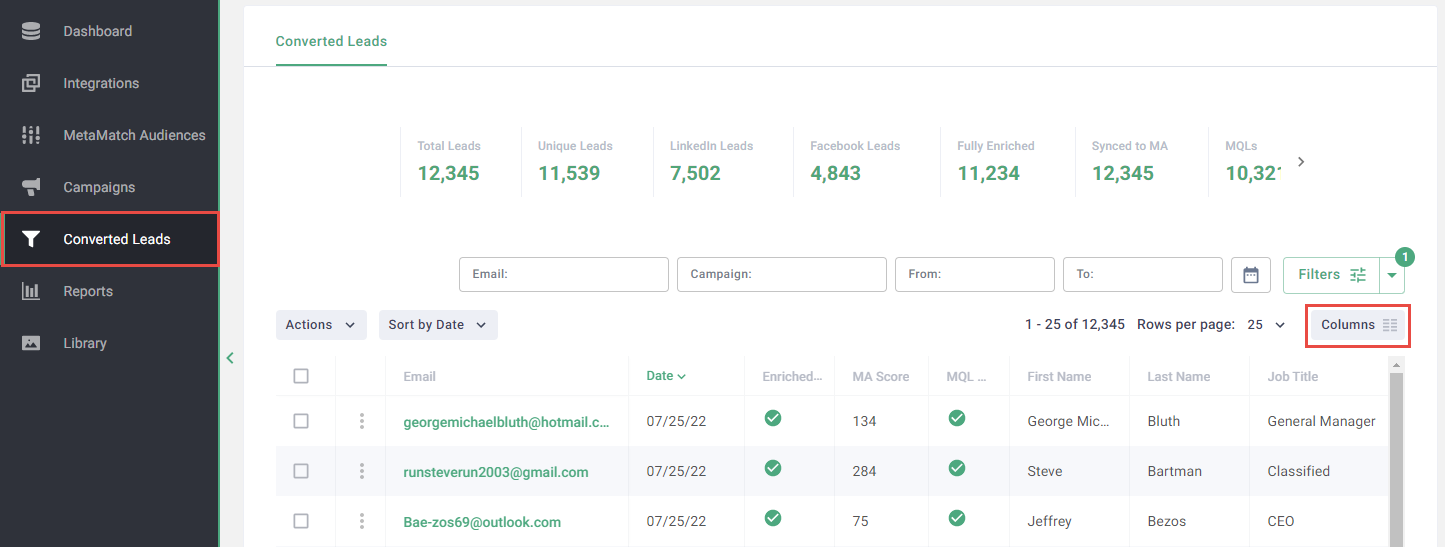
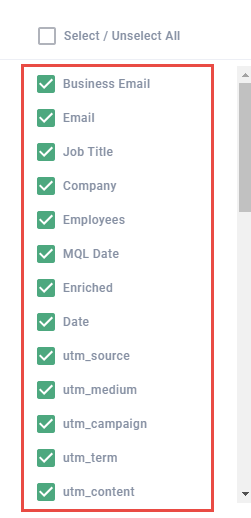
Enable and drag-and-drop Columns in this order:
- Business Email
- Job Title
- Company
- Employees
- MQL Date
- Enriched
- Date
- utm_source
- utm_medium
- utm_campaign
- utm_term
- utm_content
Disable the rest of the fields.
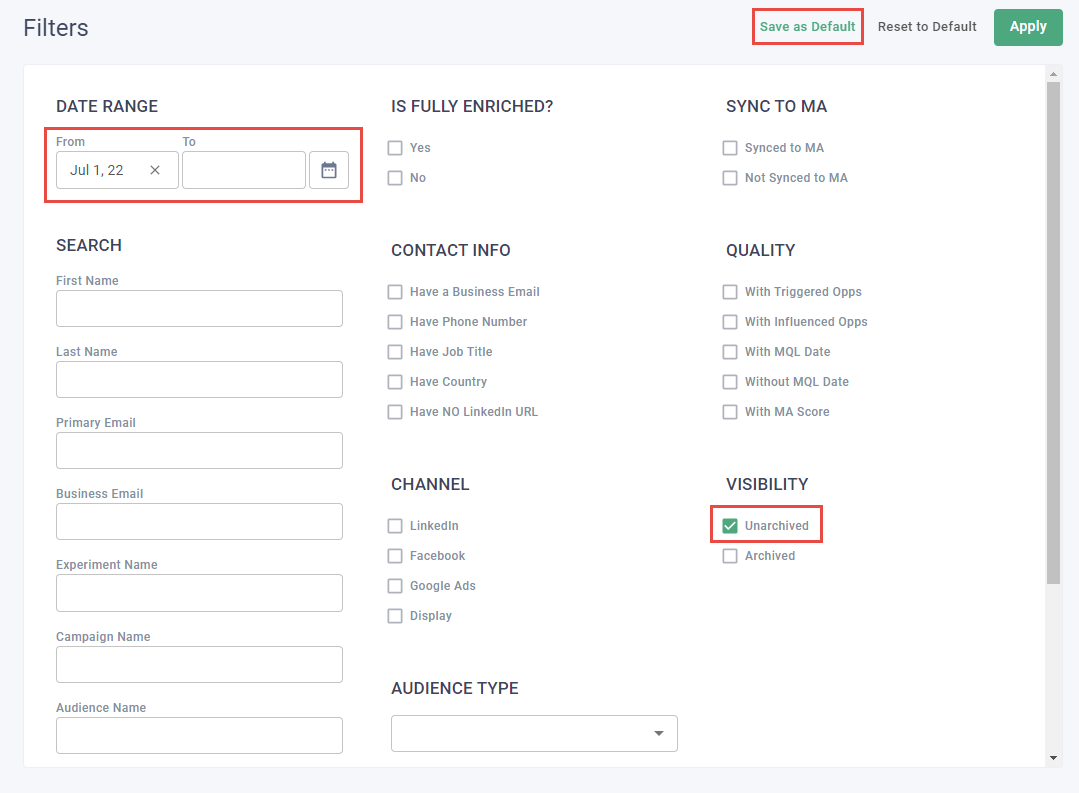
Click Filters in the upper right hand side.
Under Date Range, enter the 1st day of the current month in the From field. Leave the To field blank. Repeat this step at the start of each month.
Under Visibility, select Unarchived.
Leave all remaining fields blank.
Click Save as Default.
Way to go! Your customized Converted Leads View should help you quickly identify issues related to lead quality. Please work directly with your CSM to resolve issues related to lead quality (eg, business email is not set correctly).