Note: Currently, we do not support connecting your My Client Centre (MCC) account. You must connect the specific Google Ads account that you plan to use for launching campaigns.
Serve your target persona with search ads using the Google Ads integration.
What these permissions help with
- Our support team can run a leads test to ensure proper data flow between MD and Marketing automation.
- Our support team can help immediately address issues.
- Our PMM team can do quality assurance, such as checking for ad disapprovals and billing issues. Also, assist you in doing manual workarounds.
- Your MSD can see what is happening on the native channel and can then assist you in creating re-targeting audiences.
Assign permissions in Google Ads
Before connecting Google and Metadata, ensure that the following conditions are met within your existing Google Ads Account.
- Google Ads Account is currently active.
- Click on “Tools and Settings” (wrench icon) on the top right, then on the setup section, click on “preferences,” and make sure that you filled out your account name.
- When connecting Metadata, please ensure you choose your Google Ads account and not business accounts.
Now that you have the following things set up in Google Ads, we can move ahead with connecting Metadata and Google.
Go to Google Ads.
Copy your ten-digit customer ID on your screen's upper right-hand side into an email.
Send your customer ID to support@metadata.io
Once you send your customer ID, be on the lookout for an email that will prompt you to accept the linking request between Metadata and your Google account. 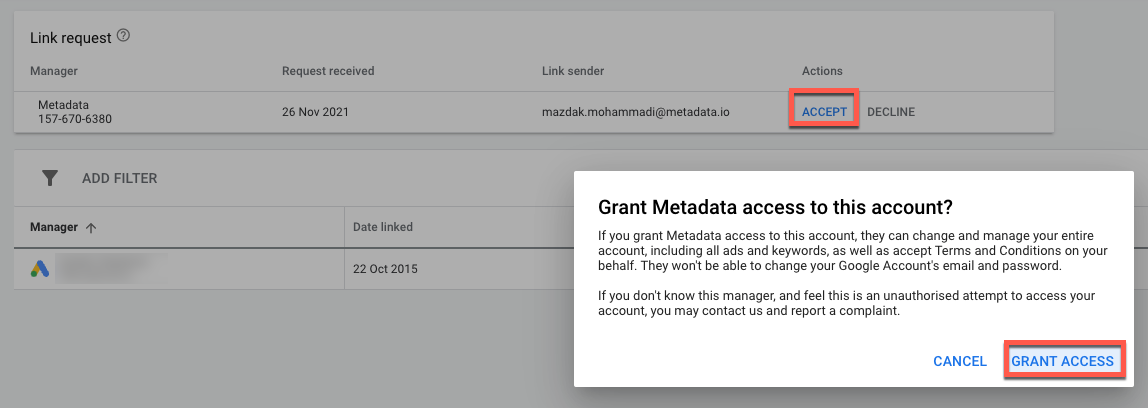
Within the email, click on the blue “Accept Request” button, which will take you to the access and security section of Google ads.
In the “Access and Security” section, click on both accept and grant access.
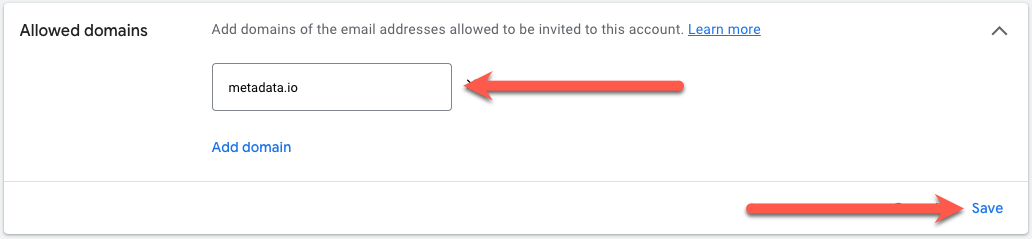
Click the Security tab near the top and add metadata.io as an allowed domain.
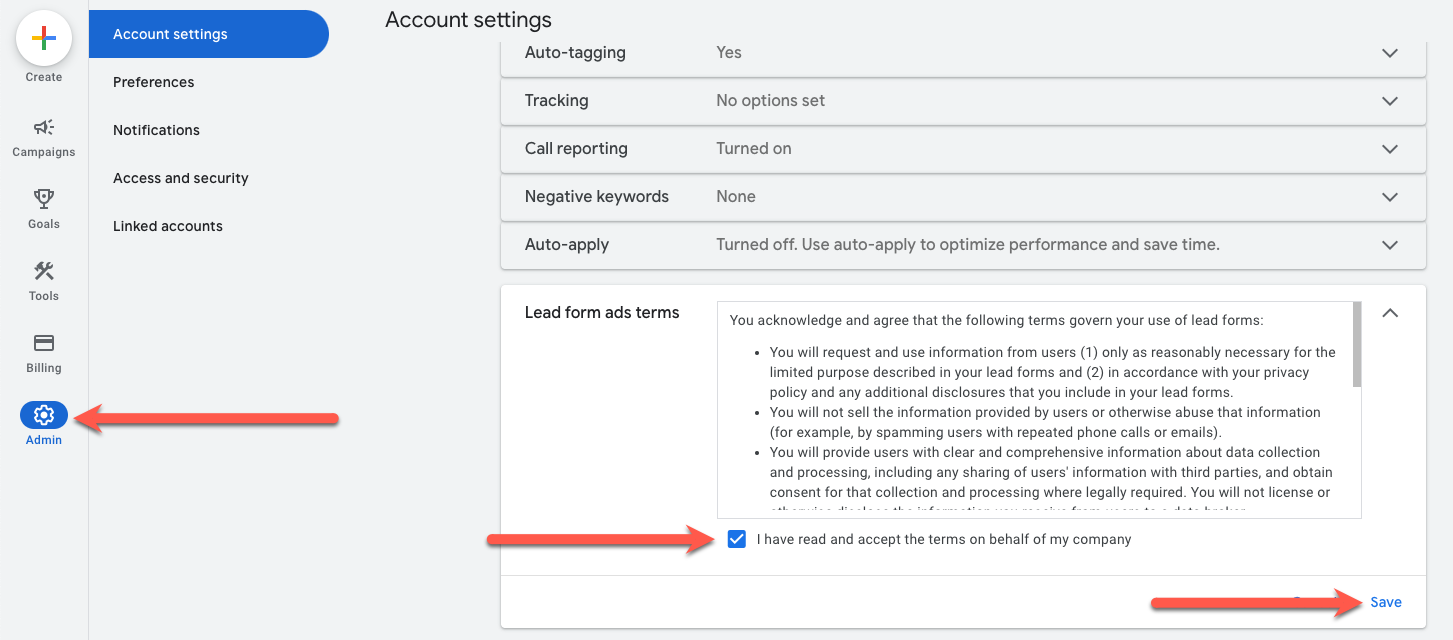
Accept terms of service for lead form ads
Note: This is required for lead form ads
Go to Google Ads.
Click Admin in the left navigation.
Click Lead form ads terms in the Account settings section.
Accept the terms.
Click Save.
Help and Support: Please email support@metadata.io if you're running into any issues.