
Get Started: Integrate Salesforce Pardot
On this page
In this article, we step through connecting Pardot and Metadata. Salesforce now calls Pardot Account Engagement; Metadata still lists it as Salesforce Pardot.
Step 1 - Get Pardot Business Unit ID
Salesforce Administrators have access to the Pardot Business Unit ID. To find it:
Log in to Salesforce.
Click Setup and enter "Pardot Account Setup" in the Quick Find box.
Your Pardot Business Unit ID begins with "0Uv" and is 18 characters long.
If you can't access Pardot Account Setup, ask your Salesforce Administrator for the Pardot Business Unit ID.

Step 2 - Check Pardot Is Connected to Salesforce
Metadata connects to Pardot through your Salesforce login. Before you connect, make sure Pardot is connected to your Salesforce org and that the Salesforce user you'll connect with has access to Pardot.
Step 3 - Connect Pardot and Metadata
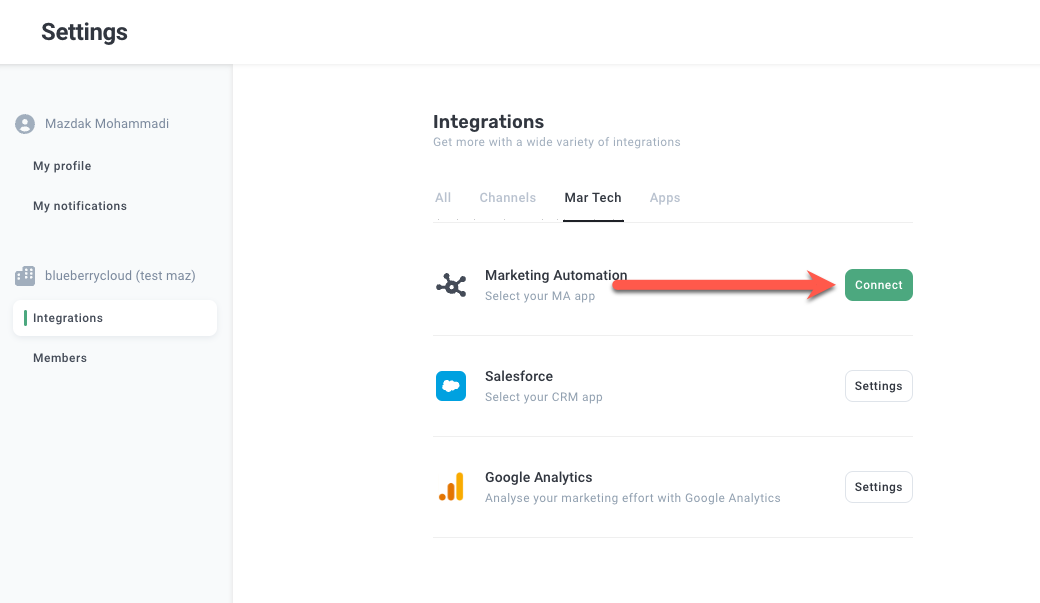
Go to the Integrations page.
Click Connect in the Marketing Automation box.
Select Salesforce Pardot.
Click Next.

Click Authenticate.

Log in to Salesforce with your CRM username and password, and approve the request.

Enter your Pardot Business Unit Id.
Choose your API Version.
Click Submit.

Step 4 - Field Mappings
Read: FAQ: Marketing Automation Field Mappings
Step 5 - Configure Parameters
Read: All about: Marketing automation parameters
Step 6 - Submit Test Lead
Read: How to: Submit test leads
Does Metadata Use a Connected App?
Yes. Metadata connects to Pardot through OAuth 2.0 using its own connected app, Metadata_Pardot_APP. It is separate from Metadata SF APP, which the Salesforce CRM integration uses. There is nothing to create in your Salesforce org before connecting.
When you click Authenticate and log in, you are authorizing Metadata_Pardot_APP with the api, pardot_api and refresh_token OAuth scopes.
Metadata refreshes access tokens automatically, so you won't need to re-authenticate unless the connection is revoked.
Metadata_Pardot_APP appears in your org under Setup > Connected Apps OAuth Usage only after someone in your org has authorized it once. Before that, you won't find it there to approve. After it appears, your Salesforce admin can view, restrict, or revoke it from that page.
If Your Org Only Allows Admin-Approved Apps
Some orgs block users from authorizing connected apps that aren't installed in the org. In that case, a Salesforce admin installs and approves Metadata_Pardot_APP once, and then your users can connect.
A Salesforce admin with the Approve Uninstalled Connected Apps permission connects Pardot from Metadata once (see Step 3). This makes Metadata_Pardot_APP appear in your org.
In Salesforce, click Setup. In Quick Find, search for "Connected Apps OAuth Usage" and open it.
Find Metadata_Pardot_APP and click Install, then confirm.
Click Manage App Policies, then Edit Policies.
Under OAuth Policies, set Permitted Users to Admin approved users are pre-authorized and click Save.
In the Profiles or Permission Sets section of the app, click Manage Profiles or Manage Permission Sets and add the ones held by the users who will connect Metadata.
Users with those profiles or permission sets can now connect without the Approve Uninstalled Connected Apps permission.
If your org also uses the Salesforce CRM integration, approve Metadata SF APP the same way. See Get Started: Integrate Salesforce CRM.
Troubleshooting OAuth Connection Error
While connecting, Salesforce may refuse the authorization, often with OAUTH_APPROVAL_ERROR_GENERIC. There are two ways to fix it:
Give the connecting user the permission. Enable Approve Uninstalled Connected Apps for the user (by profile or permission set), then connect again.
Have your admin install and approve the app. Follow the steps in If Your Org Only Allows Admin-Approved Apps above.
More details: https://help.salesforce.com/s/articleView?id=005132365&type=1
Pardot Campaign
When Leads are pushed to Pardot we will automatically associate with the oldest campaign in your Pardot. At this time it is currently not possible to configure this, but you can use an automation rule to update when a specific utm_campaign is set and have that update the Pardot Campaign.
https://help.salesforce.com/s/articleView?id=sf.pardot_campaigns_prospects_associate.htm&type=5