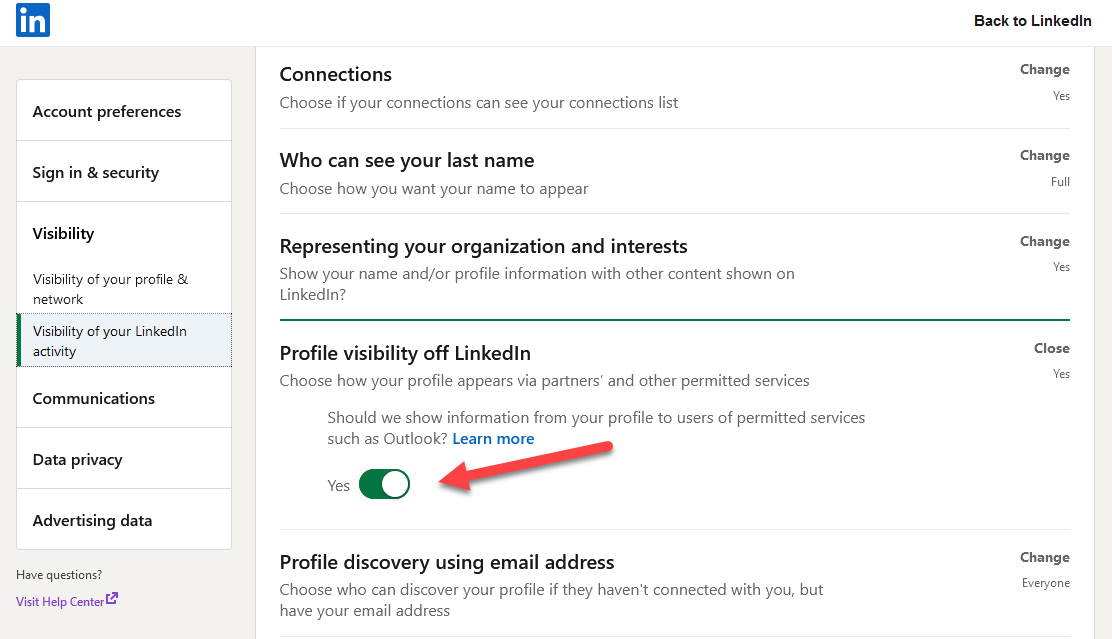
Enable Profile Visibility on LinkedIn
The person that will be the sender for your LinkedIn Convo Ad must enable Profile Visibility on their LinkedIn account.
Add Sponsored Message sender
You can add senders to a campaign by sending a request to your 1st-degree connections.
Note: You must have Account Manager access to add a new sender.
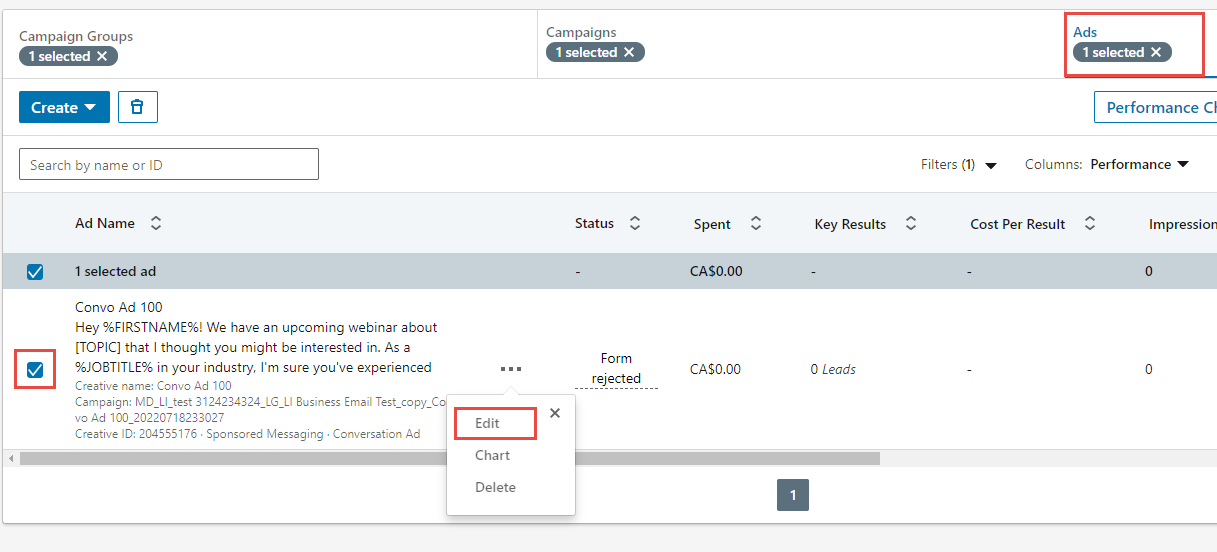
Select the correct account name and campaign group name.
Select the checkbox to the left of the campaign name and click on the Ads tab near the top right.
Click the More icon to the right of the ad
- Click Edit
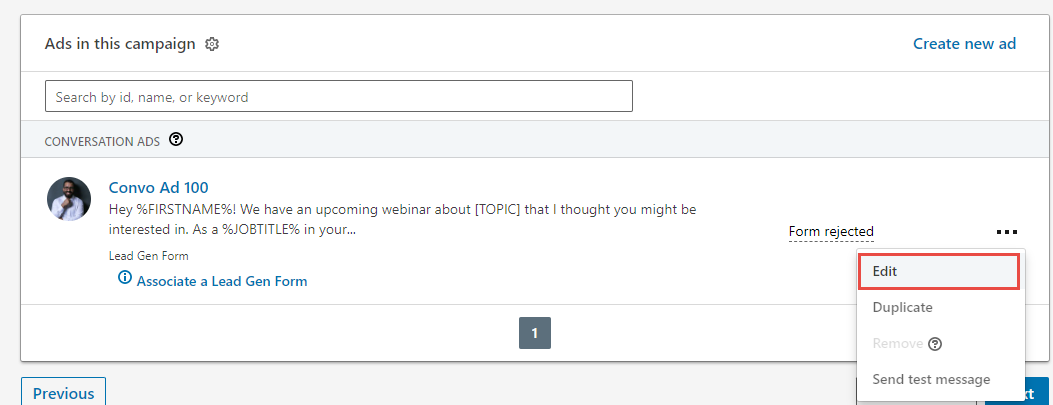
- Click the More icon to the right of the ad
- Click Edit
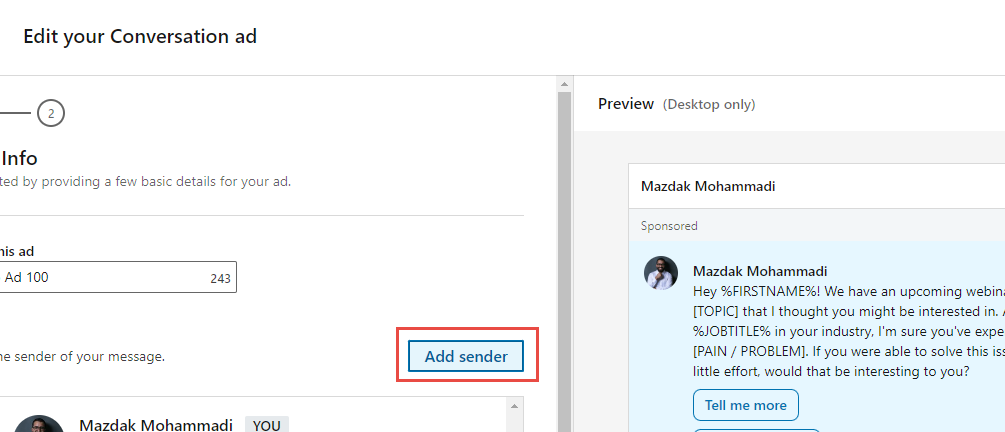
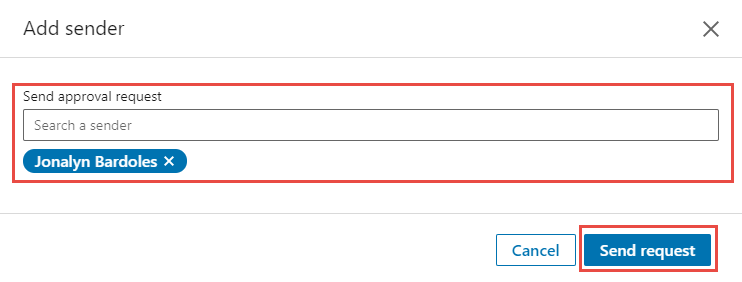
Click Add sender
Type the name of the sender from your network you’d like to add
Click Send request
Approve Sponsored Sender Messaging Sender permissions
When you receive a request to be a sender on a LinkedIn Sponsored Messaging campaign, you can approve or reject this request by following the link provided in the email. You can also manage Sponsored Messaging requests in Campaign Manager.
Sponsored Messaging sender permissions are granted by account, not campaign. When you approve the sender permission for an ad account, you can be designated as a sender for future campaigns as well.
Manage your sender permissions for Sponsored Messaging campaignsYou can change the sender permission for specific ad accounts at any time:
Note: Rejecting your sender permissions when the campaign is active will cause the creatives for which you are designated as the sender to be canceled. Canceled ads will no longer be delivered to members in the campaign audience. Ads that have been canceled can’t be viewed or duplicated. |
Review Sponsored Messaging campaigns with sender permission requestsWhen you receive sender permission requests, you will have Viewer access to the campaign creatives in the requestor's Campaign Manager account. You can review the company that has requested you as a sender, the campaign you are being requested approval as a sender for, and the creative assets that are part of the campaign.
Note: Senders with no LinkedIn profile images, or with profile images that are set to private, will display a default silhouette profile image where profile images are generally shown in Sponsored Messaging. For a more personalized Sponsored Messaging, we recommend senders have a LinkedIn profile picture before sending a Sponsored Messaging. Learn more about adding a profile picture. |
Additional considerations:
- You must have account manager permissions to add new senders.
- Sender must be added to the ad account and company page.
The sender can’t be changed on a Sponsored Messaging ad that is no longer in Draft status.
All approved senders will have Viewer access to the ad account.
Removing a sender as a user on the ad account will cause all active ads with that sender to be canceled. Canceled ads will no longer be able to deliver to your target audience. Ads that have been canceled can’t be viewed or duplicated.
Sender needs to be a first-degree connection with the Company running the Campaign on LinkedIn. You'll see a 1st-degree icon next to their name in search results and on their profile.
To confirm Senders have been approved create a draft campaign and choose either Convo Ad OR Message Ad and you should see the Senders.
If you wish to have the Sender as the Company page please reach out to LinkedIn Support and request them to add your Company Page to the available senders as this functionality needs to be enabled by LinkedIn.
Help and Support: Please email support@metadata.io if you're running into any issues.