Submit test leads to validate the flow of data from your ad to your marketing automation system:
Submit test leads
Landing Page offer types
Note: Landing Page for Awareness Campaign offers cannot be tested because converted leads are not tracked for Brand Awareness campaigns.
- The Metadata site script must be installed and present on the landing page specified in your offer.
- Your lead gen form must be on the landing page specified in your offer.
- Lead gen forms embedded in iFrames are not supported.
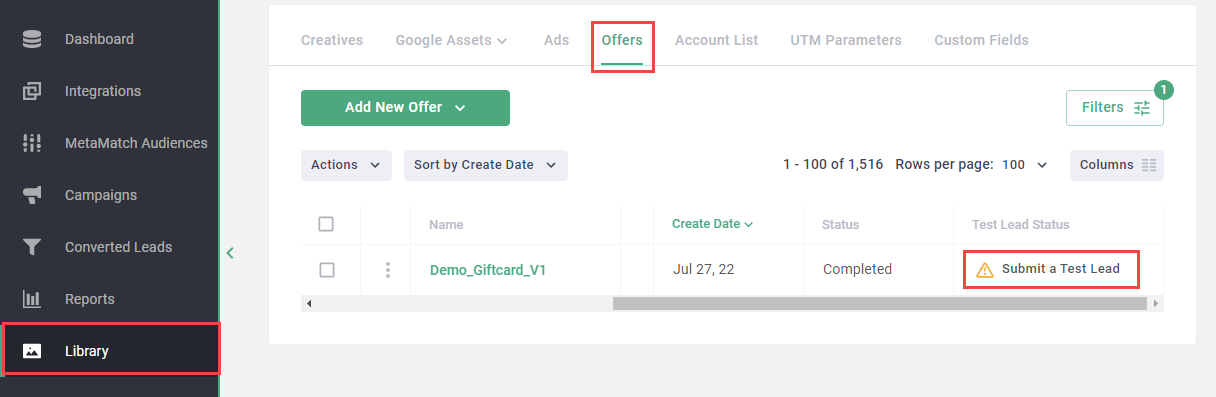
Go to the Library > Offers page.
Click Submit a Test Lead in Test Lead Status column of the Offers table for the landing page offer you want to test.
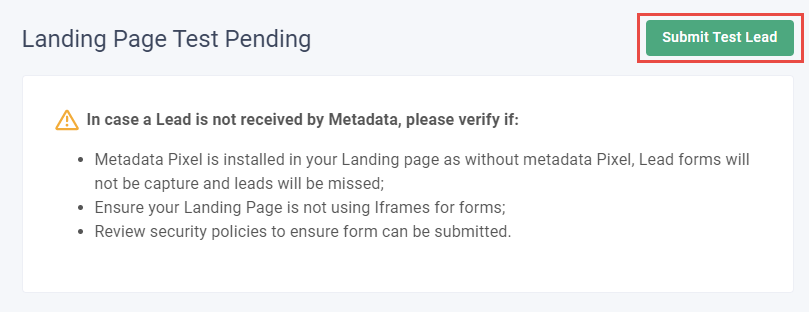
Click Submit Test Lead.
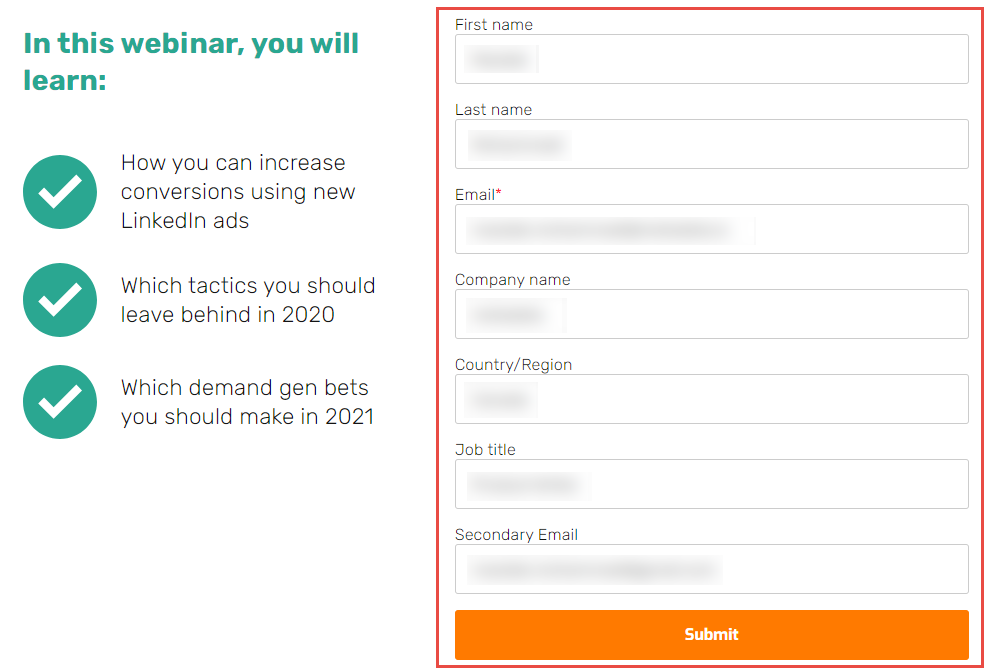
Submit the lead generation form on your landing page.
If successful, you should see a date stamp in the Test lead Status column for the tested offer.
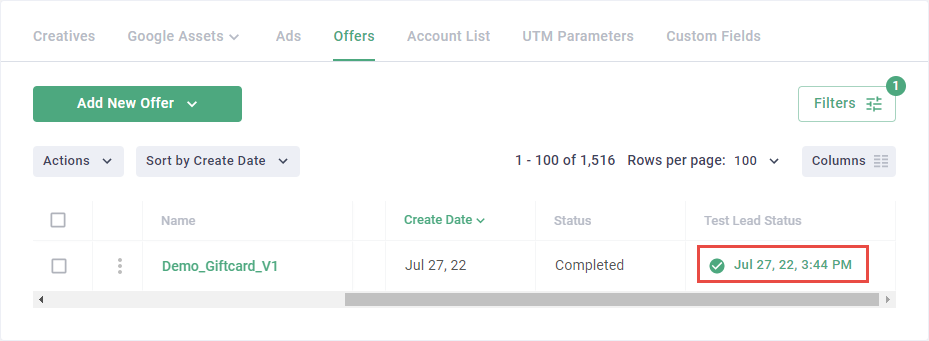
If unsuccessful, please review the prerequisites to make sure you meet the requirements. If you're not sure why your test is failing, please contact support@metadata.io.
LeadGen Form offer types
- You must be running one or more active campaigns.
Choose an experiment to test
- Log in to the Metadata platform
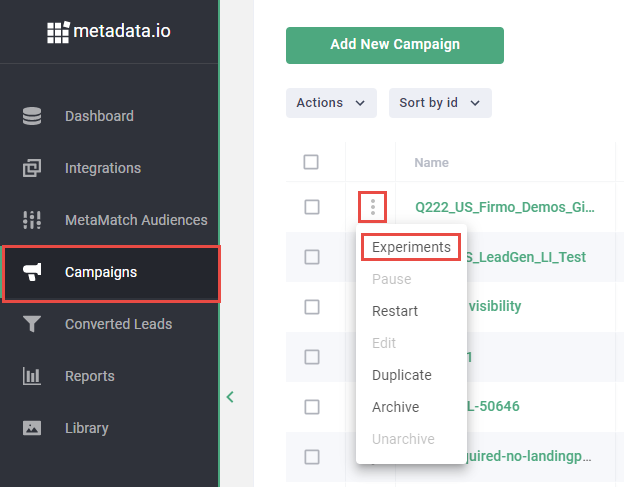
- Click Campaigns on the left navigation
- Click the ⋮ icon on the left of the campaign
- Click Experiments
-
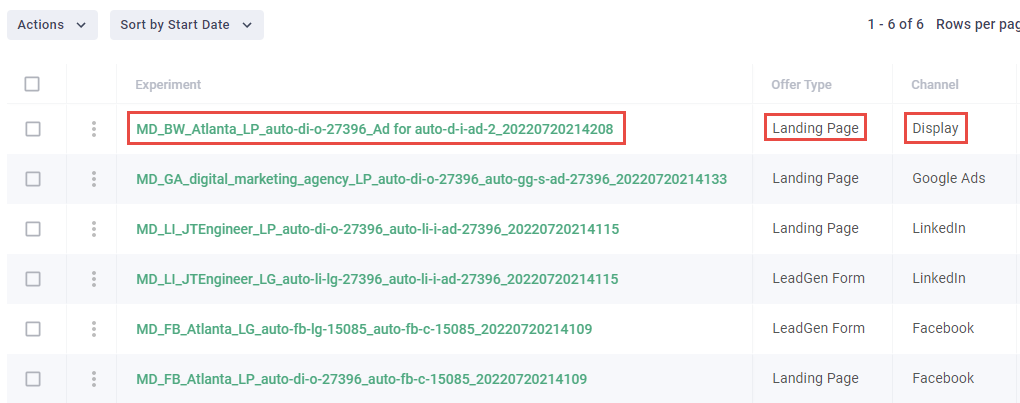
Note the name, offer type and channel of the experiment you want to test
Notes: Read Understanding Metadata Campaign naming conventions to learn more about experiment naming conventions.
-
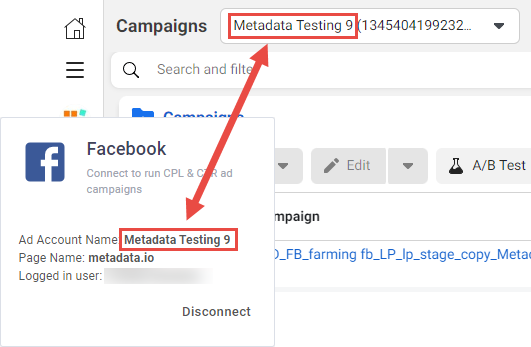
Log in to Facebook Ads Manager
Note: Ensure you are in the correct ad account by comparing the ad account name on Facebook with the ad account name on the Integrations page.
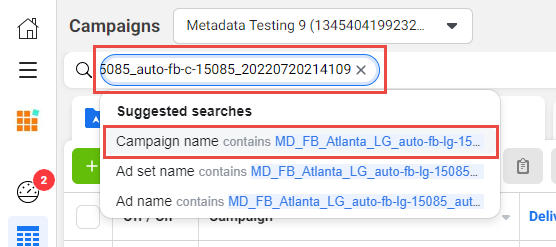
- Search for the experiment name
- Click Campaign name contains ... under Suggested searches
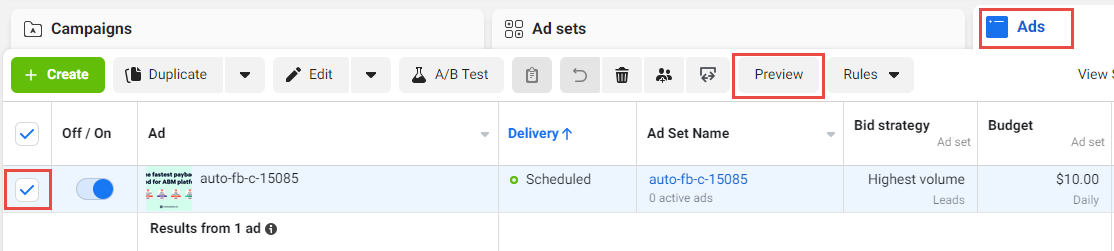
- Click the Ads tab
- Select the ad
- Click Preview
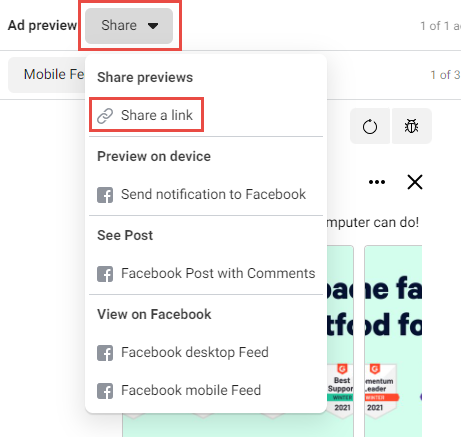
- Click Share
- Click Share a link
- Click Copy
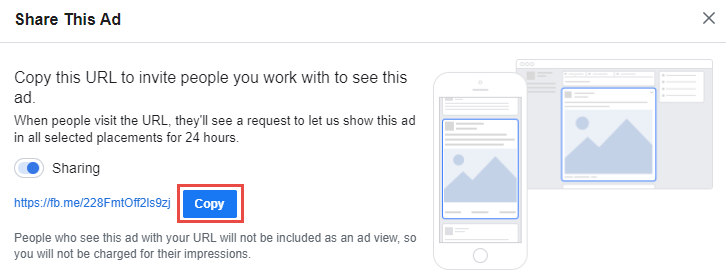
- Open the URL in a new tab
- Click Show Ad

- Scroll through your feed until you see the ad preview
- Click the ad
- Submit the lead gen form

- Log in to LinkedIn Campaign Manager
-
Click the ad account name
Note: Ensure you open the correct ad account by comparing the ad account name on LinkedIn with the ad account name on the Integrations page.
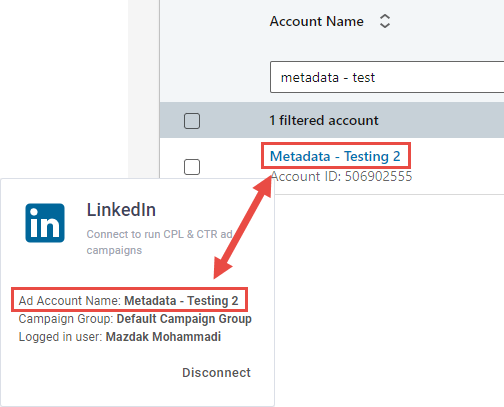
-
Click the campaign group name
Note: Ensure you open the correct campaign group by comparing the campaign group name on LinkedIn with the campaign group name on the Integrations page.
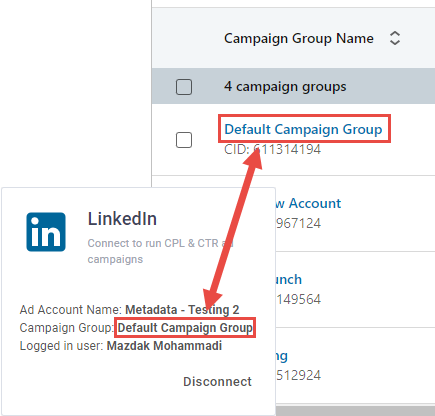
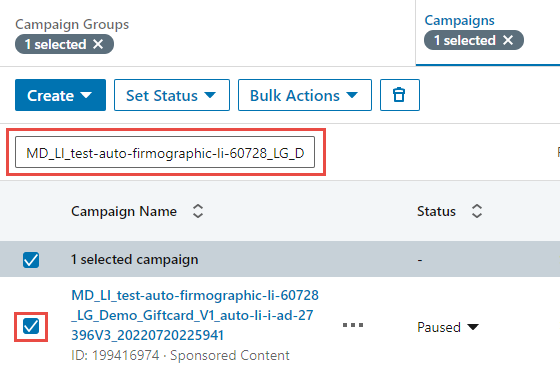
- Search for the experiment name
- Select the campaign
- Click the Ads tab
- Click the ad name
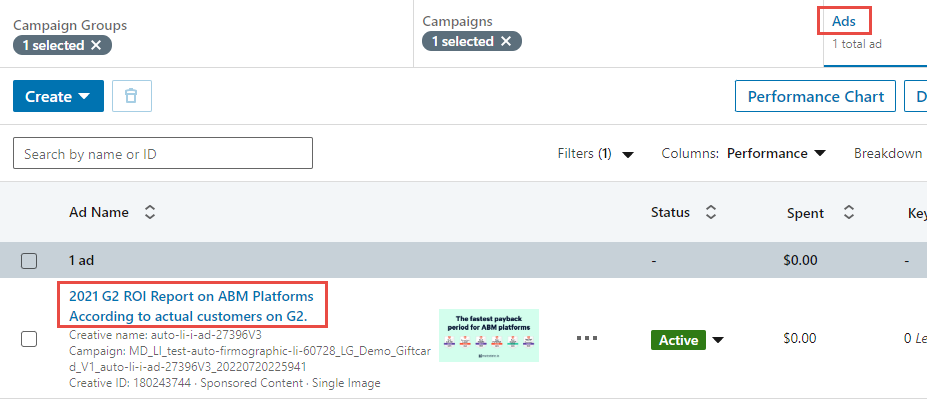
- Click the ad
- Submit the lead gen form
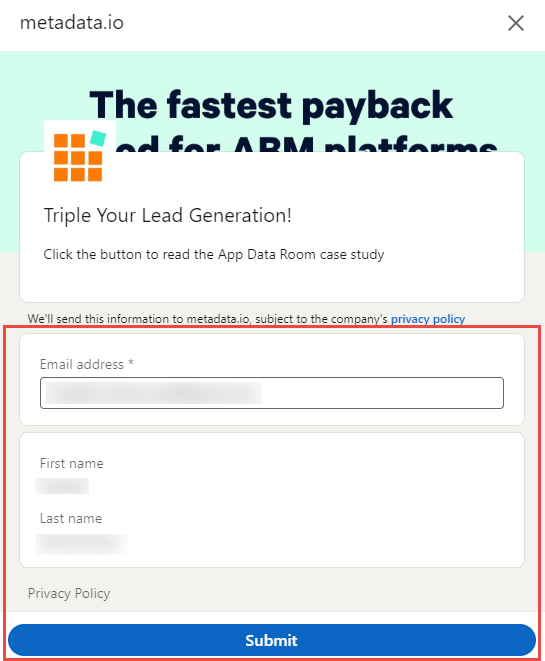
Push test leads to your marketing automation tool
- Click Settings in the bottom left hand side, and click Integrations.
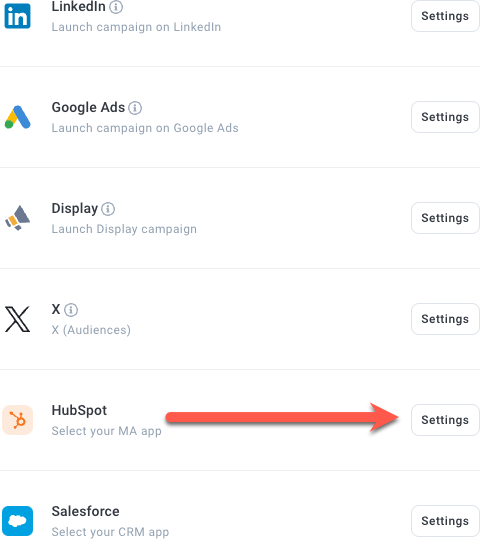
- Click Settings in the Marketing Automation box
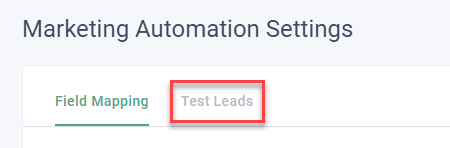
- Click the Test Leads tab
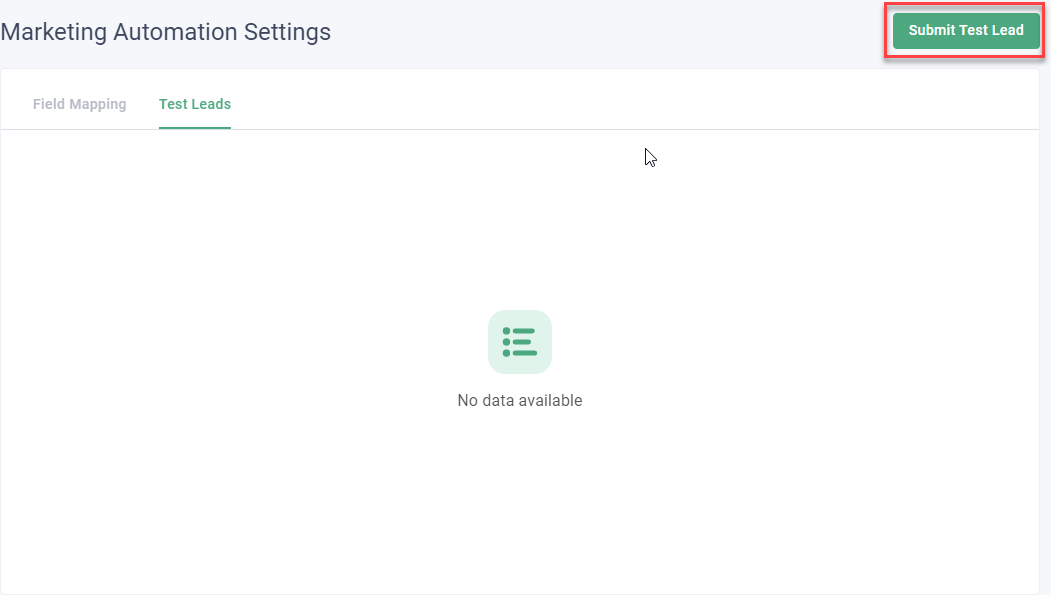
- Click Submit Test Lead
-
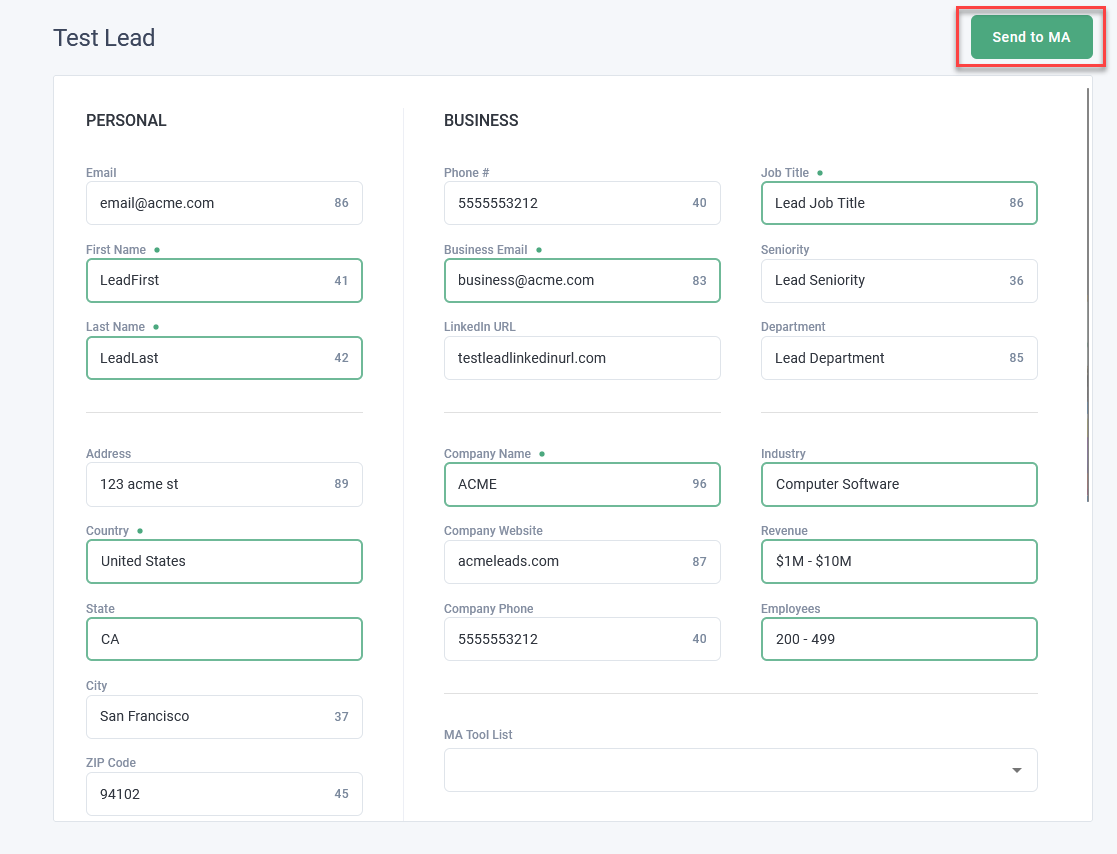
(Optional) Update the test values
Note: Use supported values presented in the dropdown for the Revenue, Employees, Industry, Country and State fields.
- Click Send to MA
-
Review the lead on your MA platform to ensure your lead details came through correctly
Note: Read Troubleshooting: Leads not pushing to MA Tool to resolve issues related to pushing leads to your marketing automation tool.
Conclusion
Way to go! By following the steps above you have successfully submitted and pushed a test lead to your marketing automation tool.
If you have any questions, issues or feedback, please get in touch with our support team using support@metadata.io or live chat.