Create carousel ads to build an interactive experience for prospects:
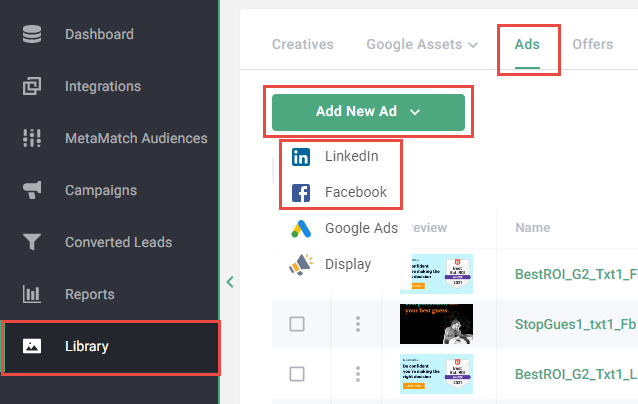
- Log in to the Metadata platform
- Click Library on the left navigation
- Click Ads in the upper navigation
- Select Add New Ad
-
Select the ad channel
Note: Carousel ads are supported for LinkedIn and Facebook. Ads are specific to the ad channel, so if you want to use the same ad for another channel you have to duplicate it.
-
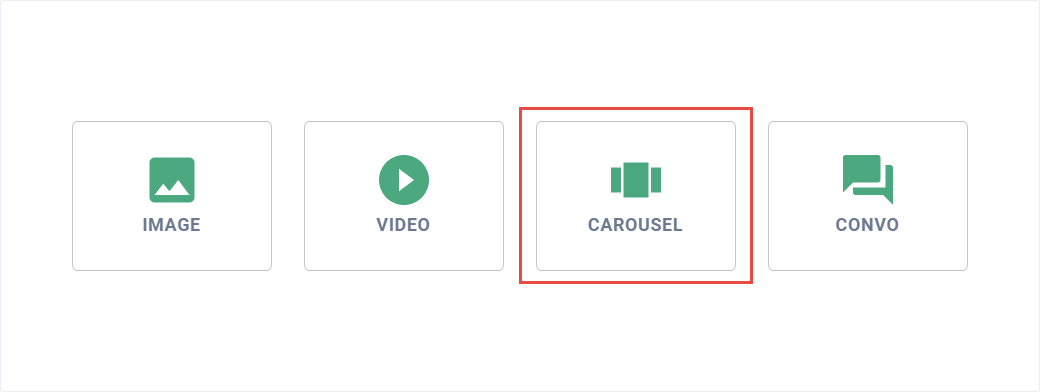
Click Carousel
-
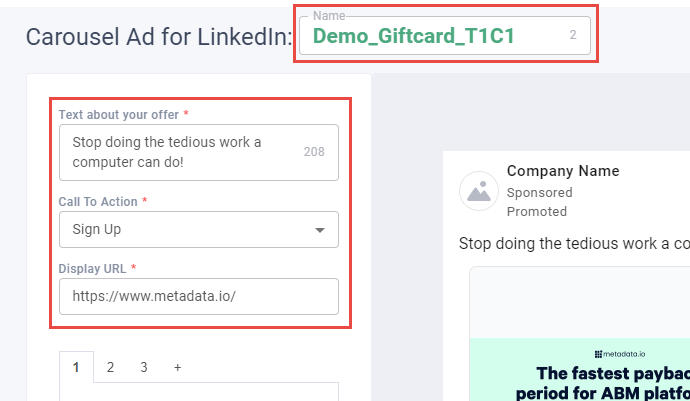
Enter the Name for your ad
Note: Consider using a naming convention for ads:
Objective_Message_TextVariation_CreativeVariation. Example of this in practice: Demo_Giftcard_T1C1. - Enter Text about your offer, Call To Action and Display URL
- Structure your carousel by adding and removing cards
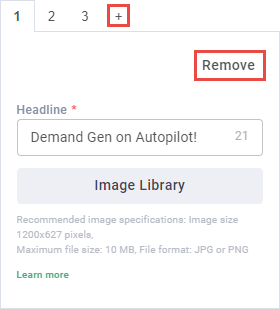
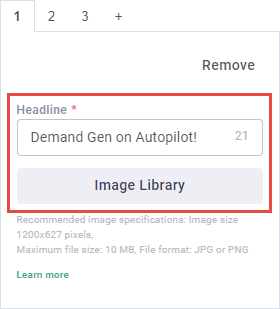
- Enter headline
-
Upload image from your library
Read FAQ: Specifications for Creatives for supported specifications.
- Repeat steps 10-11 for remaining cards
-
Click Save Draft or Complete to save your changes
Note: Unlike draft ads, completed ads can be used in campaigns but cannot be edited.

Way to go! You can now use this carousel ad in your next campaign.