Note: Google does not support uploading contacts from third-party data sources. Therefore, please use Salesforce Contacts or Marketing Automation Contacts audiences when creating exclusion audiences for Google.
Create exclusion audiences based on common exclusion criteria to refine your target ICP and maximize your budget for drafted or active campaigns.
Common exclusion audiences
Existing customers
Stop spend on existing customers when your goal is new business. Create Accounts List CSV or Salesforce audiences to exclude existing customers from campaigns.
Employees
We love our colleagues but we don't want them clicking on our ads. Create an Accounts List CSV audience to exclude existing employees from campaigns.
Competitors
Stop competitors from getting insight in to your marketing tactics. Create Accounts List CSV or Salesforce audiences to exclude competitors from campaigns.
Converted leads
Stop spend on leads that have already converted. Create Contact List CSV or Salesforce audiences to exclude converted leads.
Open opportunities (if targeting net new)
Stop spend on accounts that have already shown an interest in working with you. Create Accounts List CSV or Salesforce audiences to exclude accounts with open opportunities.
Bad fit job titles, job functions, industries or employee sizes
Stop spend on contacts that do not fit your ICP. Create Firmographic or Firmographic - Native LinkedIn Targeting audiences to exclude contacts that are not a good fit for your product or service.
- Example titles: students, retired, interns
- Example functions: marketing, sales
- Example industries: marketing & advertising
- Example employee sizes: < 10
Create exclusion audiences
Creating exclusion audiences is no different than creating inclusion audiences:
- Log in to the Metadata platform
- Click Audiences on the left navigation
- Click Add New Audience
- Select an audience type
Note: Read All about: MetaMatch vs native targeting audiences for the differences between audience types.
- Enter a Name for your audience
Tip: Be clear and prefix your audience name with "Exclusion_" to avoid future confusion. For example: Exclusion_HRJobFunctions.
- Complete the audience criteria based on who to exclude
- Click Create Audience
Note: Depending on audience type, the exclusion audience may take some time to finish building.
Adding exclusion audiences to campaigns
Adding exclusion audiences is no different than adding inclusion audiences except exclusion audiences can be added to active campaigns.
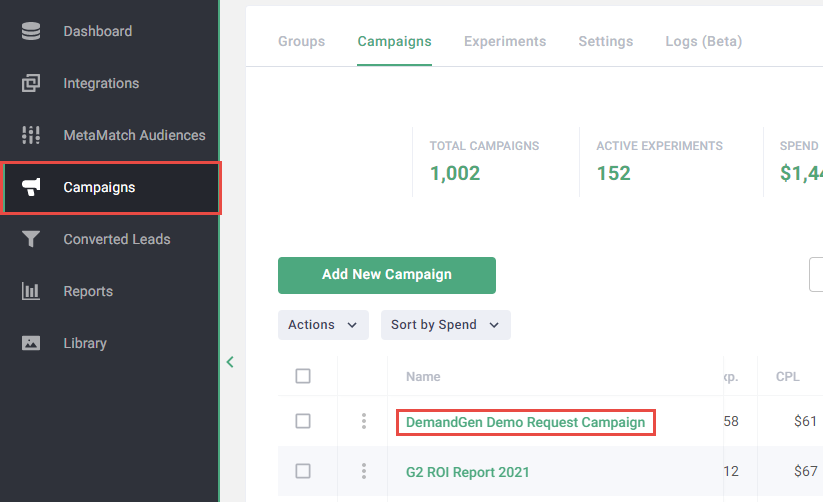
Go to the Campaigns page.
Click the Name of the campaign you want to add your exclusion audience to.
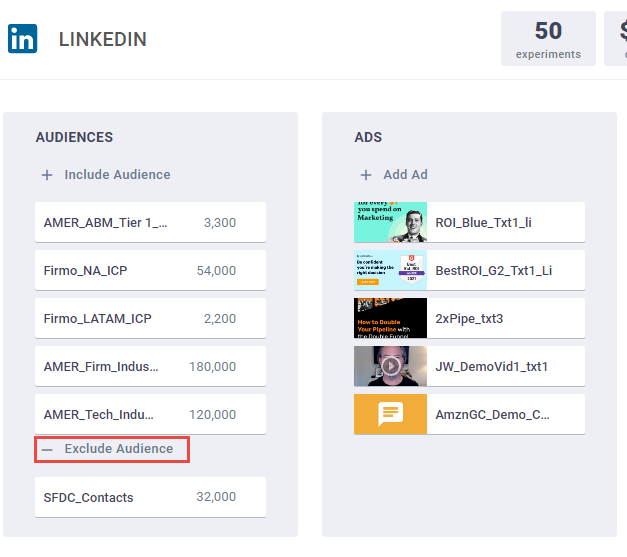
Click - Exclusions.
Note: For active campaigns, click the channel to expose this option.
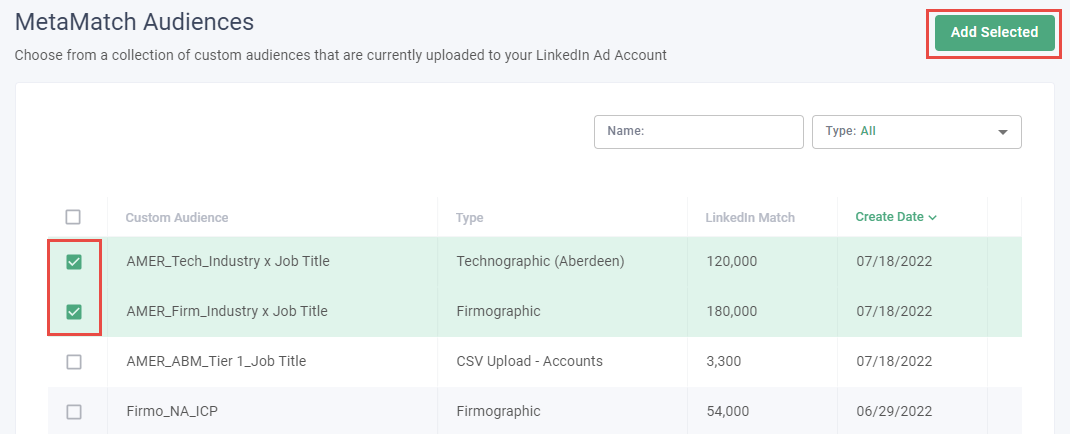
Select your exclusion audiences.
Click Add and Confirm your changes.
Conclusion
Exclusion audiences create focus for your campaigns. Brainstorm accounts and contacts that do not add value to your business and exclude them from campaigns using exclusion audiences.