Use LinkedIn Convo Ads to drive demo requests, content downloads and webinar registrations.
Prerequisite:
Create LinkedIn Convo Ads
- Log in to the Metadata platform
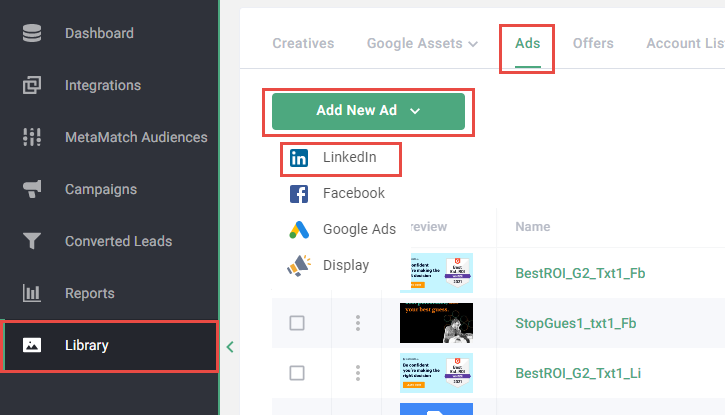
- Click Library on the left navigation
- Click Ads in the top navigation
- Click Add New Ad
- Click LinkedIn
-
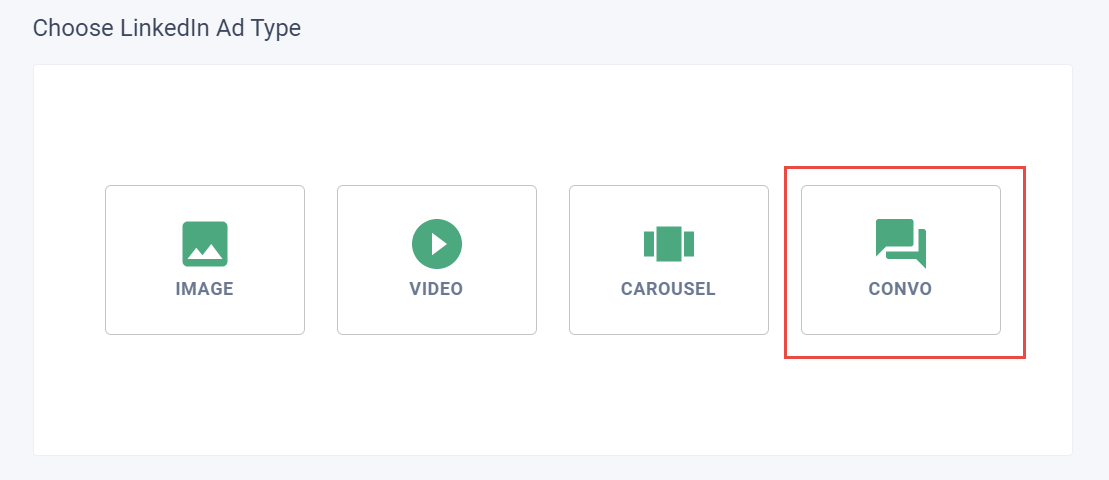
Click Convo
-
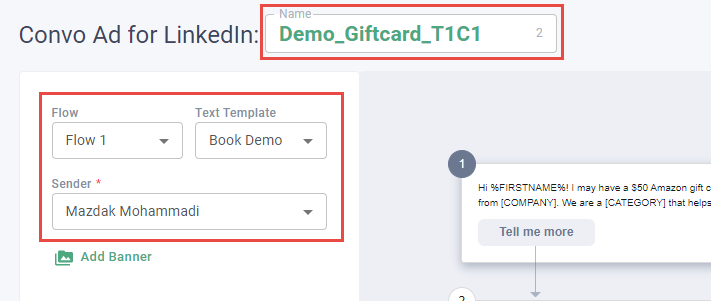
Enter a name
Tip: Be clear in how you name your ad. Consider the following naming convention: Objective_Message_TextVariation_CreativeVariation. For example: Demo_Giftcard_T1C1
-
Choose your flow, template and sender
Tip: Read the blurb under the fields in the left column to understand how the selected flow option works.
-
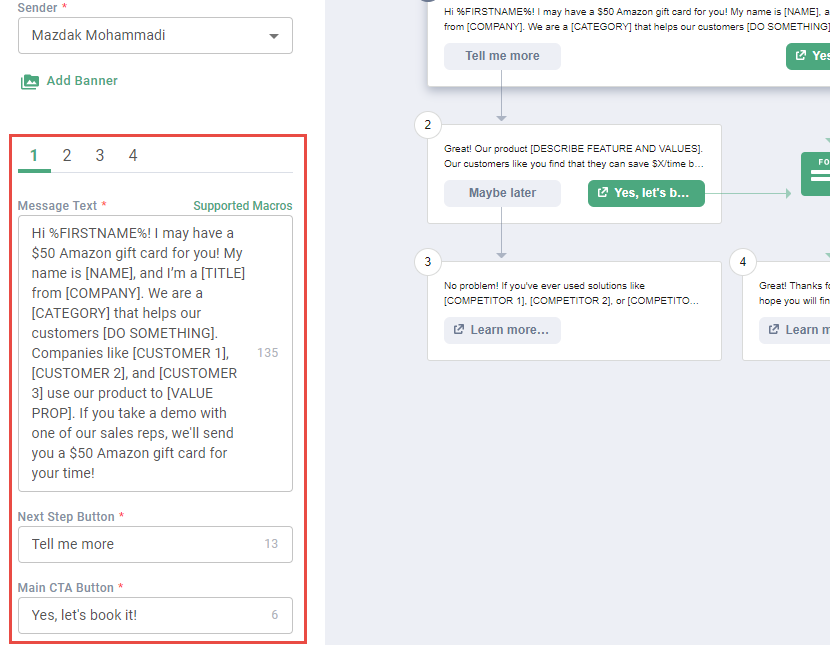
Update the content for each stage in the conversation journey
Note: Review each of these steps carefully. Complete all required fields and ensure you've replaced any sample placeholder content with your own content.
-
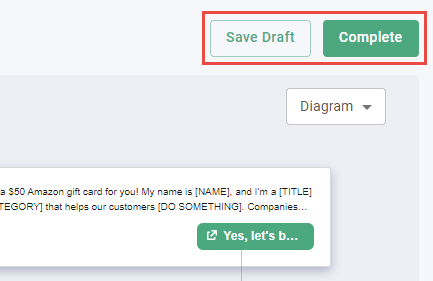
Click Save Draft to save your changes, or click Complete to finalize your changes
Note: Click Complete only when you're ready to finalize your LinkedIn Convo Ad. Edits are not allowed for completed ads.
Note for Convo Ads in Metadata Impressions = sends and Clicks = opens.