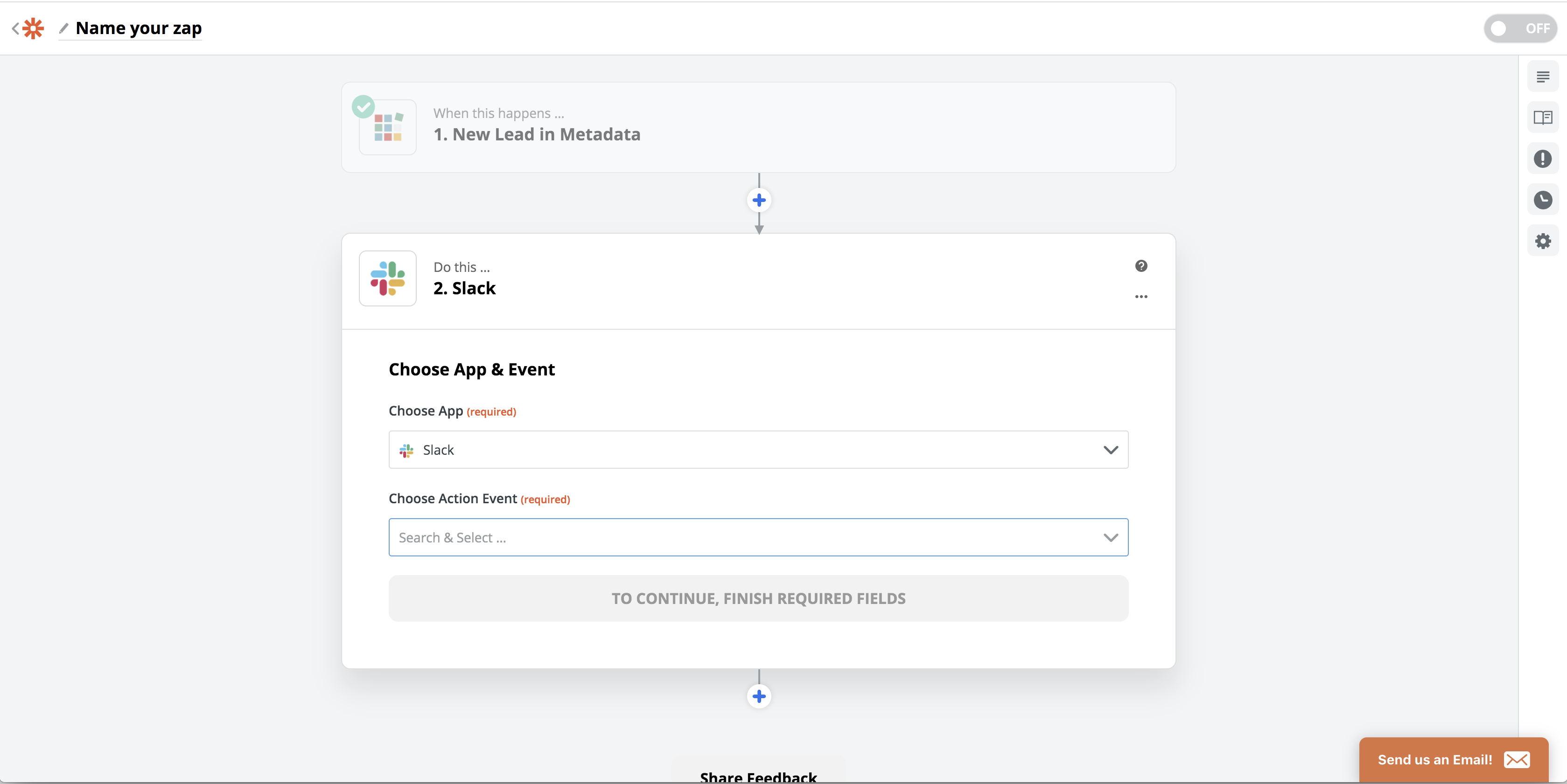
Zapier is an app that you can integrate in with the Metadata platform. Its purpose is to integrate leads from the metadata platform into the marketing automation tool of your choice. Each process is going to be a little different for everyone, but these steps will be taken whenever you create a Zap, regardless of your desired outcome:
Step 1: Start Your Zap
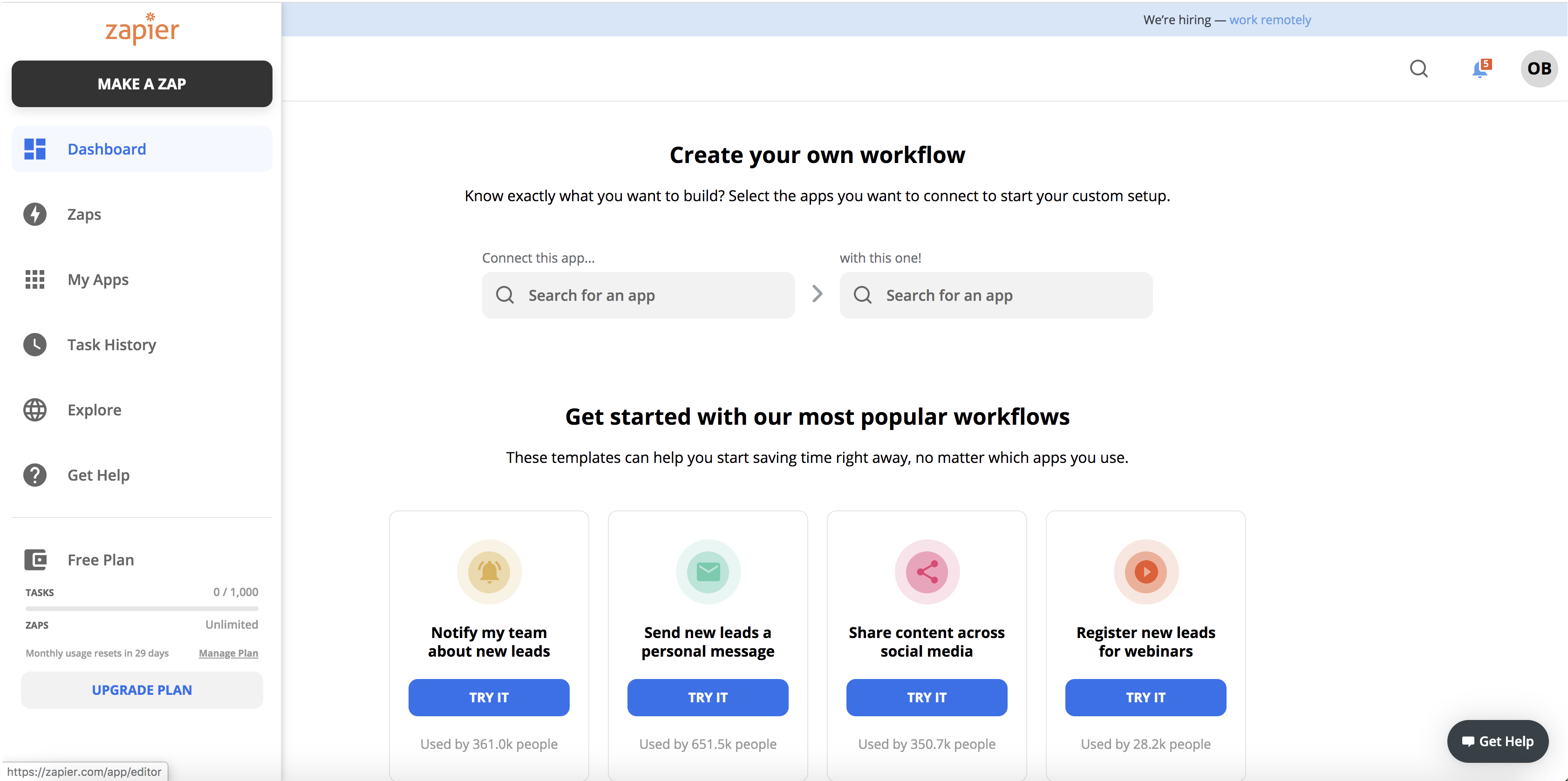
Go to www.zapier.com and log in to your account.
In the left-hand menu, click the + button that reads "Make a Zap"
Step 2: Choose a Trigger
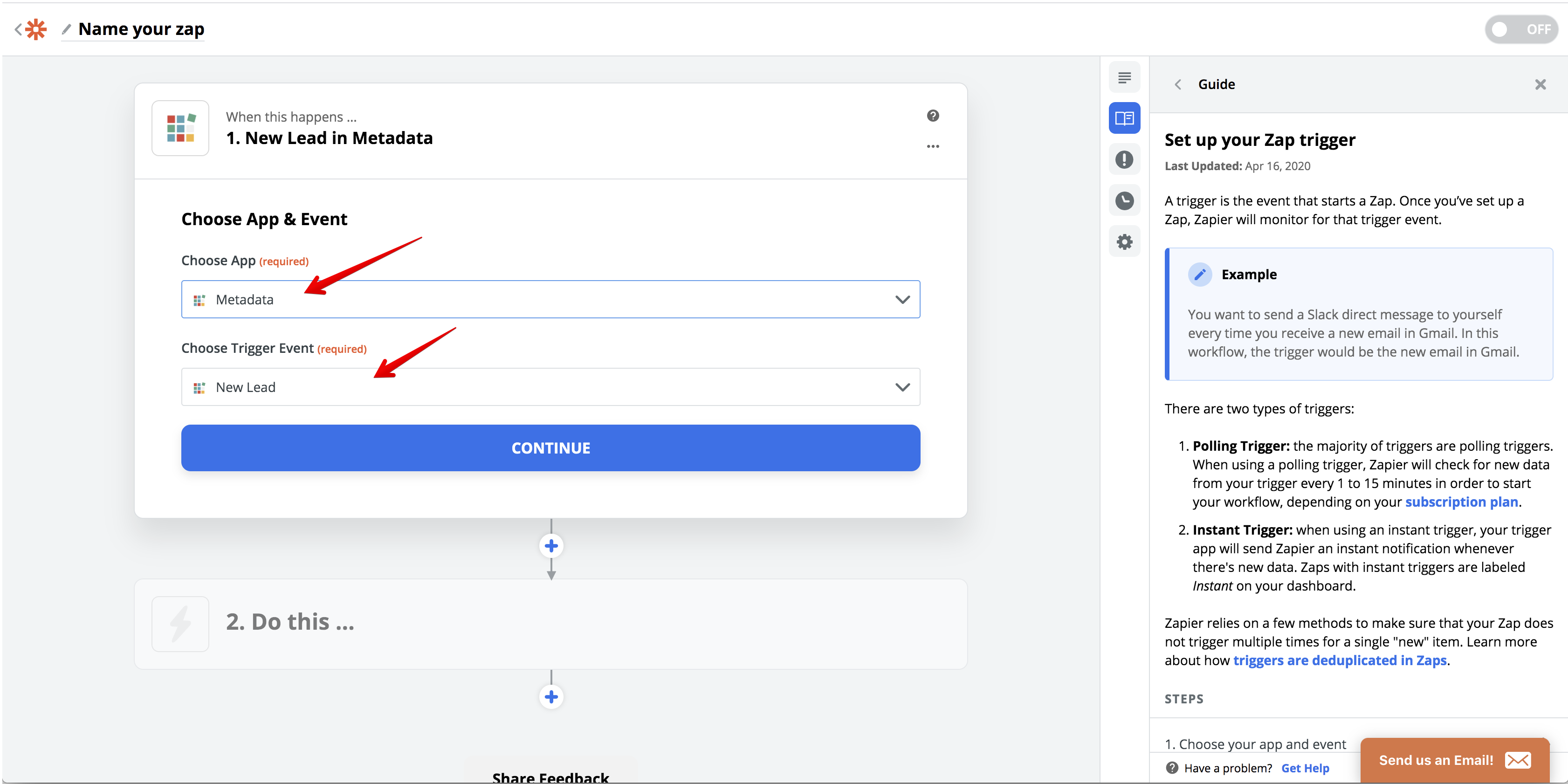
This decides what you want to do to set your course of action.
Choose your trigger app in the search bar (This will be Metadata.io).
Choose your specific trigger (this will be "New Lead").
Connect to an account.
Step 3: SignIn to Metadata
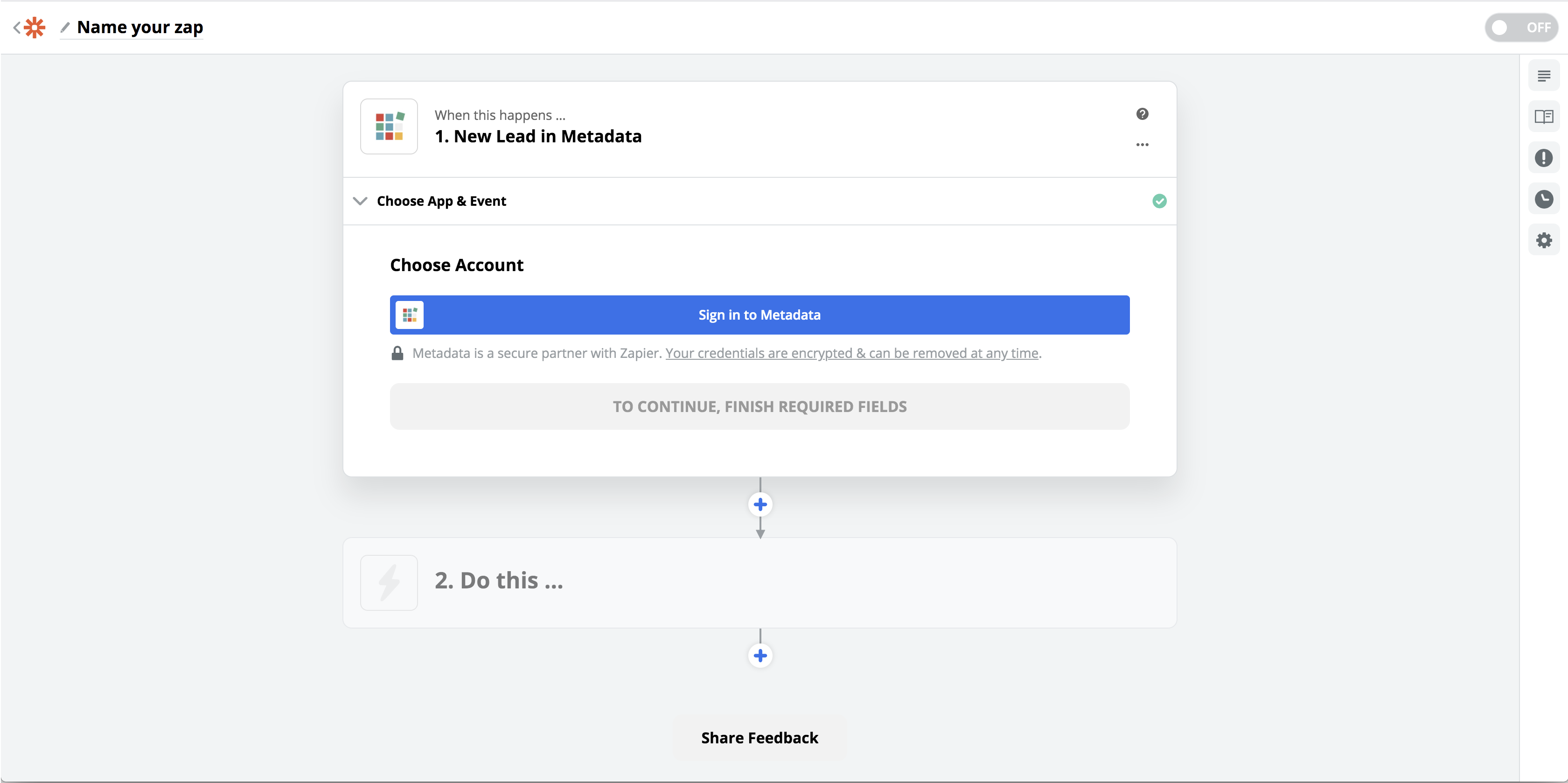
Metadata is a partner of Zapier so you will be prompted to sign in with your Metadata account
Step 4: Public API Key
Next, you will need an API Key. This must be generated by Metadata, so you will need to ask Metadata to supply you one. OR
Navigate to Settings -> Integrations -> Apps -> Metadata -> Settings -> Metadata Configuration - > Generate or re-generate Public API key.
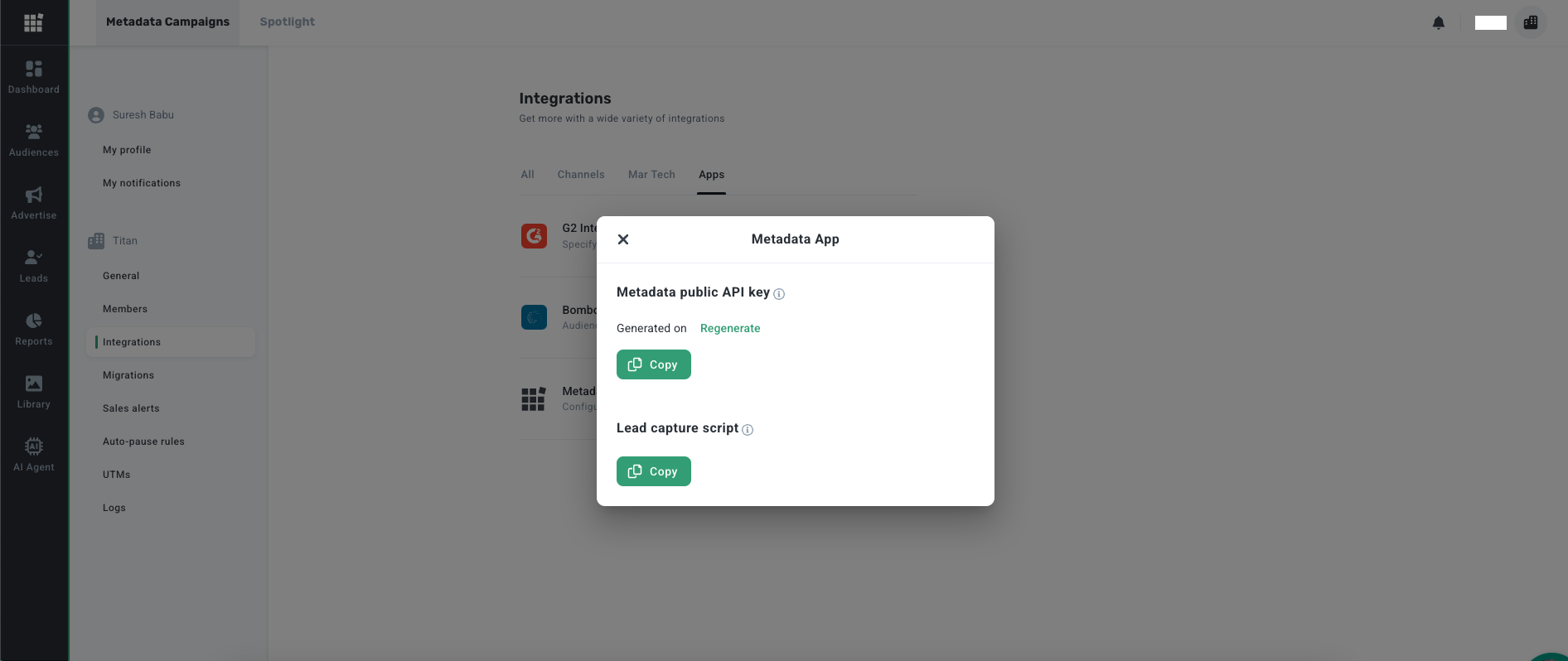
Step 5: Input API Key
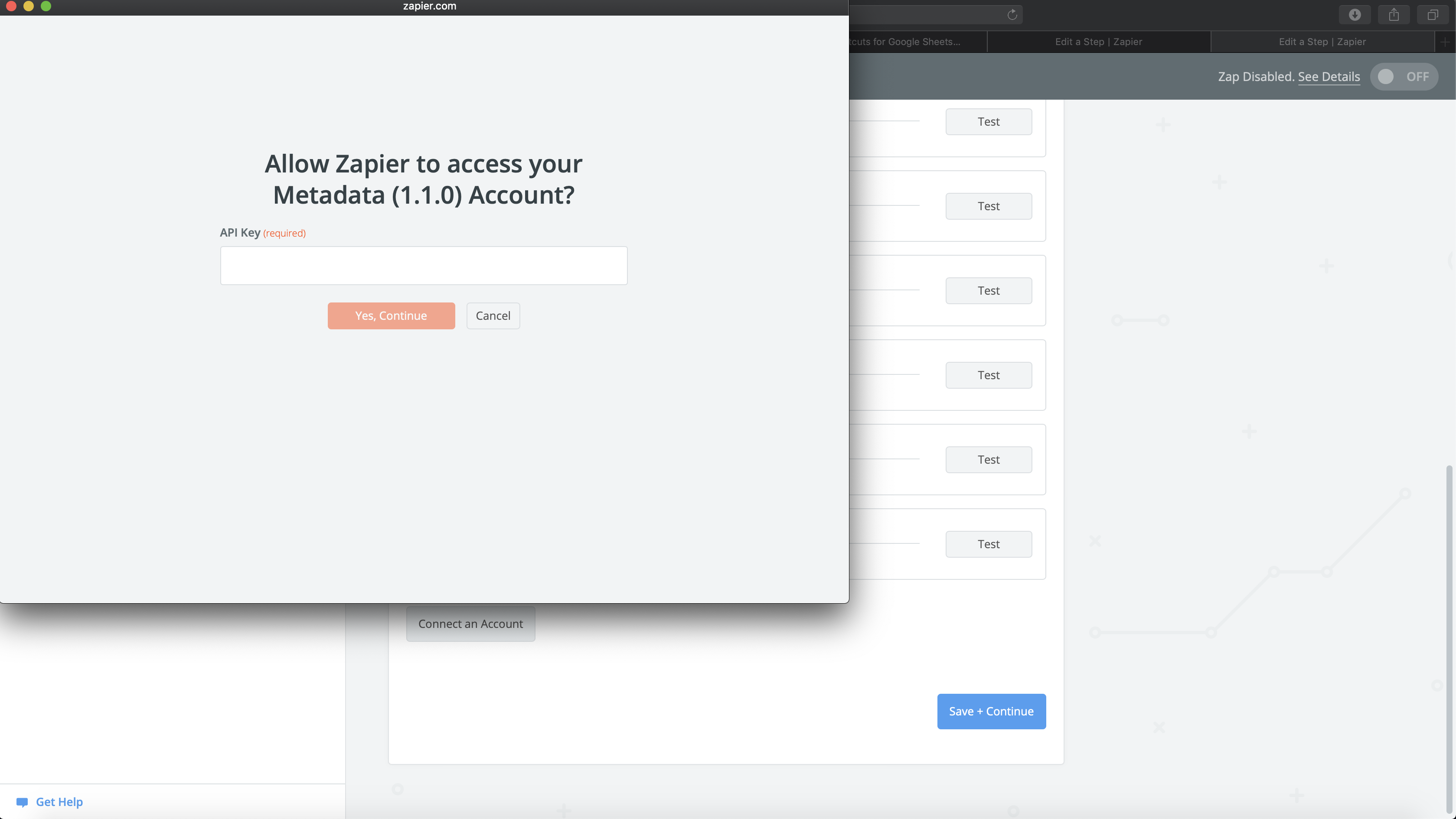
Once you have an API Key, enter it in the space provided (see screenshot) and hit the orange button reading "Yes, Continue."
Step 6: Name your Account
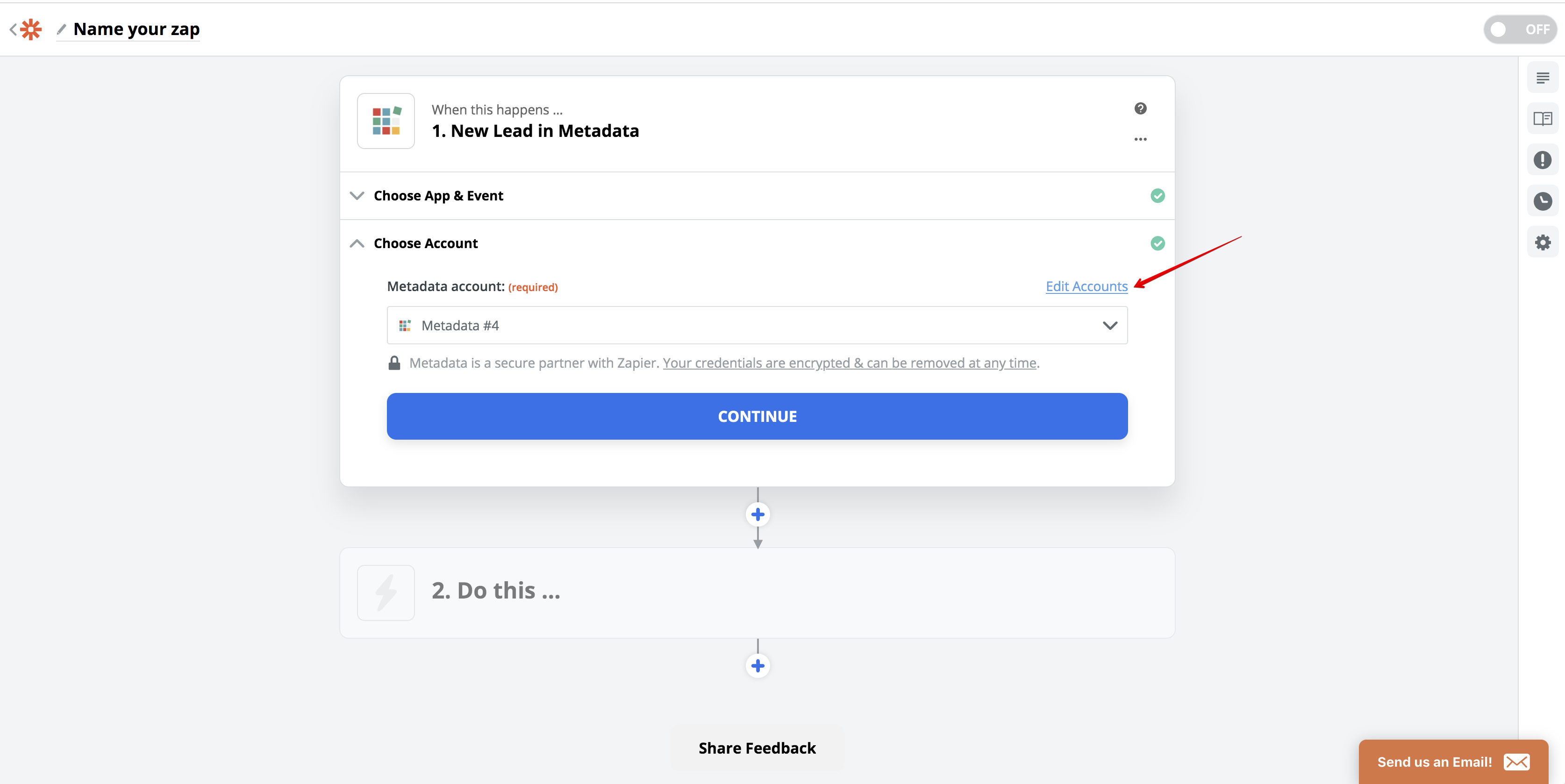
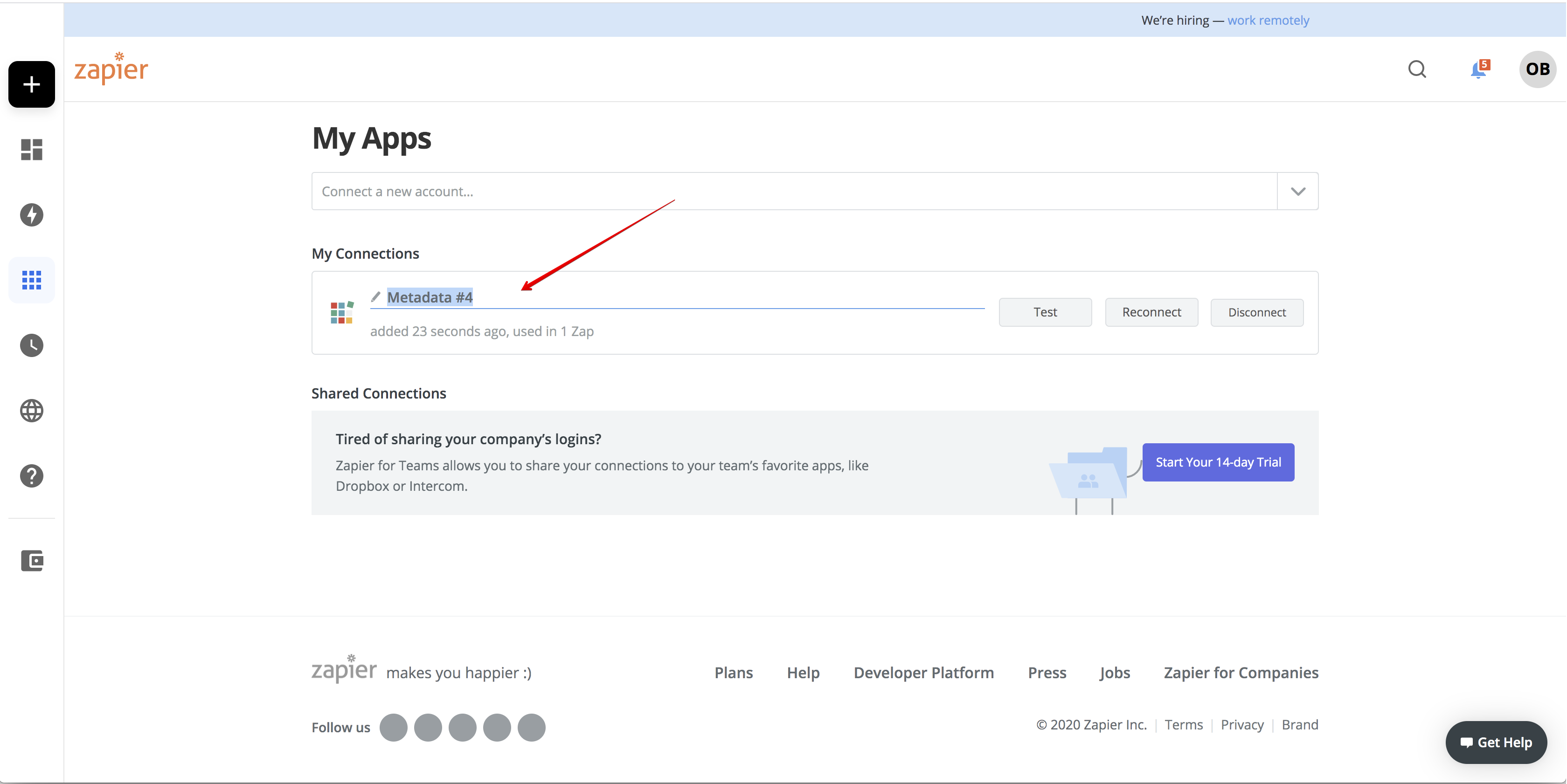
Hit continue, Edit and name your API appropriately. Make sure that it says "Success" at the end of this step.
Save and Continue.
Step 7: See Leads
You can choose to either see all leads, enriched leads, or non enriched leads. Choose which type of lead you would like to trigger an action for, and hit "Continue."
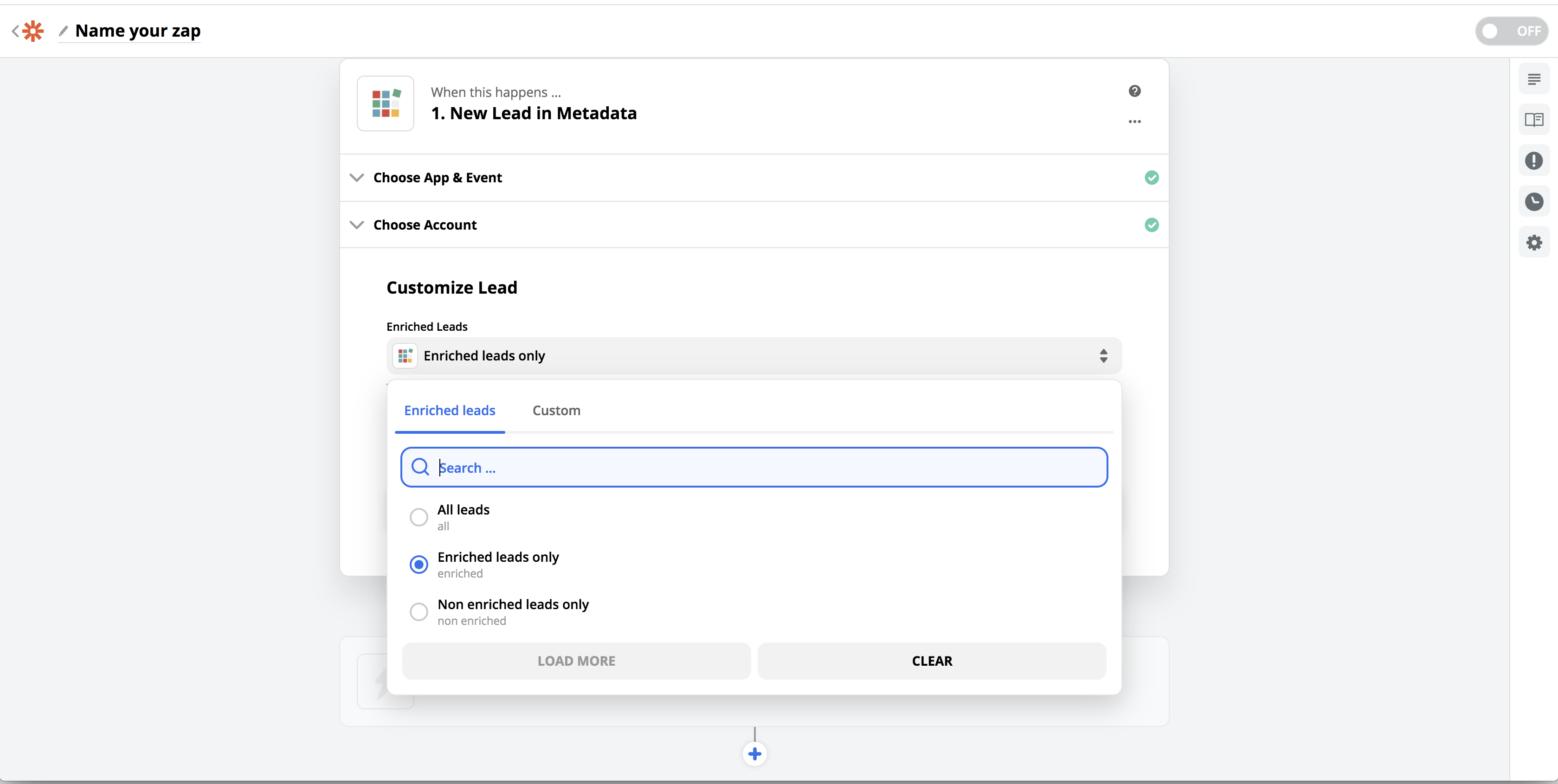
Step 8: Test Finding Leads
You will see this screen as Zapier searches for leads.
Once it is finished finding leads (Or once you skip this step or cancel the wait), click the sample that you want to use.
Hit "Test&Continue"
Hit "Test&Review"
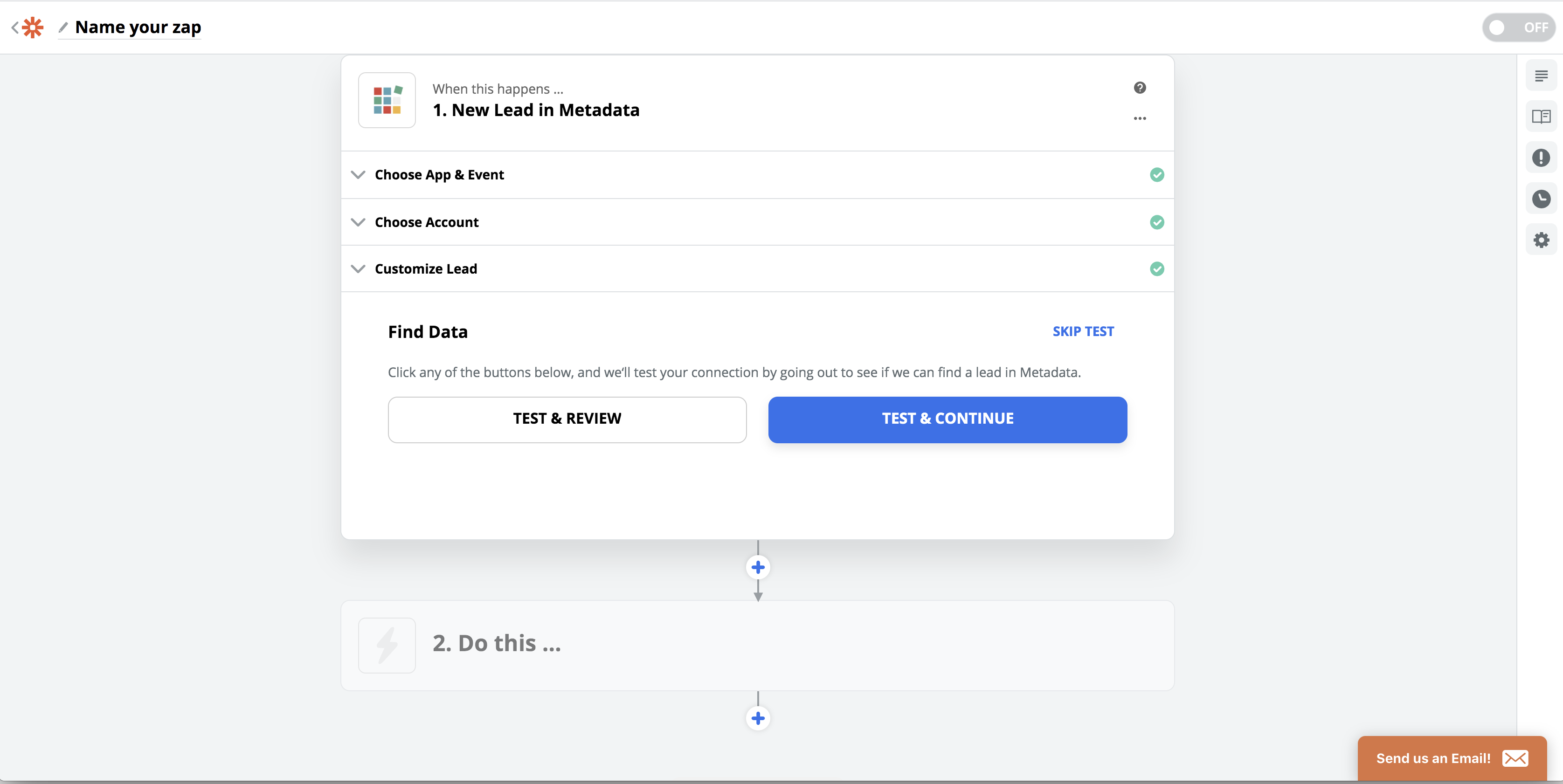
Step 9: Create an Action
Next, you will see this screen which is the endpoint for your leads.
Actions will be different for every client based on the Marketing Automation Tool they use (Pardot, Autopilot).
Regardless of which action you choose to create, you will take the following steps:
- Choose the appropriate action application.
- Choose the appropriate options based on your selected application
- Follow the on-screen instructions