Get insight into the performance for your Brand Awareness campaigns beyond the basics: Impressions, clicks, CTR, CPC, CPM.
Connecting GA4 activates the Website Engagement report and provides additional metrics for rating campaign performance: Users, new users, sessions, engaged sessions, average engagement time per session, engaged sessions per user, engagement rate and bounce rate.
Combined, these metrics help you make better decisions when updating budgets based on your best performing campaigns.
- You must have admin access to your Google Analytics account.
- You must have admin access to your Google Tag Manager account.
Connecting GA4 is best described in two parts:
- Install GA4, skip if you already have GA4 installed and a property created
- Connect GA4 and Metadata
Install GA4
Create the GA4 Property
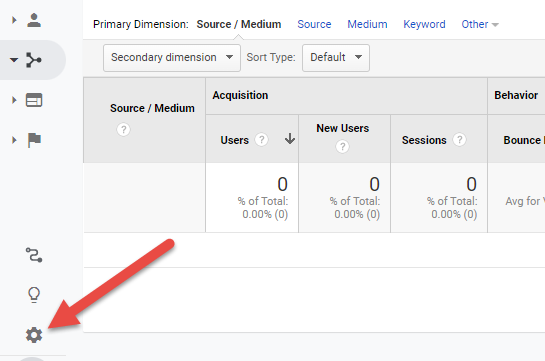
Go to the Google Analytics, and click the Admin icon in the bottom left side.
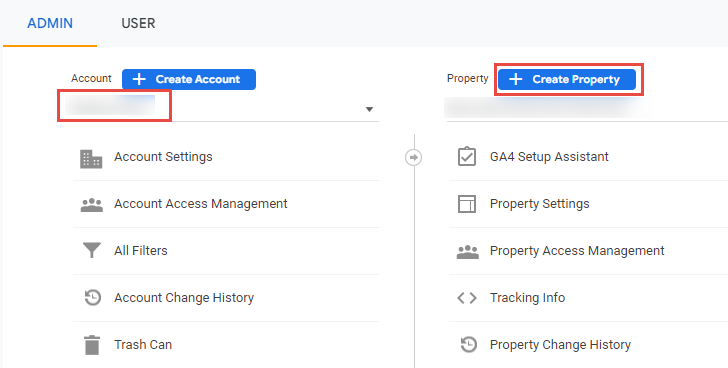
Verify that you are in the correct GA account, and click + Create Property.
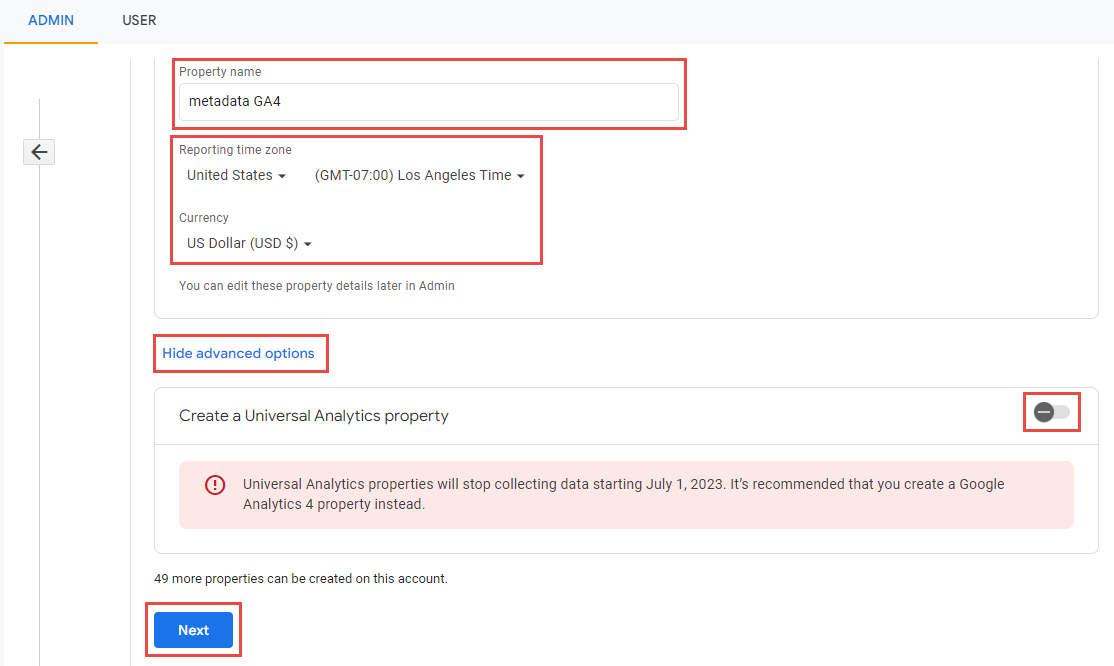
Enter your Property Name, your Reporting time zone and Currency.
Click Show advanced options to ensure that Universal Analytics is left in the off position and click Next.
Tip: Use the following format to distinguish your GA4 property: {CompanyName} GA4.
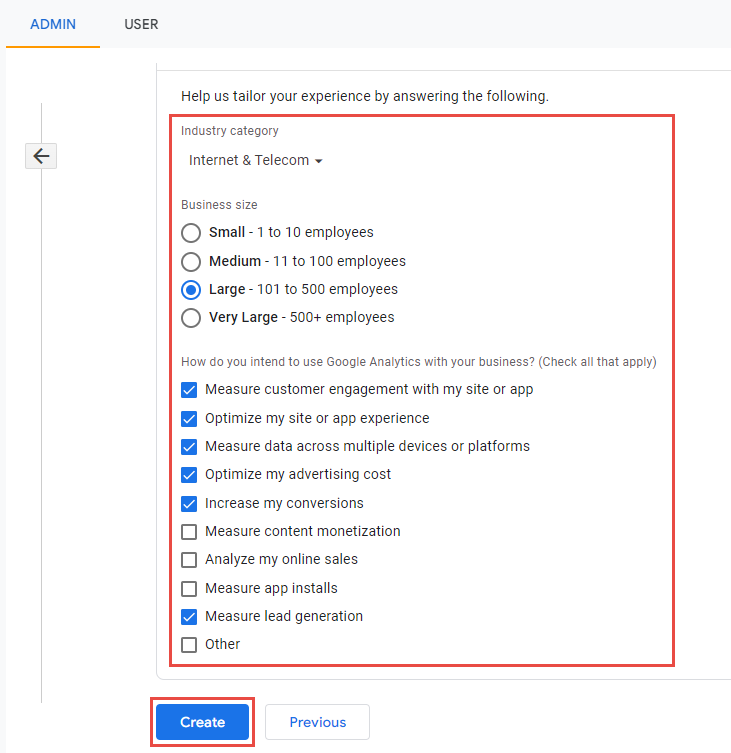
(Optional) Enter your Industry category, Business size, and select your intended usage to create a more personalized GA4 experience.
Click Create.
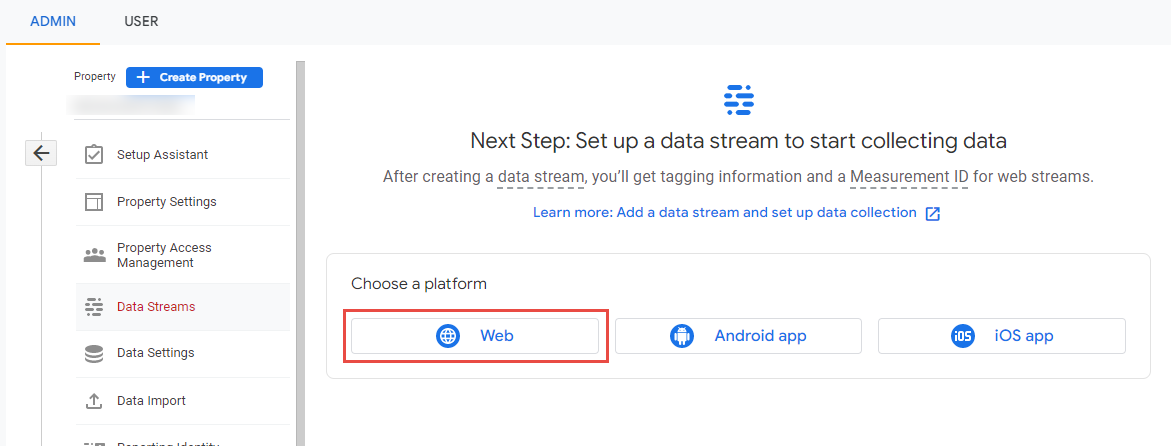
Select Web as the data stream.
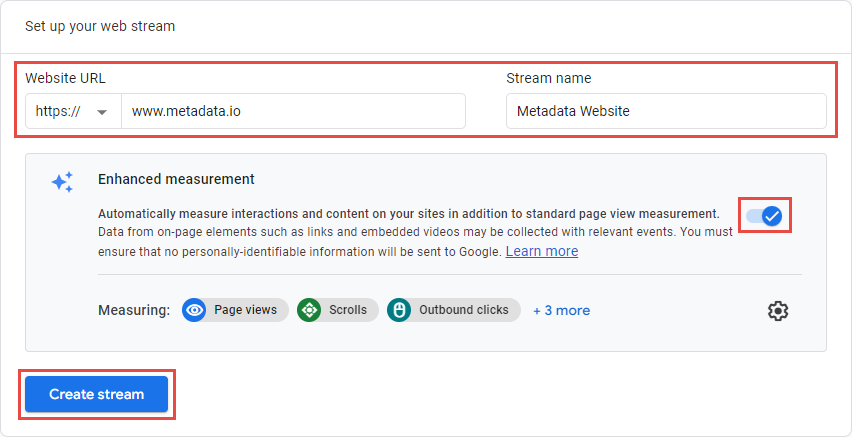
Enter your Website URL, Stream name, enable Enhanced measurement and click Create stream.
Tip: Use your main website URL for the Website URL field and "{Company Name} Website" as the format for the Stream name field.
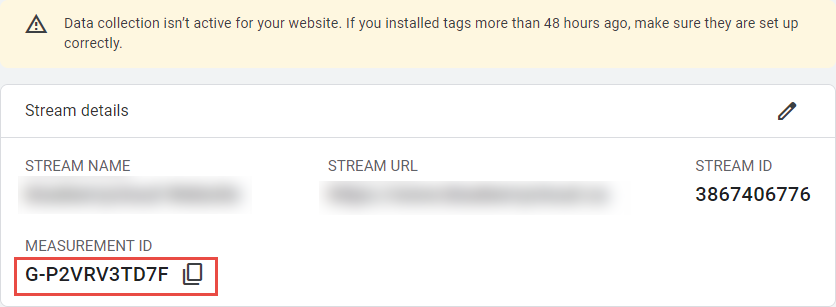
Copy the Measurement ID.
Add GA4 tag to all pages
Go to Google Tag Manager and click to open the container for your website.
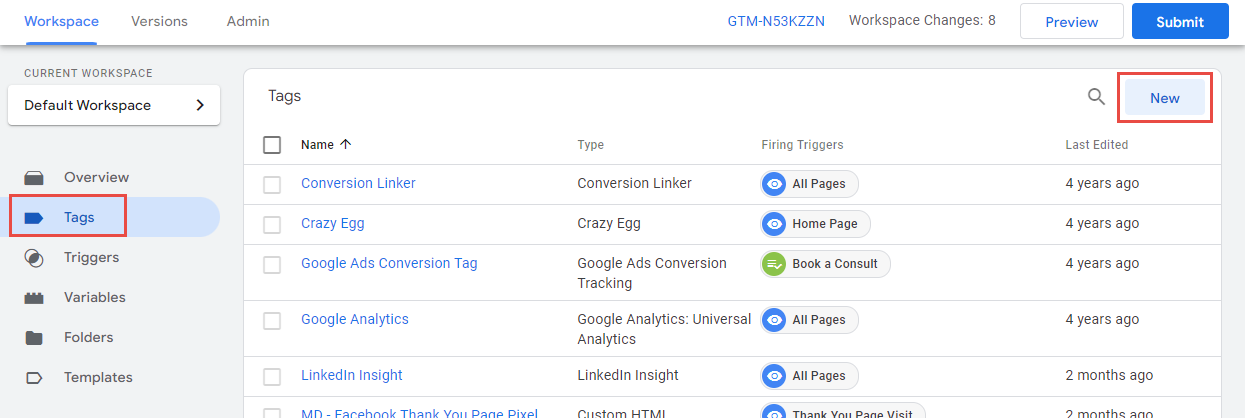
Click Tags on the left navigation, and click New in the upper right.
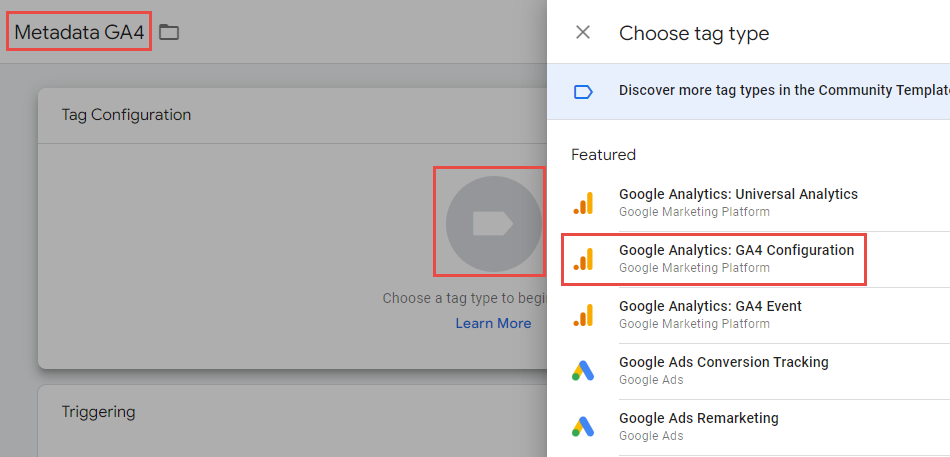
Enter your tag name (e.g., Metadata GA4).
Click the Tag Configuration box, and select Google Analytics: GA4 Configuration as your tag type.
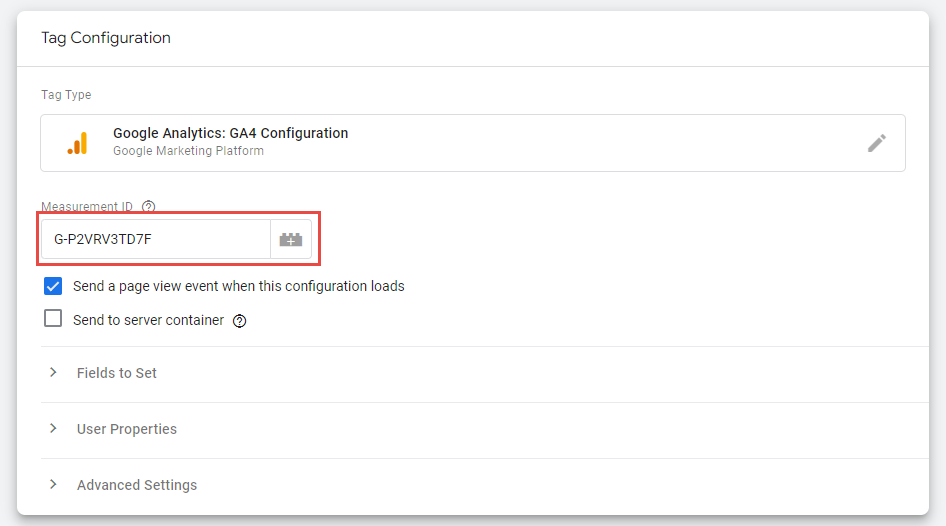
Enter your Measurement ID.
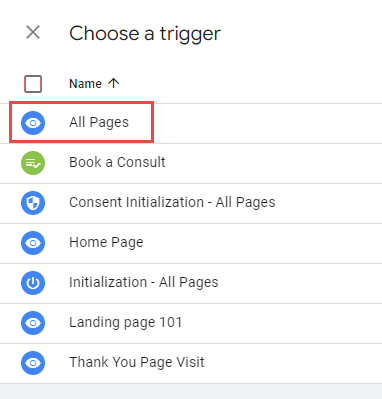
Click the Triggering box to choose a trigger, and select All Pages.
Save your changes.

Connect GA4 and Metadata
Go to the Integrations page.
Click Connect on the Google Analytics box.
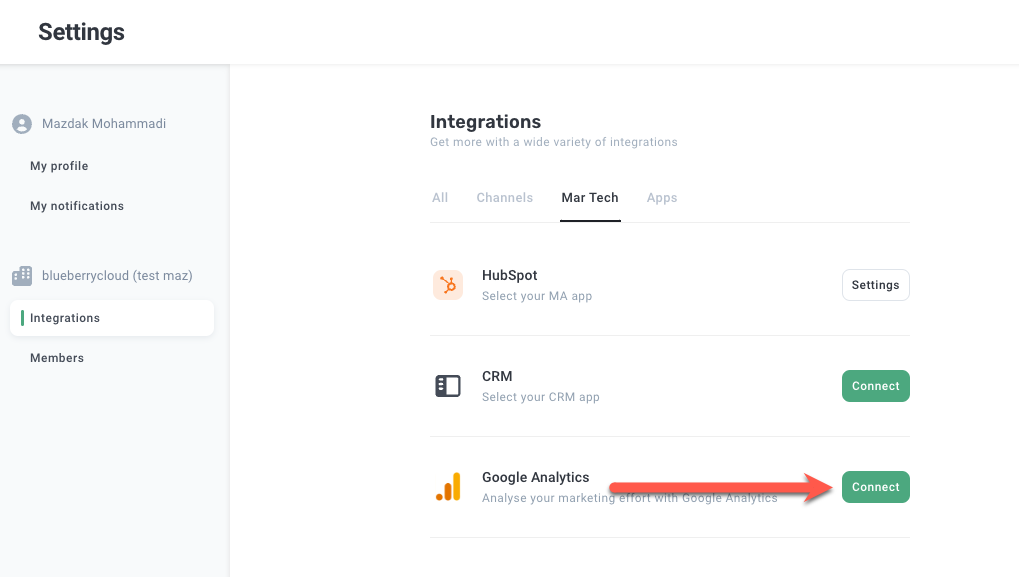
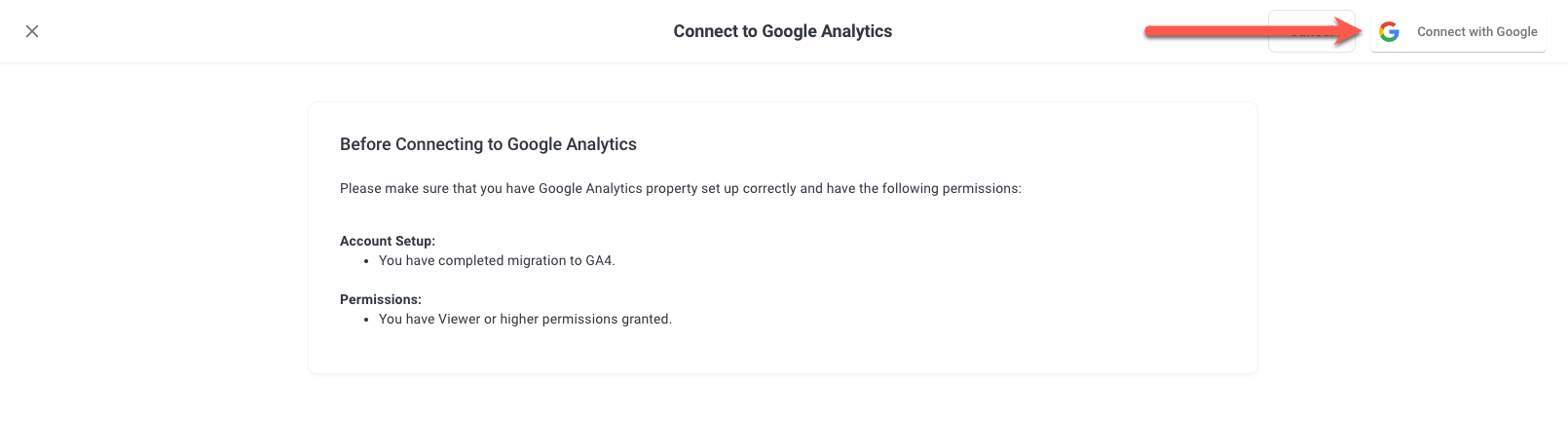
Click Connect with Google.
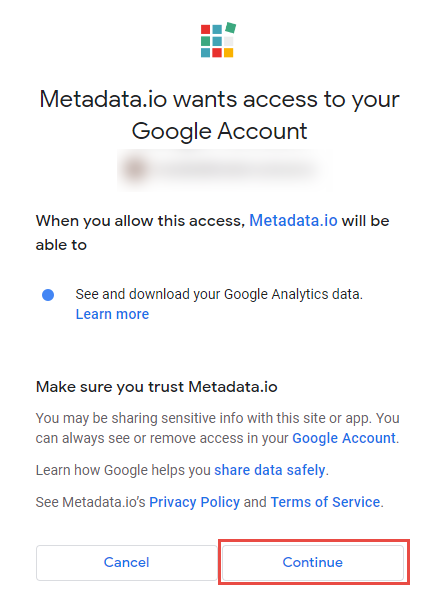
Select your account and click Continue.
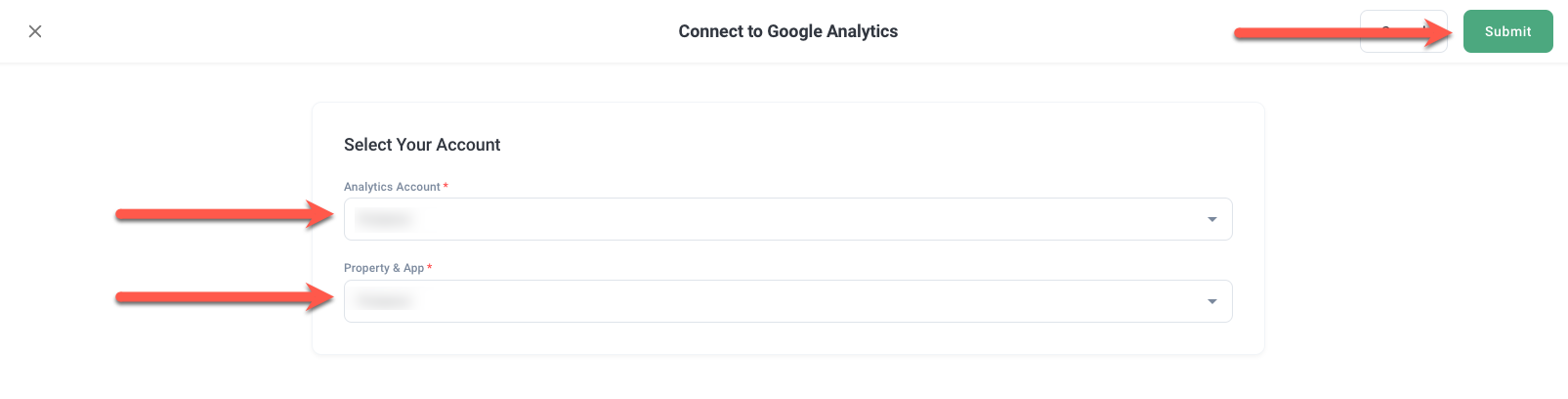
Select your Analytics Account, Property & App and click Submit.
Conclusion
Way to go! You should now have access to the Reports > Multivariate Performance > Website Engagement report.