Launch campaigns to experiment and identify your best performing channels, audiences, ads and offers.
Get started on the Campaigns page:
Prerequisite: You need to have Audiences and Budget Groups to complete the steps below.
Add new campaign
Click Add New Campaign.
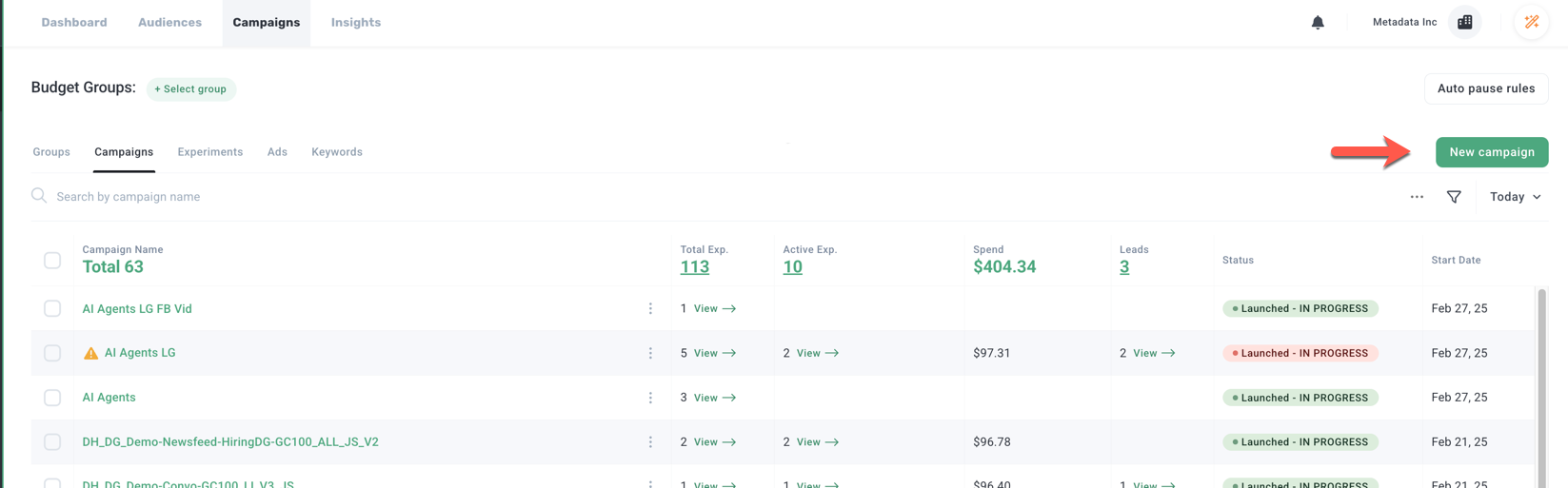
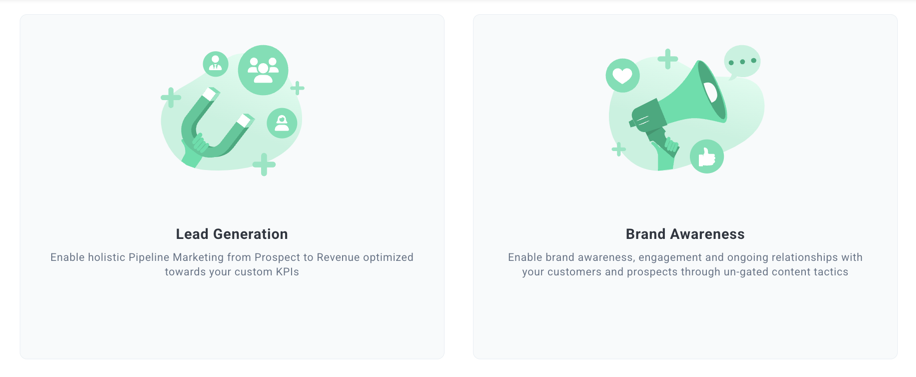
Click Brand Awareness or Lead Generation.
Note: Brand awareness campaigns drive visitors to your website. Lead Generation campaigns drive conversions such as content downloads or demos booked.
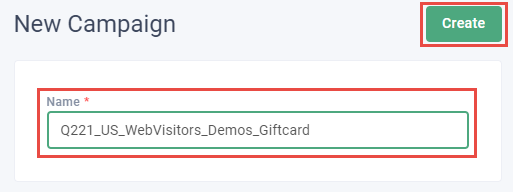
Enter the Name for your campaign, and click Create.
Tip: Be clear in how you name campaigns. Consider the following template: QuarterYear_Country_Audience_Objective_Offer. Example: Q221_US_WebVisitors_Demos_Giftcard
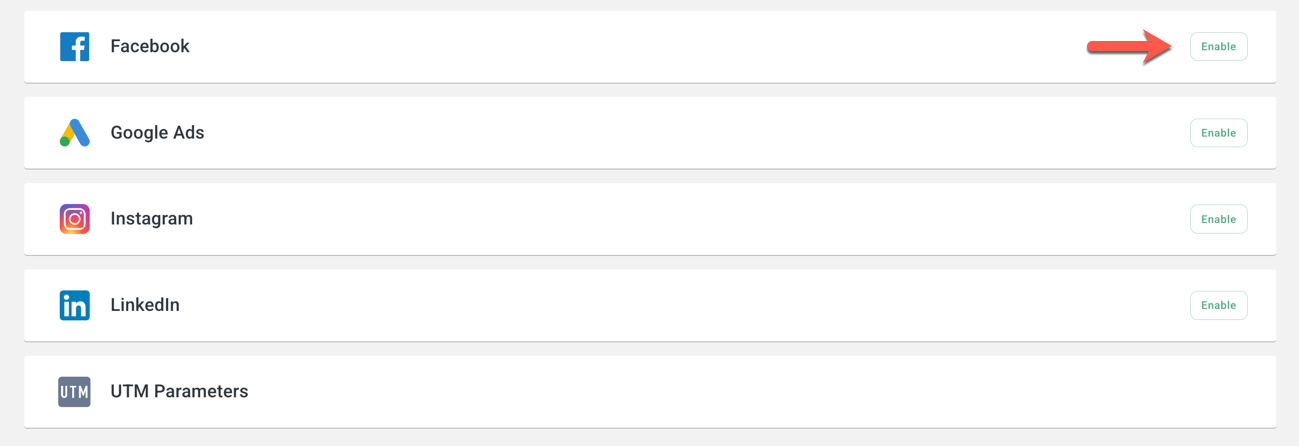
Configure channels
Activate your ad channel using the Enable button.
Add audiences and keywords
Tip: Test all audiences to experiment adequately and find your winning audiences. Read All about: MetaMatch vs native targeting audiences to learn more about the different audience types.
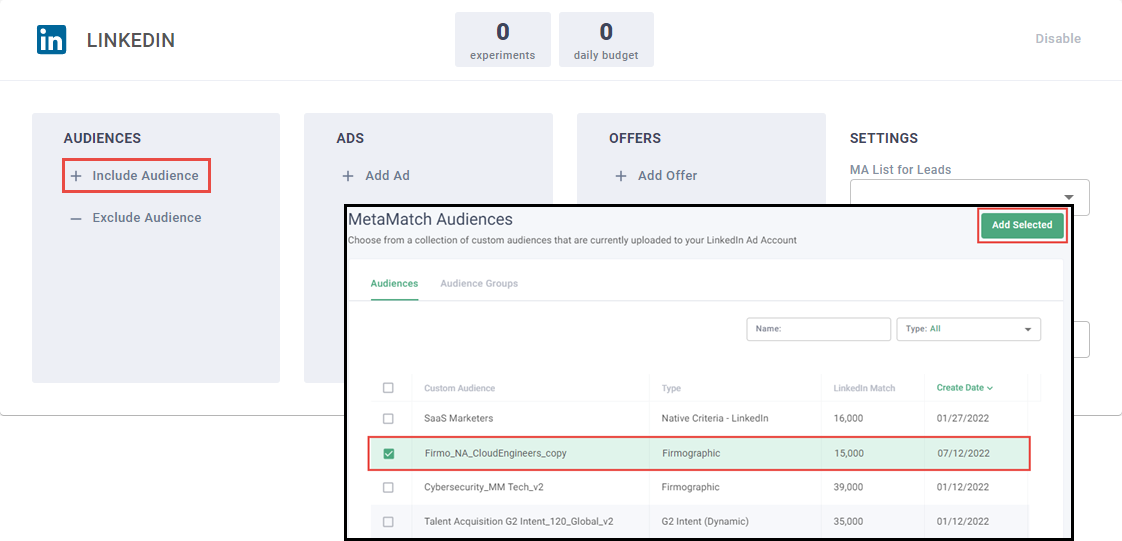
Include audiences or keywords (Google-only).
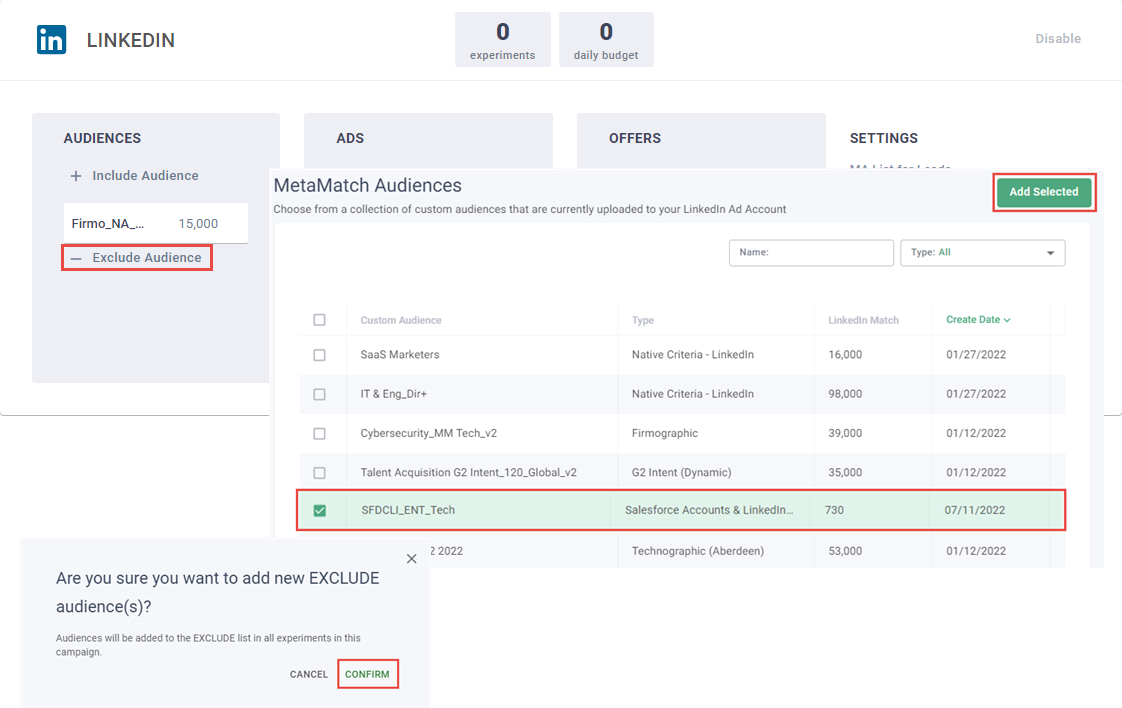
Exclude audiences or keywords (Google-only).
Tip: Use exclusions. Read How to: Use Exclusion Audiences and How to: Create Google Ads for more information about adding exclusions.
Add ads
Tip: Add 2-3 ads to experiment adequately, and find your winning creative and ad copy. Find how-to articles on creating new ads in the Library > Ads section.
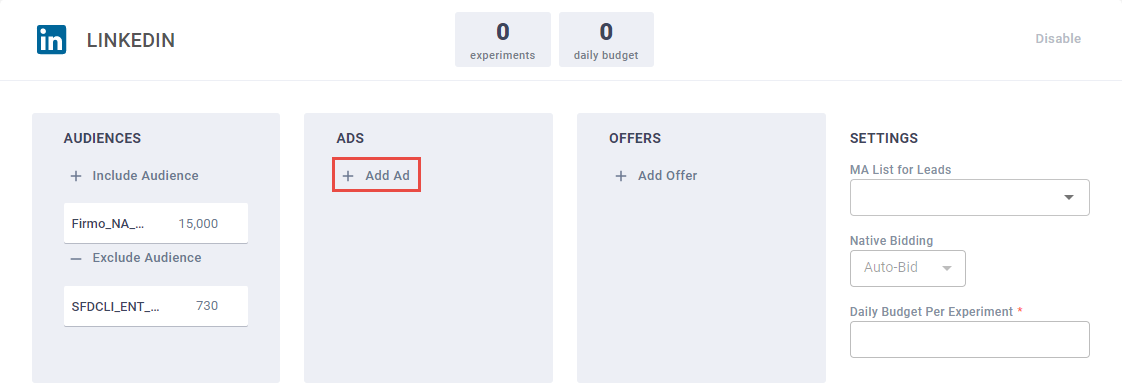
Click + Add Ad.
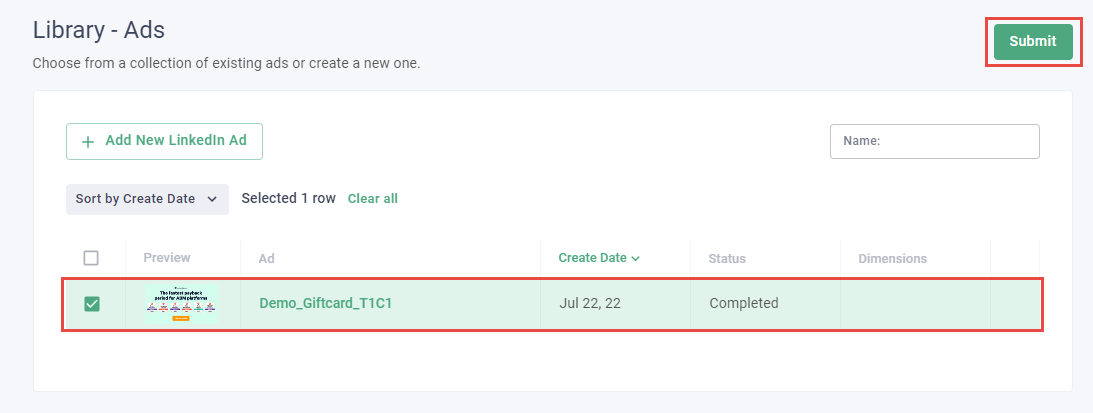
Select your ads, and click Submit.
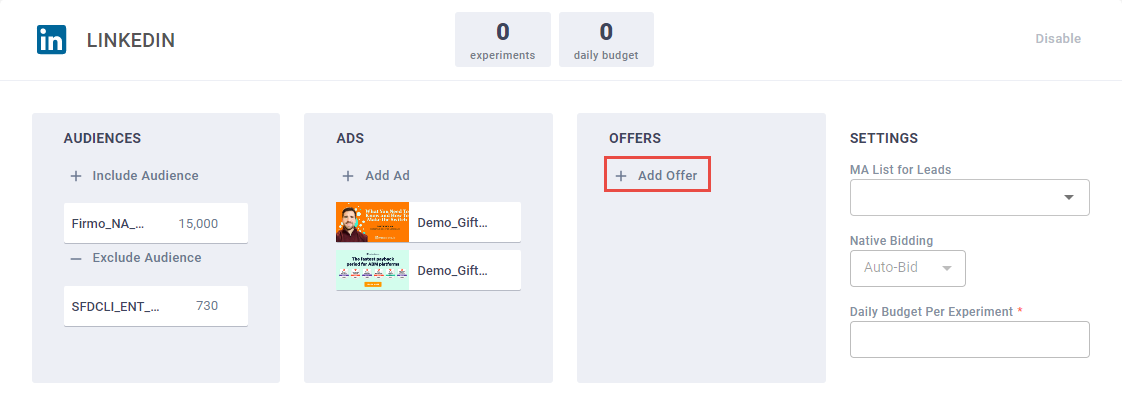
Add offers
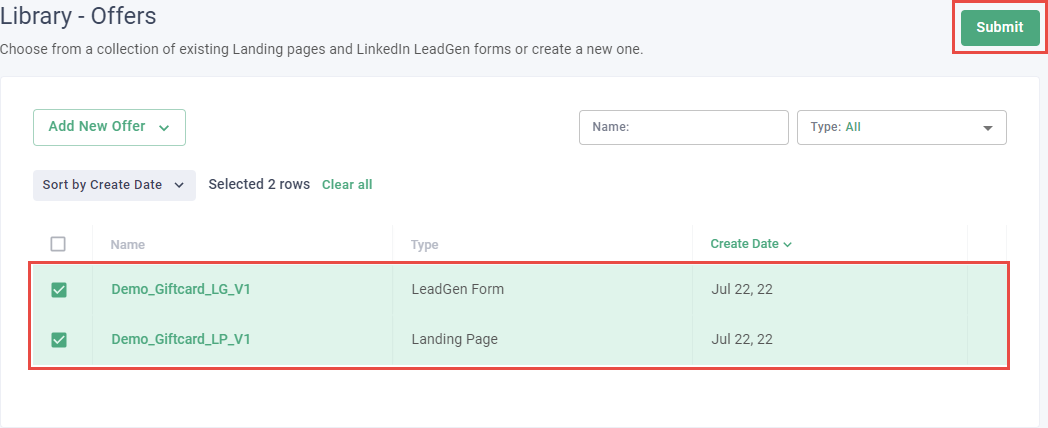
Tip: Add 1-2 offers maximum, one being a lead gen form (if applicable) and the other being a landing page. Exceeding 2 offers dilutes your daily budget and produces marginal returns. Find more information about different offer types in the Library > Offers section.
Click + Add Offer.
Select your offers, and click Submit.
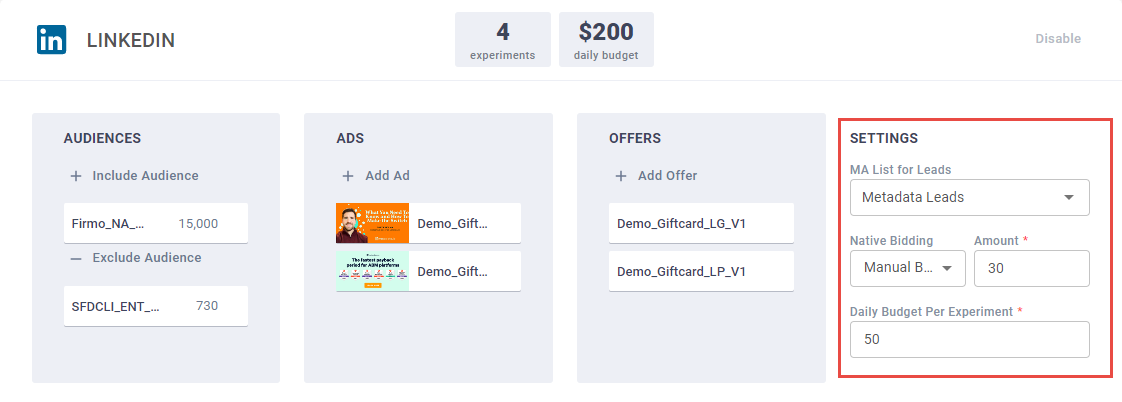
Configure settings
- MA List for Leads: Specify a static contact list called Metadata Leads to push all converted leads to one list for future processing.
-
Native Bidding:
- Facebook = Auto-Bid
-
LinkedIn =
- Convo Ad = Manual Bid with the amount set to $1
- Other ad types = Manual Bid, start with $30, and increase or decrease until you reach average CPC + 20%
- Google = Maximized Conversion
- Display = Cost Per Click with the amount set to $3
- Daily Budget Per Experiment: Provide a daily budget of $50 - $100 per experiment for the best performance. Daily budgets less than $25 see a significant drop in performance. Read How to: Calculate experiments per Budget Group to calculate the number of experiments you can add.
- Placement choice (Facebook only): Choose Metadata Auto to automatically place each ad in all supported mediums (eg, feed, stories, reel) based on the content type and dimensions. Be cautious when choosing manual placements - ensure that all ads are supported for the selected placements otherwise your experiments will fail.
Repeat these steps for all ad channels.
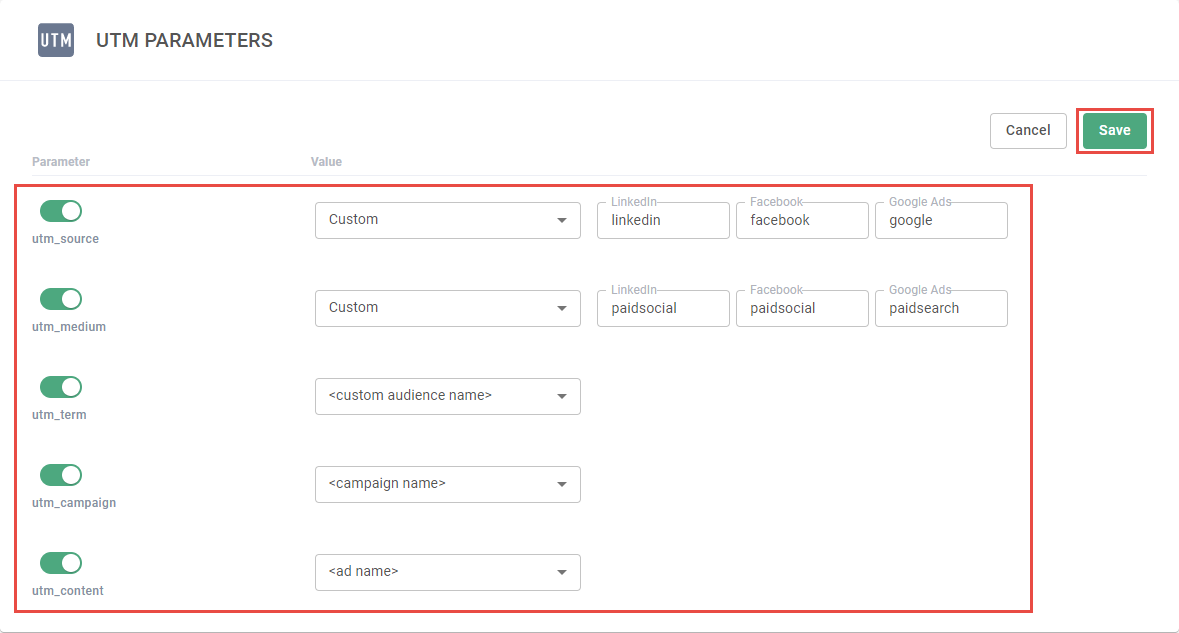
Configure UTMs
Tip: Read How to: Configure UTM parameters to learn about setting up your default UTM parameters.
Click to expand UTM Parameters and review your UTMs.
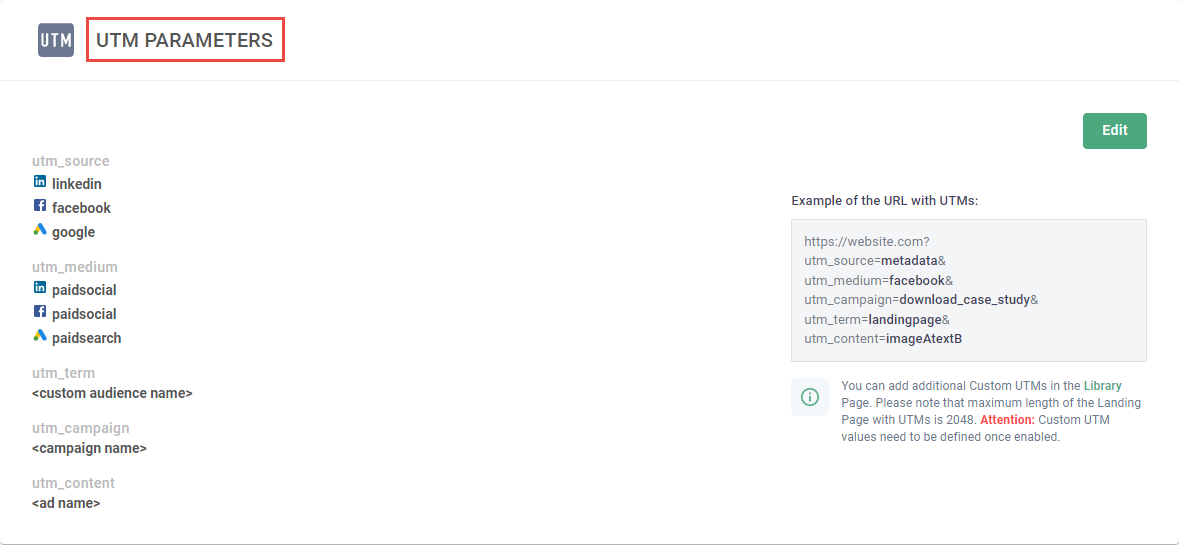
(Optional) Click Edit to update and Save your UTMs.
Enter Budget Group, dates and launch campaign
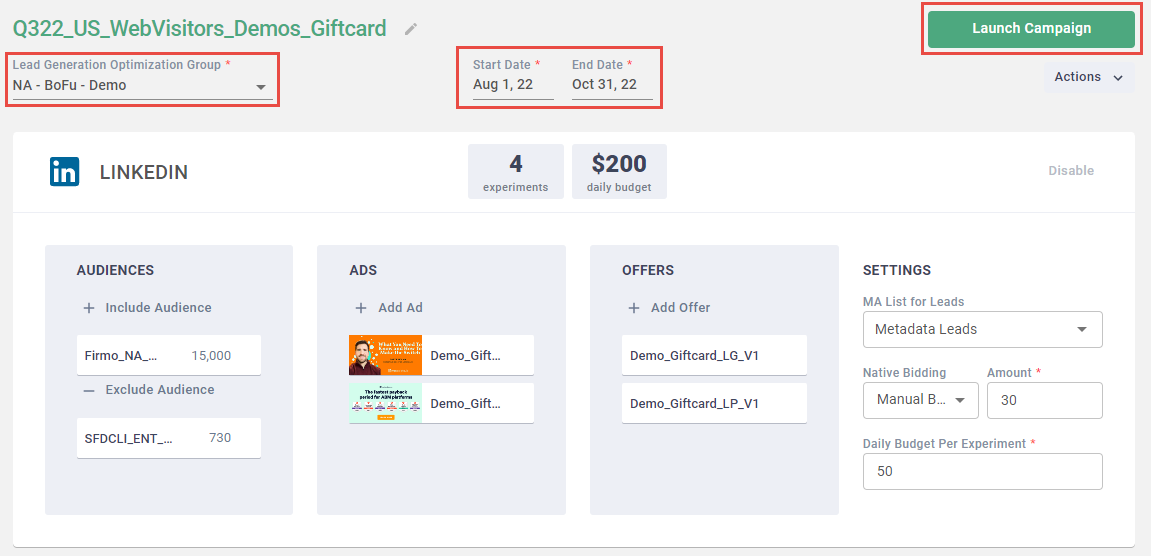
Select your Budget Group.
Tip: Read How to: Create Budget Groups for information about creating budget groups with best practices.
Set the Start Date and End Date for your campaign.
Tip: Give your campaign at least two months to reach optimization and see the best performance.
Click Launch Campaign to launch your campaign.
Conclusion
Congratulations on launching your campaign! Next, read How to: Make the most of your pacing to learn about optimizing your campaigns based on key performance metrics.